The Hidden Cost of Messy SharePoint Permissions Before and After Migration

, updated 16 min read

Topics: SharePoint Online, Microsoft 365, SharePoint Migration, SharePoint Permissions, Microsoft 365 Governance, Copilot Readiness, Information Governance, External Sharing, Security
TL;DR
Before and after a SharePoint migration, IT leaders should review permissions as part of the migration strategy, not as an afterthought.
A permission review should answer:
- Who owns each site, library, department, client, or project area?
- Which users and groups still need access?
- Which permissions are outdated or excessive?
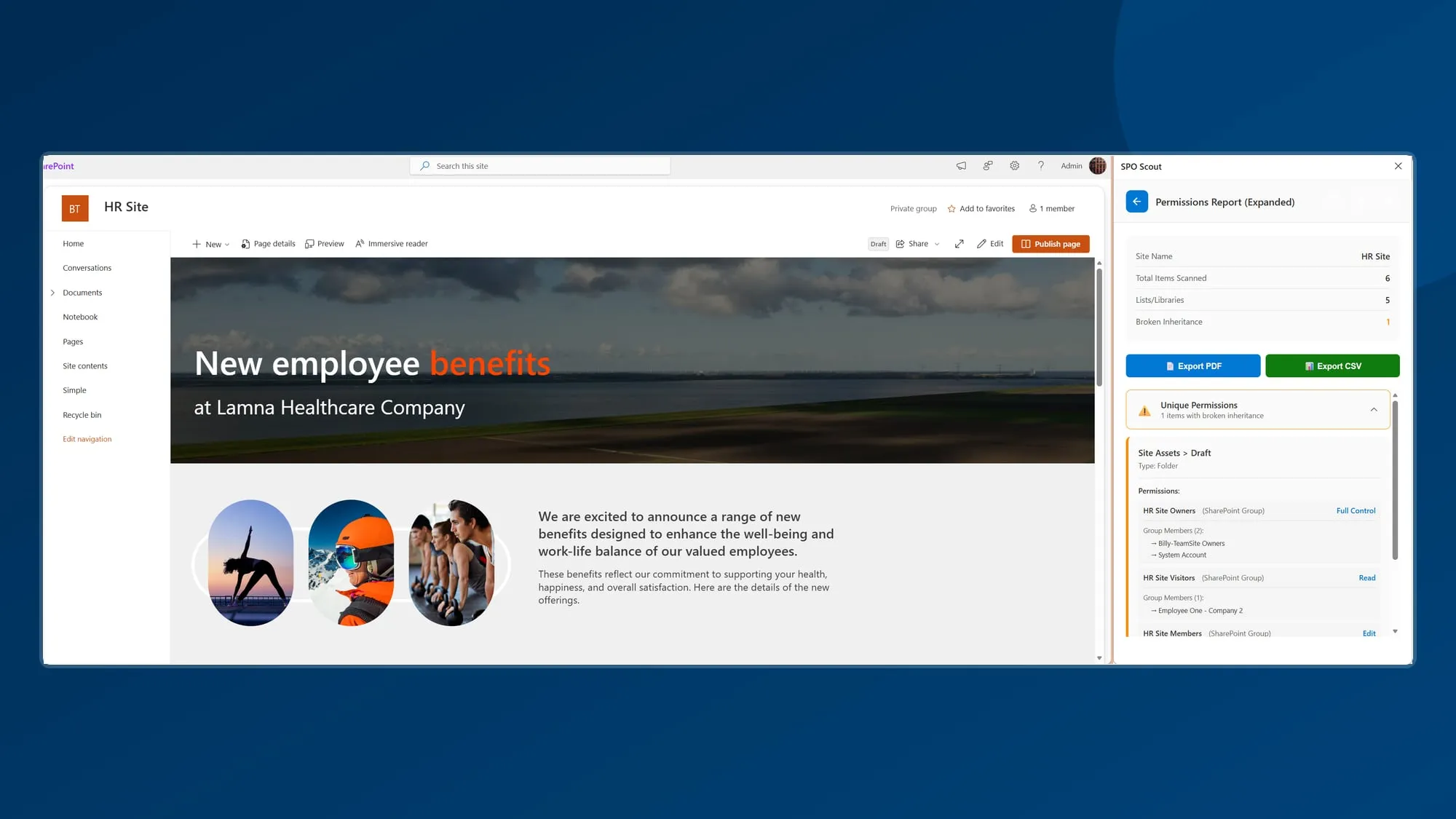
- Where is inheritance broken?
- Which locations contain sensitive, confidential, or regulated content?
- Where is external sharing enabled?
- Which links allow broad access?
- What content could appear through Microsoft Search or Copilot?
- How will access be reviewed after migration?
The goal is not only to move files.
The goal is to create a SharePoint environment that is secure, manageable, understandable, and trusted by the business.
Table of Contents
- Why permissions deserve director-level attention
- Why old file share permissions do not always belong in SharePoint
- The risk of copying permissions without review
- Broken inheritance creates long-term support problems
- Messy permissions affect Microsoft Search and Copilot readiness
- External sharing needs special attention
- Migration is the right time to redesign access
- Use groups instead of one-off user access
- Create a permission review process after migration
- What IT Directors should ask before approving migration
- Real-world scenario
- Practical recommendations
- Business impact
- Final thoughts
- FAQ
Why permissions deserve director-level attention
SharePoint permissions are often treated as an admin task.
Someone needs access. Someone gets added. A user cannot open a file. A ticket gets created. A folder is too restricted. Someone breaks inheritance. A client needs access. A sharing link gets created.
Over time, these small decisions can create a large governance problem.
For IT Directors, the issue is bigger than whether a user can open a document.
Permissions affect:
- data security
- client confidentiality
- compliance and records management
- Microsoft Search visibility
- Microsoft 365 Copilot readiness
- external sharing exposure
- user trust
- support workload
- migration timeline
- audit readiness
- business continuity
When permissions are messy, users lose confidence in the platform.
They may stop trusting search results. They may avoid SharePoint because they are not sure where to store documents. They may create private copies in OneDrive. They may ask IT for access repeatedly. They may share files manually instead of using proper libraries, sites, or groups.
That is why permissions should be part of the migration strategy from the beginning.
Why old file share permissions do not always belong in SharePoint
A file share can exist for many years before it is migrated.
During that time, permissions usually evolve in small pieces.
A department gets access.
Then a manager requests an exception.
Then a contractor gets temporary access.
Then a folder is locked down for a project.
Then a team is renamed.
Then employees leave.
Then new employees are added directly instead of through groups.
Then nobody remembers why a folder has unique permissions.
This is normal in many organizations, but it becomes dangerous when those permissions are copied into SharePoint without review.
SharePoint is more visible, more connected, and more integrated with Microsoft 365 than a traditional network drive.
Content can surface through:
- SharePoint search
- Microsoft Search
- Teams
- OneDrive sync
- Delve-style discovery experiences
- Microsoft Graph
- Copilot and future AI-powered experiences
- shared links
- embedded files and web parts
- third-party integrations
That does not mean SharePoint exposes content users do not have permission to access. SharePoint respects permissions.
But if the permissions are wrong, too broad, or outdated, the platform may correctly show content to people who should not have access anymore.
The permission problem is not that SharePoint ignores security.
The problem is that SharePoint can make old security mistakes more visible.
The risk of copying permissions without review
Copying permissions from file shares may feel like the lowest-risk approach because it preserves what users already have.
But this can also preserve years of bad access decisions.
Common problems include:
- former employees still included through old groups
- department groups that no longer match the current organization
- temporary project access that was never removed
- nested security groups that nobody understands
- direct user permissions instead of role-based groups
- folder-level exceptions that are difficult to audit
- sensitive documents stored inside broadly accessible areas
- inconsistent access between departments, projects, and client areas
- unclear owners who cannot confirm whether access is still valid
A migration should not automatically copy every access decision from the past.
It should ask whether those access decisions still make sense.
This does not mean every permission must be redesigned from scratch. That may be unrealistic for large environments.
But high-risk areas should be reviewed before migration, especially areas involving:
- finance
- HR
- legal
- executive content
- client records
- contracts
- confidential project files
- regulated documents
- personally identifiable information
- external collaboration
If your organization is planning a file share migration, I wrote a companion guide on what IT Directors should decide before the first file moves.
Broken inheritance creates long-term support problems
In SharePoint, permissions are easiest to manage when access is applied cleanly at the site, Microsoft 365 group, SharePoint group, or library level.
Problems usually grow when too many files and folders have unique permissions.
This is often called broken inheritance.
In simple terms, broken inheritance means an item no longer follows the permission rules of its parent location.
For example:
- a site has one permission model
- a library has a different permission model
- a folder inside that library has different permissions again
- a file inside that folder has another unique permission set
This may solve one short-term request, but it creates long-term complexity.
Too much broken inheritance can make it harder to answer basic questions:
- Who has access to this content?
- Why does this person have access?
- Which group controls this folder?
- Is this access inherited or unique?
- Can the business owner approve this access?
- What will happen if we move this folder?
- What happens if this library is connected to Teams?
For administrators, this increases support time.
For business users, it creates confusion.
For directors, it creates risk because nobody can easily explain or validate access.
Messy permissions affect Microsoft Search and Copilot readiness
This is one of the most important reasons to review permissions now.
Many organizations are preparing for Microsoft 365 Copilot or other AI-assisted Microsoft 365 experiences.
Copilot and Microsoft Search are only useful when the content underneath them is governed properly.
If users have access to content they should not see, AI-powered experiences may make that access more noticeable.
The issue is not that Copilot is bypassing permissions.
The issue is that Copilot can help users find and summarize information they already have permission to access.
If permissions are too broad, stale, or poorly managed, then the organization may have a visibility problem.
Examples:
- A user has access to an old HR folder through a legacy group.
- A department has access to client documents from a project they no longer support.
- A former contractor account or guest user still exists in a site.
- Sensitive files are stored inside a broadly accessible project site.
- A sharing link allows access wider than intended.
- A site owner does not know who has access to their site.
These problems already matter without Copilot.
Copilot just raises the urgency because content visibility becomes more powerful.
Before enabling AI-powered experiences broadly, organizations should review:
- site ownership
- sensitivity labels
- retention labels
- external sharing
- unique permissions
- broad access groups
- stale content
- inactive sites
- guest users
- overshared libraries
For a deeper guide on preparing SharePoint for AI, see the SharePoint Copilot readiness checklist.
Planning a SharePoint migration? Start with content, ownership, permissions, and governance before the first file moves. View SharePoint migration services.
External sharing needs special attention
External sharing is useful, especially for organizations that work with clients, vendors, consultants, partners, and contractors.
But it needs governance.
The risk is not external sharing itself.
The risk is unmanaged external sharing.
During and after migration, organizations should review:
- which sites allow external sharing
- whether anonymous links are allowed
- whether guest users are reviewed regularly
- whether client-specific areas are properly separated
- whether external users can access only what they need
- whether sharing links expire
- whether site owners understand how to share safely
- whether sensitive content is protected with labels or policies
For client-facing organizations, this is especially important.
A poorly designed permission model can create accidental exposure between clients, projects, departments, or vendors.
A clean model should make it easy to explain:
- who can access the content
- why they have access
- who approved it
- who owns the area
- when access should be reviewed
- how external users are removed when no longer needed
Migration is the right time to redesign access
A migration is one of the best opportunities to clean up permissions because the organization is already reviewing content structure.
Before content moves, ask:
- Is this folder still needed?
- Who owns it?
- Who should access it?
- Is the current permission model still valid?
- Should this become a separate SharePoint site?
- Should this be a library inside an existing site?
- Should this stay restricted?
- Should this be archived?
- Should this be deleted?
- Should external sharing be allowed?
The goal is not to make the permission model perfect.
The goal is to make it understandable and supportable.
A good migration permission strategy usually includes:
- identifying high-risk content areas
- reviewing existing groups and access patterns
- mapping business owners to major content areas
- deciding which permissions should be preserved
- deciding which permissions should be redesigned
- documenting exceptions
- testing access after migration
- getting business sign-off before launch
- scheduling post-migration access reviews
Use groups instead of one-off user access
Direct user permissions are easy in the moment but hard to manage over time.
When possible, access should be assigned through groups.
Depending on the situation, this may include:
- Microsoft 365 groups
- SharePoint groups
- Entra ID security groups
- mail-enabled security groups
- dynamic groups
- role-based access groups
For example, instead of adding individual users directly to a client folder, the organization might use groups like:
- Client A Owners
- Client A Members
- Client A Visitors
- Finance Records Owners
- HR Confidential Members
- Project Alpha External Reviewers
This creates a cleaner access pattern.
When someone joins or leaves a role, the group changes.
The site, library, or folder does not need to be manually edited every time.
Group-based access also makes permission reviews easier because business owners can review roles instead of hundreds of individual users.
Create a permission review process after migration
Permission cleanup should not end on migration day.
SharePoint permissions change over time because the business changes over time.
New projects start.
Employees move roles.
Vendors come and go.
Clients change.
Departments reorganize.
Sites become inactive.
External users remain longer than expected.
That is why permissions need a review cycle.
A practical post-migration permission review process might include:
- quarterly review of high-risk sites
- semiannual review of external guests
- annual review of department sites
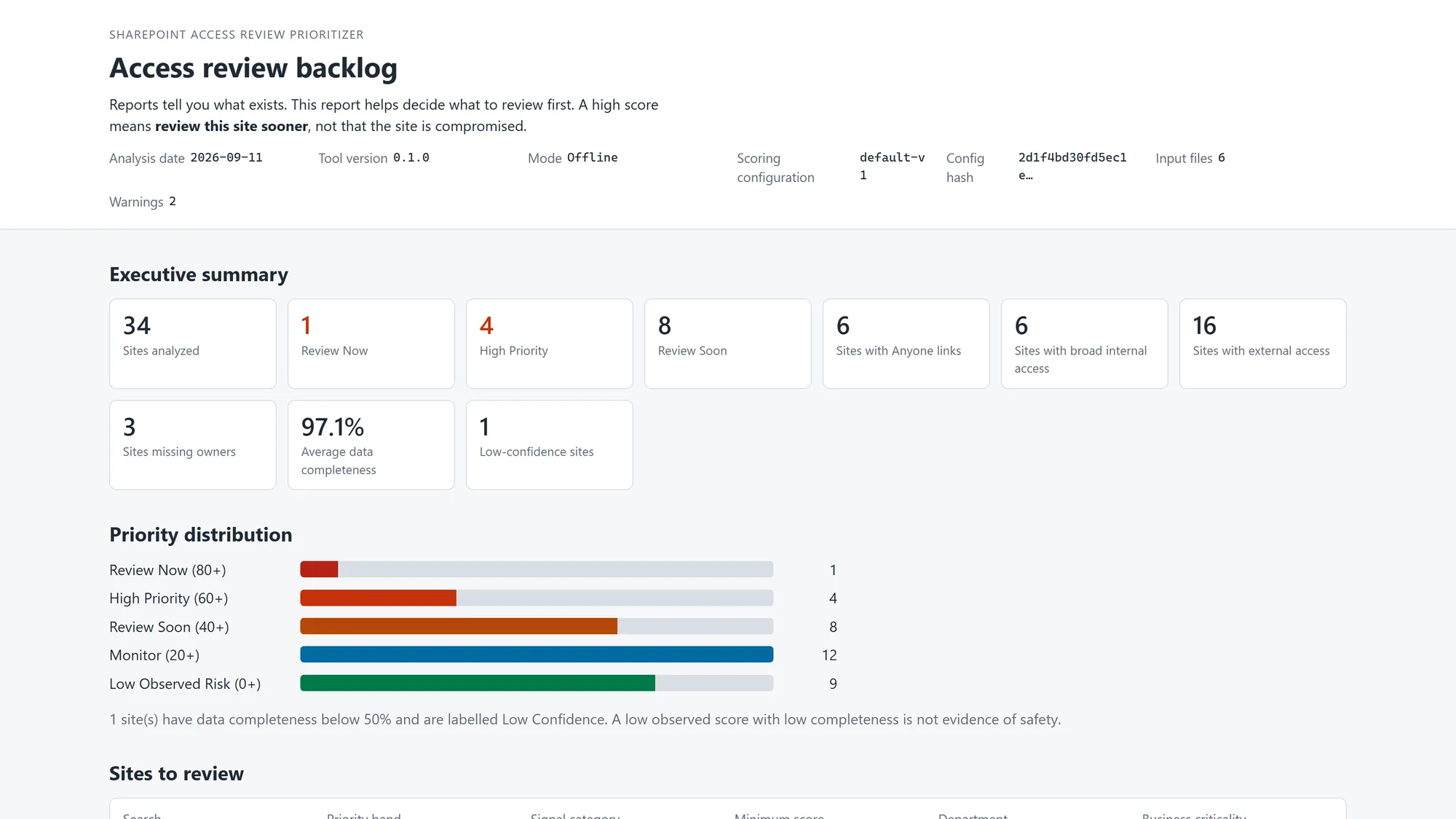
- review of sites with broken inheritance
- review of sites with anonymous or organization-wide sharing links
- review of inactive site owners
- review of sensitive content areas before enabling Copilot broadly
- review of large libraries with many unique permissions
The process does not have to be complicated.
But it does need ownership.
IT can provide reporting, tooling, and guidance.
Business owners should confirm who should have access.
Security or compliance teams should help define policies for sensitive content.
What IT Directors should ask before approving migration
Before approving a SharePoint migration, IT Directors should ask questions that go beyond tool selection and migration speed.
Use this checklist as a starting point.
Ownership
- Do we know who owns each department, client, project, or business area?
- Are site owners responsible for confirming access?
- Do owners understand their role after migration?
Existing permissions
- Are we copying old permissions or reviewing them?
- Which file share areas have complex permissions?
- Where is inheritance broken?
- Which groups are outdated or unclear?
- Are users added directly instead of through groups?
Sensitive content
- Which areas contain HR, finance, legal, executive, client, or regulated data?
- Should these areas have separate sites or libraries?
- Are sensitivity labels or retention labels required?
- Should access be more restrictive than it is today?
External sharing
- Which sites need external collaboration?
- Are anonymous links allowed?
- Are external users reviewed regularly?
- Can client or vendor access be explained clearly?
Copilot and search readiness
- Could Microsoft Search surface sensitive content to people who technically have access but should not?
- Are permissions clean enough before enabling Copilot broadly?
- Are stale and overshared documents being cleaned up?
Post-migration governance
- How often will permissions be reviewed?
- Who reviews guest access?
- Who handles access requests?
- What is the process when employees change roles?
- How will exceptions be documented?
Real-world scenario
Imagine an organization migrating a 5 TB file share into SharePoint.
The file share contains department folders, client folders, project folders, finance files, archived documents, and years of old permissions.
The technical migration tool can move the content.
But the tool cannot decide whether the permissions still make sense.
During discovery, the team finds:
- some folders are owned by people who left the company years ago
- some client folders have access from old project teams
- some sensitive finance files are inside a broadly accessible department folder
- some users have direct access instead of group-based access
- some folders have unique permissions five or six levels deep
- some external accounts were never removed
- some content should be archived instead of migrated
If the organization simply migrates everything as-is, SharePoint will inherit the same problems.
Users may get access errors.
IT may receive more support tickets.
Sensitive content may remain too broadly accessible.
Site owners may not know who has access.
Copilot readiness may be delayed.
But if the organization reviews permissions before migration, it can make better decisions:
- high-risk content gets separate treatment
- business owners confirm access
- outdated groups are retired
- sensitive libraries are restricted
- external users are reviewed
- permissions are simplified where possible
- post-migration Microsoft 365 governance is defined
The result is not just a migrated file share.
It is a cleaner, safer, and more manageable Microsoft 365 environment.
Practical recommendations
1. Start with a permissions inventory
Before migrating, identify where access is simple and where it is complex.
Look for:
- unique permissions
- deeply nested folders
- direct user access
- unknown groups
- external users
- sensitive areas
- broad access groups
- abandoned folders
2. Prioritize high-risk areas first
Not every folder needs the same level of review.
Start with areas involving:
- HR
- finance
- legal
- client data
- executive files
- contracts
- regulated records
- external collaboration
3. Map permissions to business ownership
Every major content area should have an owner.
The owner should help answer:
- who needs access
- what access level they need
- whether external sharing is appropriate
- whether the content should be migrated, archived, or deleted
4. Reduce direct user permissions
Use role-based groups where possible.
This makes access easier to manage, review, and explain.
5. Avoid excessive folder-level security
Folder-level permissions may be necessary sometimes, but they should not become the default design.
When folder-level security becomes too complex, consider:
- separate libraries
- separate sites
- clearer ownership boundaries
- better information architecture
- metadata instead of deep folder nesting
6. Review external access separately
External users should not be treated as just another permission entry.
They need their own review process.
Ask:
- who invited them?
- why do they need access?
- what can they access?
- when should access expire?
- who approves renewal?
7. Validate permissions after migration
Do not assume permissions migrated correctly.
Test with real user scenarios:
- department member
- department owner
- visitor/read-only user
- external guest
- project team member
- user who should not have access
8. Document the governance model
Document:
- site owners
- access groups
- external sharing rules
- review schedule
- request process
- exception process
- support process
Governance does not need to be a 50-page document.
It needs to be clear enough for the business and IT to follow.
Business impact
Cleaning up permissions before and after migration creates real business value.
It can reduce:
- security exposure
- audit risk
- help desk tickets
- user confusion
- failed access requests
- accidental oversharing
- migration rework
- Copilot readiness concerns
It can improve:
- trust in SharePoint
- confidence in Microsoft 365 search
- business ownership
- compliance readiness
- user adoption
- external collaboration control
- long-term manageability
For directors, this is the main point:
A SharePoint migration is not successful just because the files moved.
It is successful when the new environment is easier to secure, easier to govern, easier to support, and easier for users to understand.
Final thoughts
Permissions are one of the easiest areas to underestimate in a SharePoint migration.
They are also one of the hardest areas to fix later if they are ignored at the beginning.
A migration can move files into SharePoint.
But clean permissions are what make the environment secure, manageable, and trusted.
If your organization is planning a SharePoint migration or preparing for Microsoft 365 Copilot, a SharePoint permissions audit can help identify access risks before they become bigger problems.
If you are working through a migration, governance cleanup, or permissions audit, I share practical SharePoint and Microsoft 365 guidance on my blog and portfolio. You can also view case studies of past projects.
Need help reviewing SharePoint permissions before or after migration? I help organizations assess permissions, governance gaps, external sharing, and migration readiness. Start a conversation.
FAQ
Should file share permissions be copied directly into SharePoint?
Not always. Some permissions may need to be preserved, but old file share access often includes outdated groups, temporary exceptions, direct user access, and broken inheritance. High-risk areas should be reviewed before migration.
Why do messy permissions matter for Microsoft 365 Copilot?
Copilot respects Microsoft 365 permissions, but if users already have overly broad or outdated access, Copilot may make that content easier to find and summarize. Permission cleanup improves Copilot readiness.
What is broken inheritance in SharePoint?
Broken inheritance happens when a folder, file, library, or site uses different permissions from its parent location. This can be useful in limited cases, but too much broken inheritance makes permissions harder to manage and audit.
How often should SharePoint permissions be reviewed?
High-risk sites should be reviewed quarterly or semiannually. External users, sensitive content, and sites with unique permissions should be reviewed more frequently than low-risk collaboration areas.
Who should own SharePoint permission decisions?
IT can manage the technical configuration, but business owners should confirm who needs access to their content. Security and compliance teams should help define standards for sensitive or regulated information.
If your organization is planning a migration — or already lives with permission sprawl in Microsoft 365 — a focused SharePoint permissions cleanup is usually the fastest way to understand the real risk. A SharePoint governance review covers the broader picture of ownership, external sharing, and lifecycle, and my SharePoint consulting covers cleanup and migration planning end to end. You can reach out here to talk through your environment.
Need to clean up SharePoint permissions?
I help organizations find broken inheritance, broad access groups, stale guests, and risky sharing links, then fix them in an order that site owners can follow.
Free SharePoint planning resource
Before expanding Microsoft 365 usage, review your SharePoint risks.
Use the readiness checklist to review permissions, ownership, external sharing, retention, and lifecycle gaps before they become production issues.
Get the Checklist
SharePoint architect & Microsoft 365 consultant • 16+ years of experience
If you have questions about your SharePoint environment, feel free to reach out.