How to Access SharePoint REST API Using Postman
Billy Peralta
October 16, 2022

Do you want to try connecting through SharePoint using Postman? Here is the step-by-step tutorial how to connect Postman with REST API
Requirements
- Postman installed in your machine(https://www.postman.com/)
- SharePoint
Registering an app in SharePoint
Go to <sitecollectionurl>/_layouts/15/appregnew.aspx to login your app in SharePoint. And following the following steps:
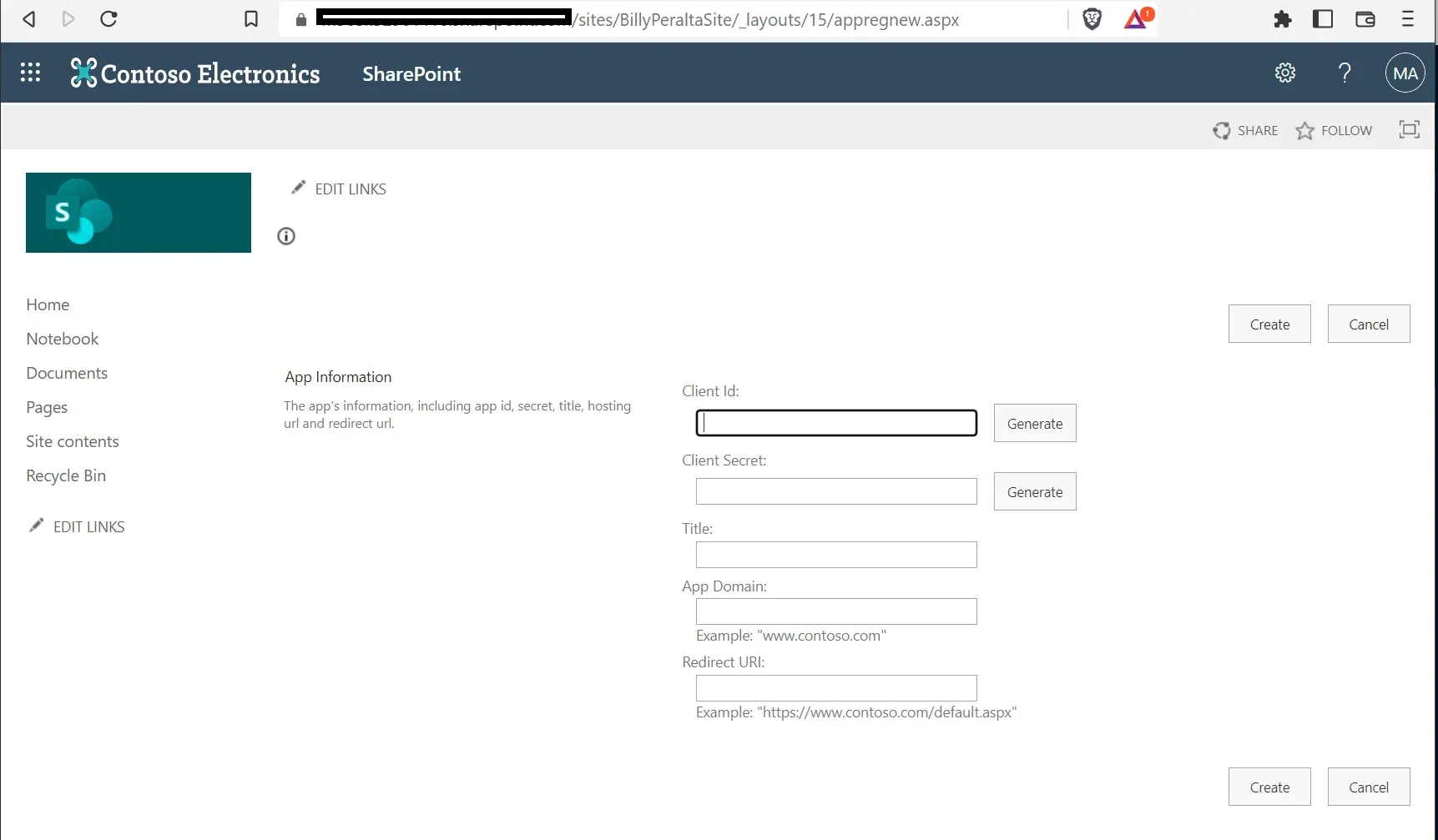
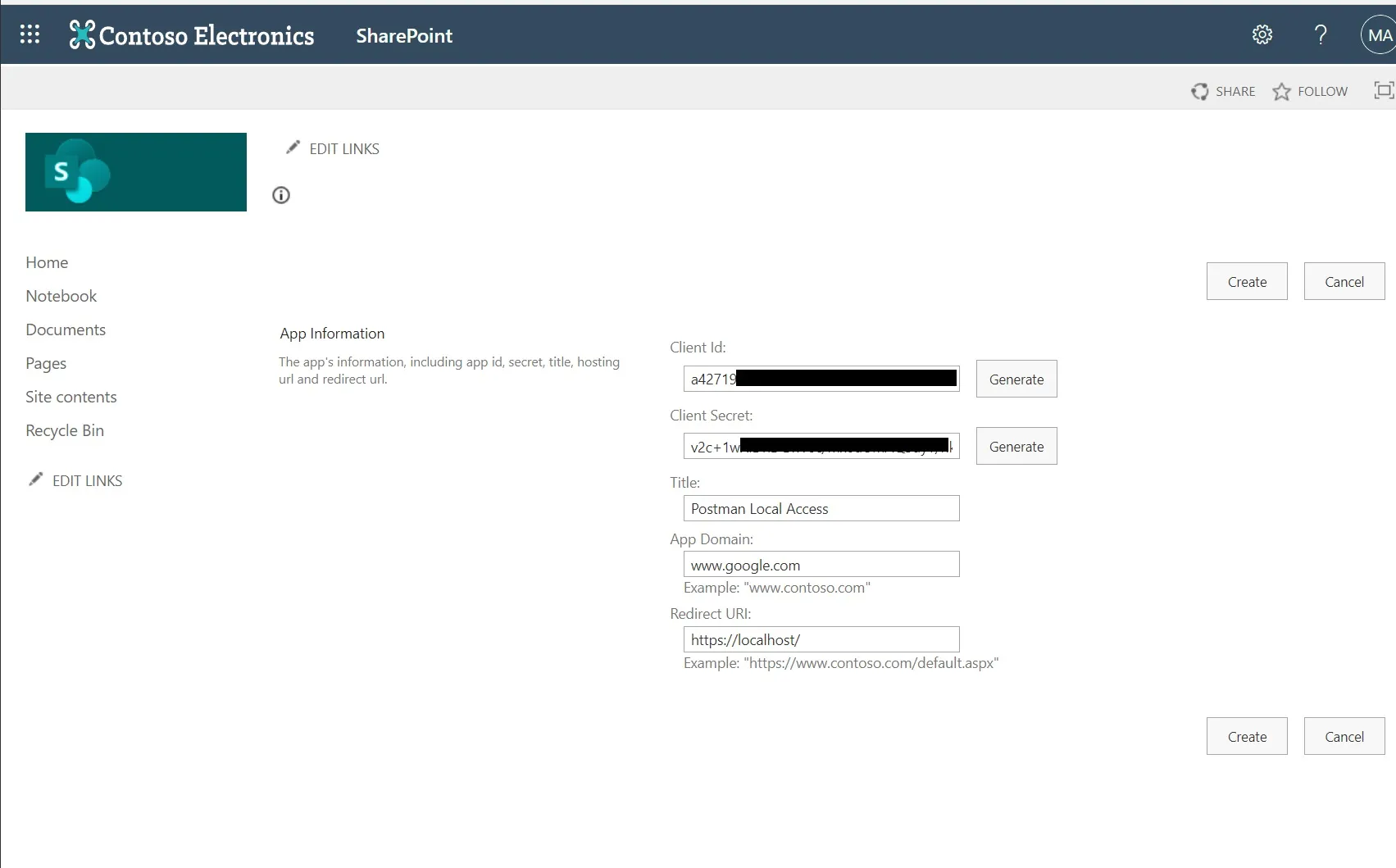
- Click on “Generate” button for the “Client Id”. Save the value you will get in a notepad
- Click on “Generate” button for the “Client Secret”. Save the value you will get in a notepad
- For the Title, kindly type in the name of your App. Ex: “Postman Local Access”
- For App Domain, just type in www.google.com.
- Redirect Url “https://localhost/”
- Press “Create” to continue registering your app.
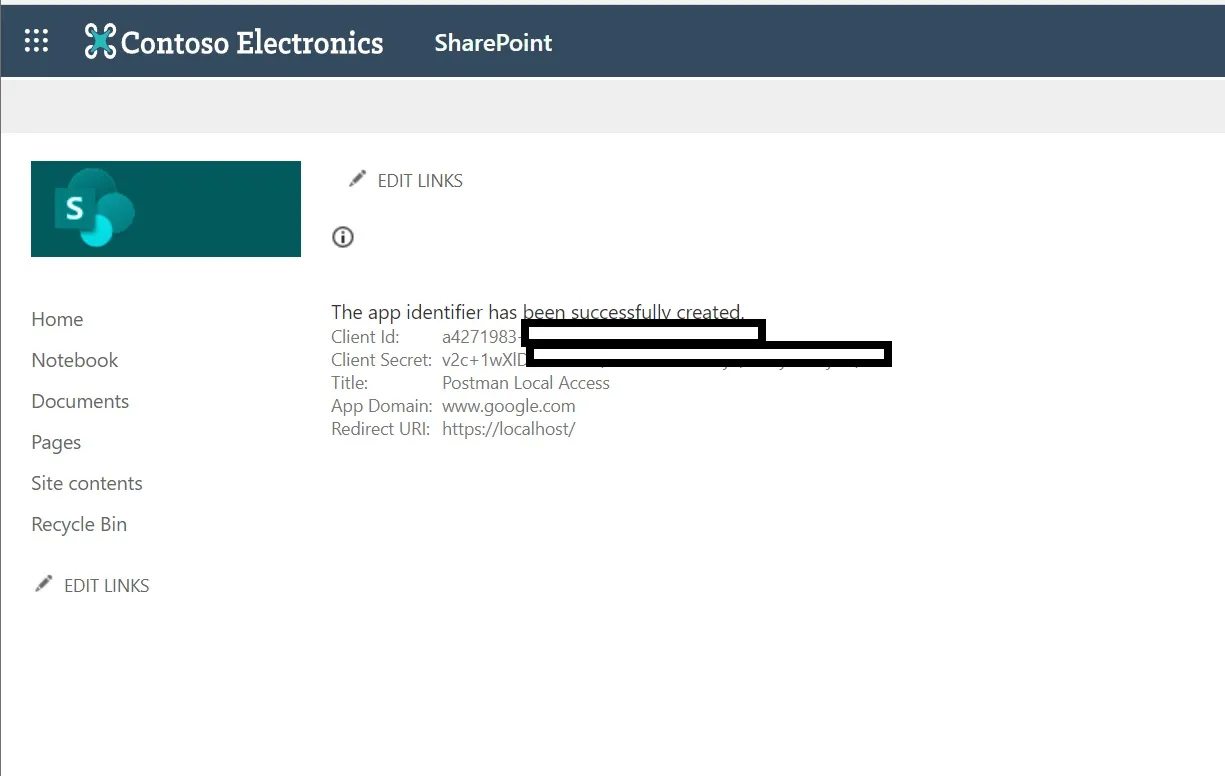
You should be redirected to a success page
Giving permission to the app
After registering, we need to define what kind of permission we want to give the app.
Go to <sitecollectionurl>/_layouts/15/appinv.aspx
Note: if you want to give permission to your whole tenant, you need to use the following url <SP admin url>/_layouts/15/appinv.aspx
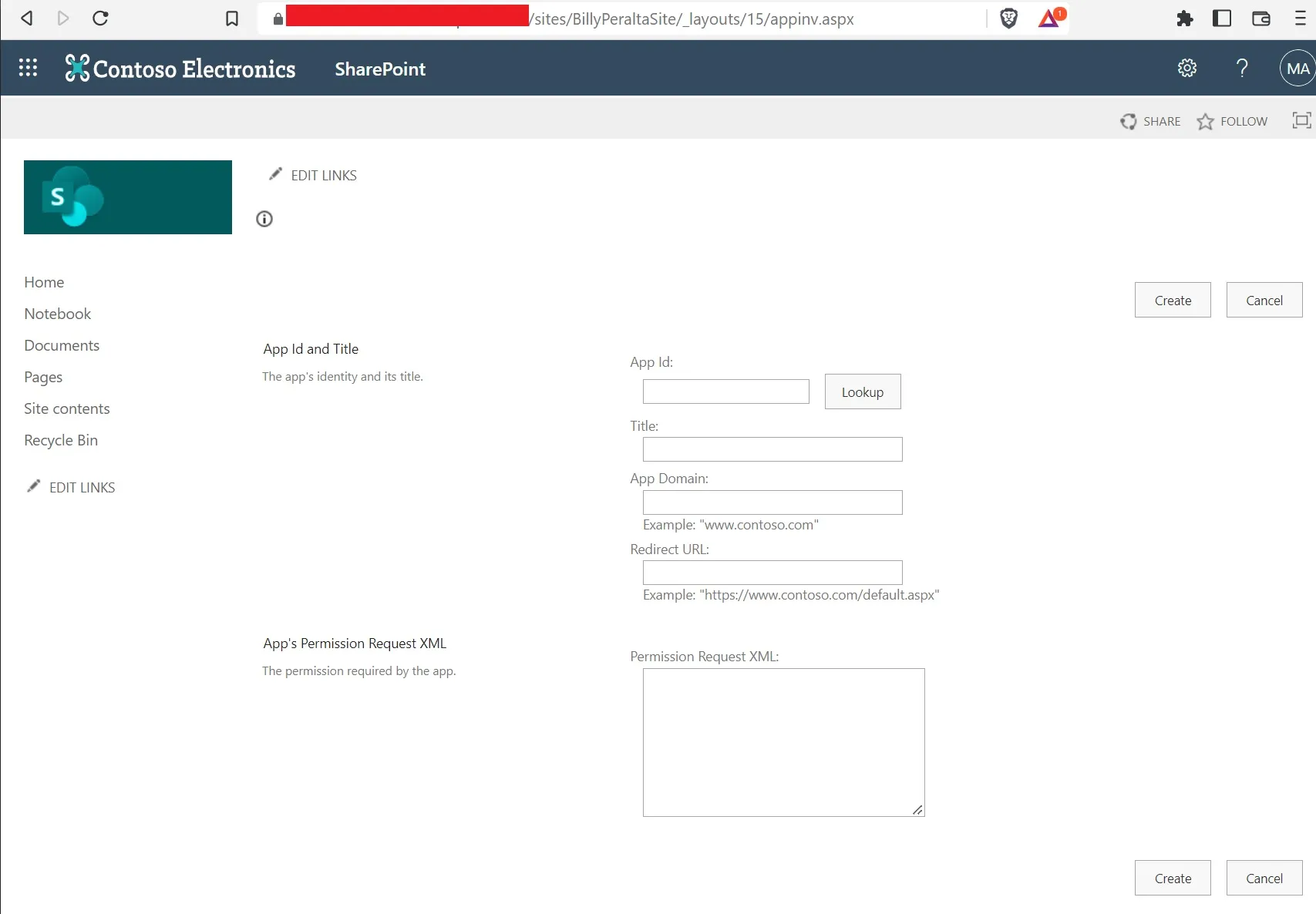
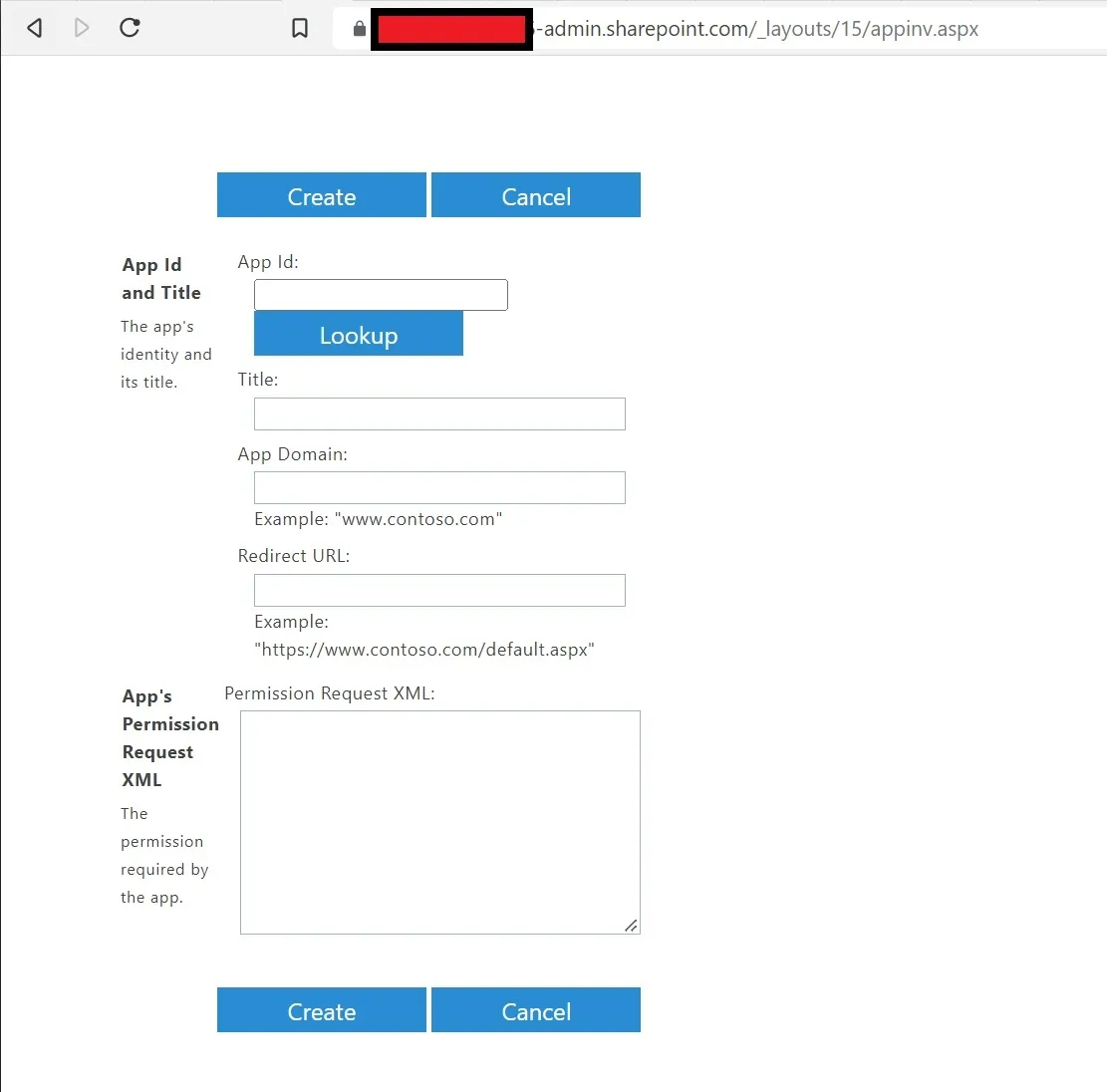
For the “App Id,” try entering in the “Client ID” that we generated earlier, then press the “Lookup” button.
While for the “Permission Request XML” typer the following. Make you replace your Scope
<AppPermissionRequests AllowAppOnlyPolicy="true">
<AppPermissionRequest Scope="http://<<tenanturl>>/content/sitecollection/web" Right="FullControl" />
</AppPermissionRequests>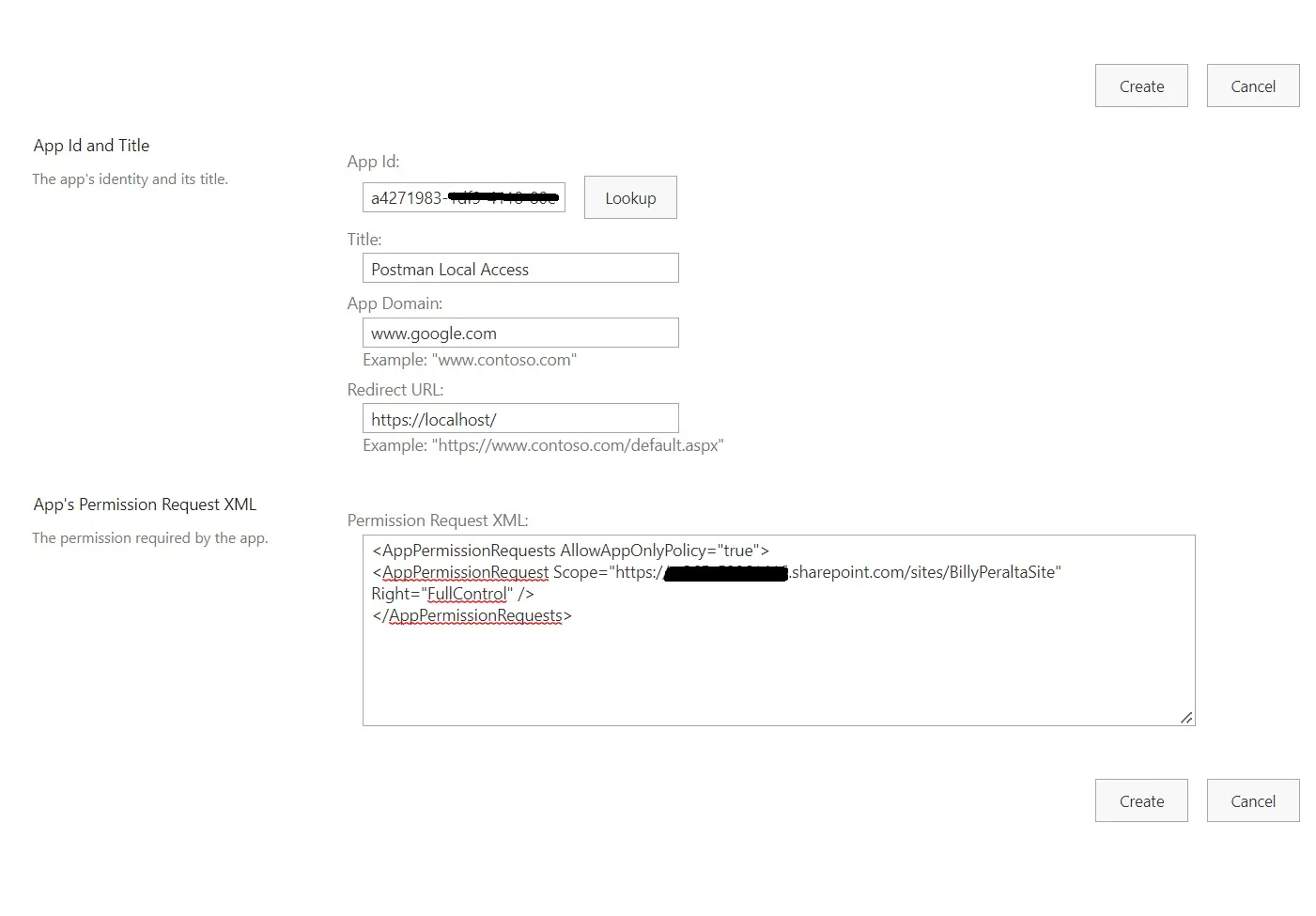
Getting the “Tenant Id”
If you know your Tenant ID, feel free to skip this part. But here is the URL to get your Tenant ID
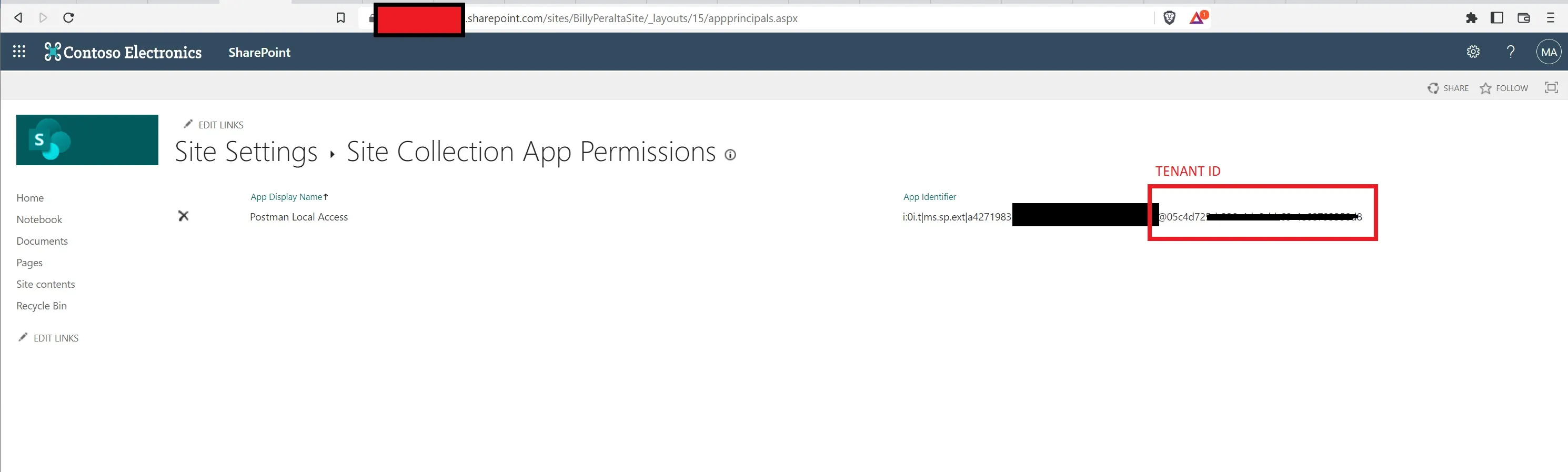
Go to <sitecollectionurl>/_layouts/15/appprincipals.aspx
Your Tenant ID will be the GUID after the ”@” character
Accessing SharePoint from Post machine
We need to generate first the access token of SharePoint before we can start using SharePoint REST API. Open your postman and do the following.
URL: https://accounts.accesscontrol.windows.net/<Tenant ID>/tokens/OAuth/2/
Method: Post
Header: {
  "grant_type": "client_credentials",
  "client id": <Client ID>@<Tenant ID>
  "client secret": <Client Secret>"
  "resource": "00000003-0000-0ff1-ce00-000000000000/<sharepoint root site>.sharepoint.com@<Tenant ID>"

}
After hitting Send in Postman, you should receive an “access_token” reply
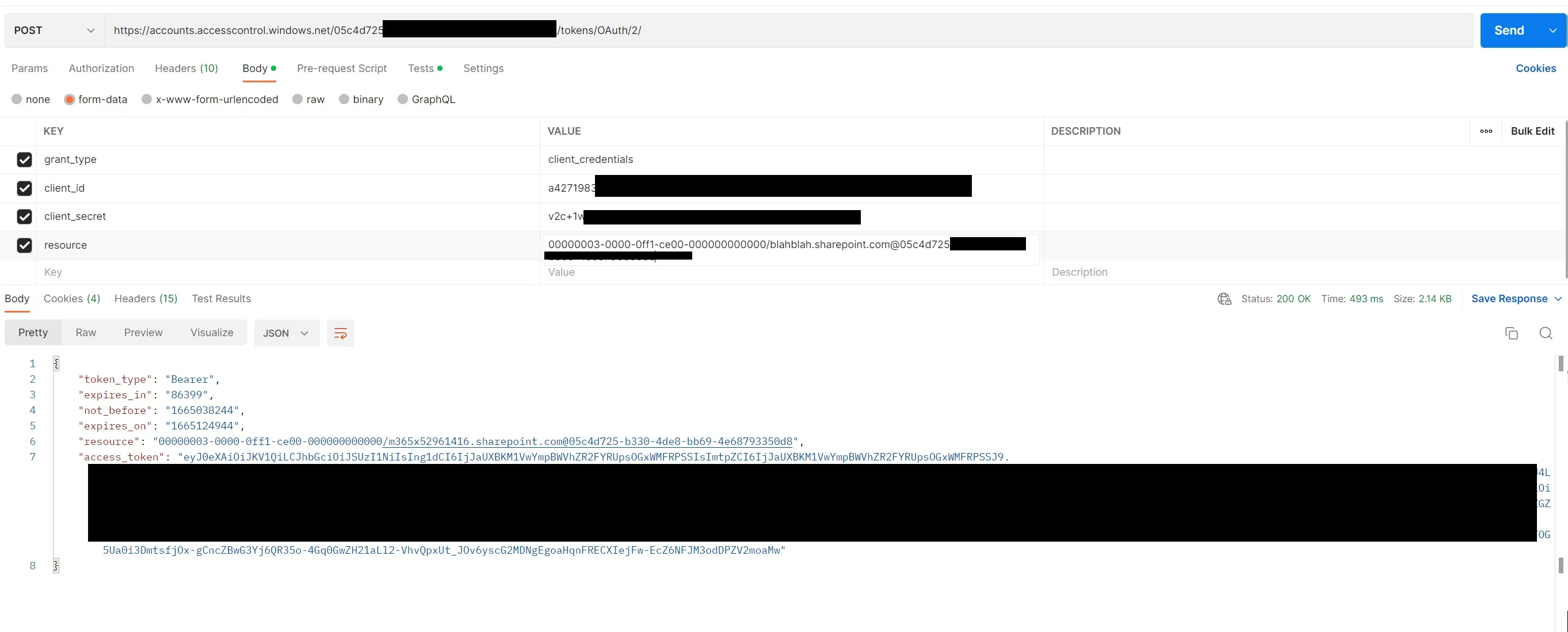
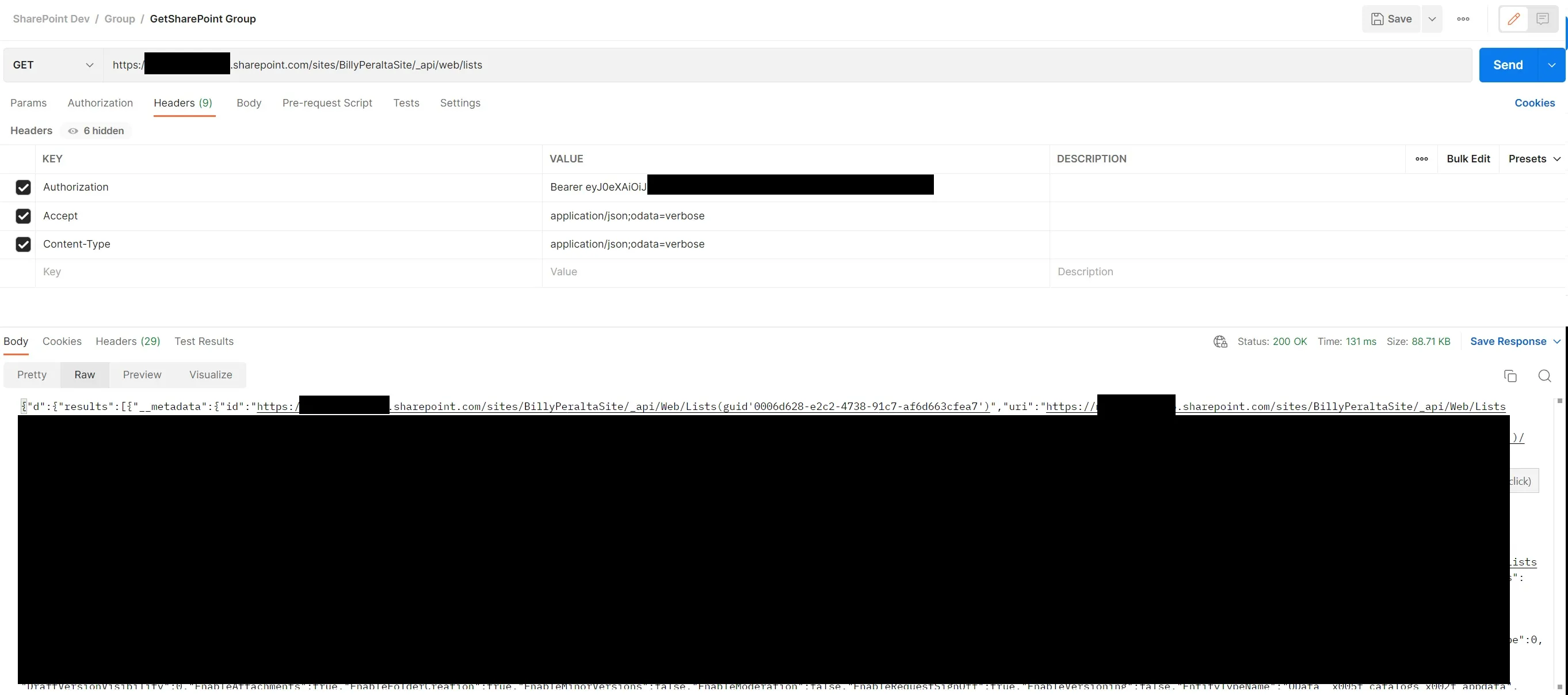
Copy the whole “Access token,” and feel free to use it to access your SharePoint REST API using Postman. As an example, I am going to get all available Lists on my site
URL: https://blahblah.sharepoint.com/sites/BillyPeraltaSite/_api/web/lists
Method: GET
Header: {
  "Authorization": "Bearer <access_token>",
  "Accept": "application/json;odata=verbose"
  "Content-Type": "application/json;odata=verbose"
}
Planning a SharePoint migration or cleanup?
I help organizations assess SharePoint environments, clean up stale content, review permissions, and build practical migration roadmaps before moving to Microsoft 365.
Billy Peralta
SharePoint & Microsoft 365 Specialist • 16+ Years Experience
If you have questions about your SharePoint environment, feel free to reach out.
Planning a SharePoint migration or cleanup?
I help organizations assess SharePoint environments, clean up stale content, review permissions, and build practical migration roadmaps before moving to Microsoft 365.