Replace Title Column with People Picker in Power Apps SharePoint Forms
Billy Peralta
November 17, 2022

Can you replace your Single Line column (or your Title Column) with a People Picker dropdown using PowerApps?
Here are the steps on how to do it.
Create a SharePoint Lists
Let’s start by creating our SharePoint List First.
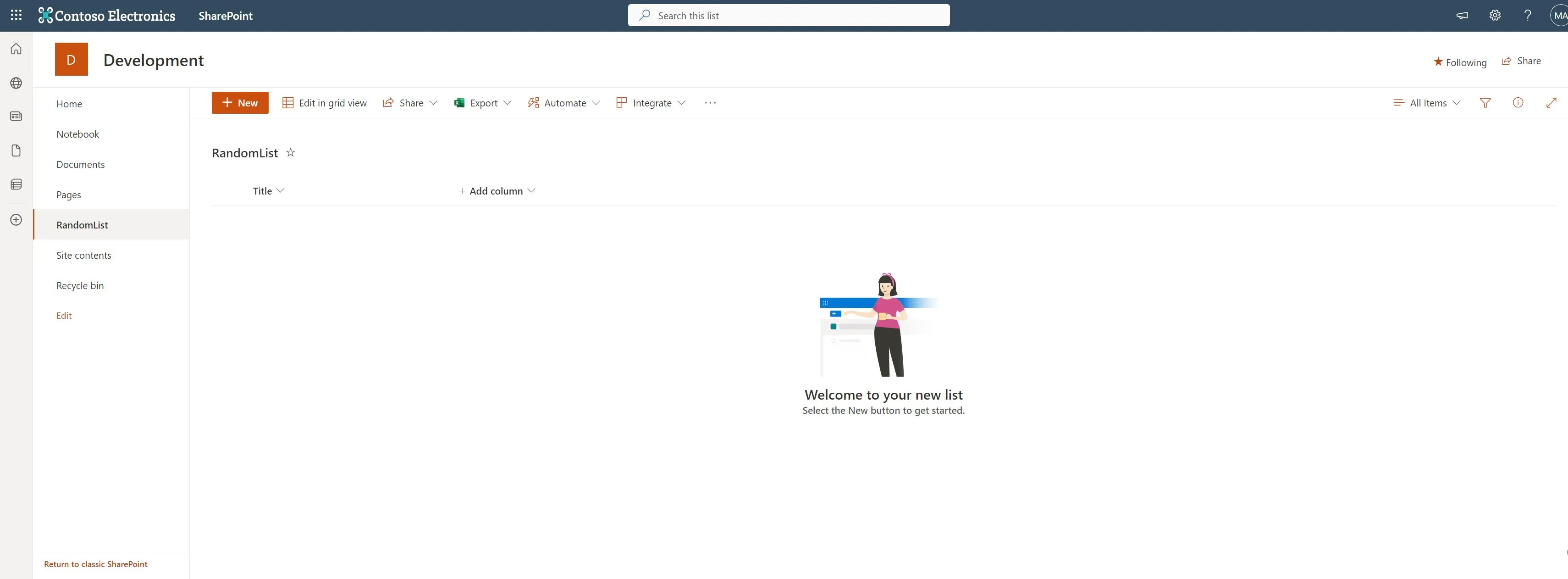
Now let’s customize the Form using PowerApps.
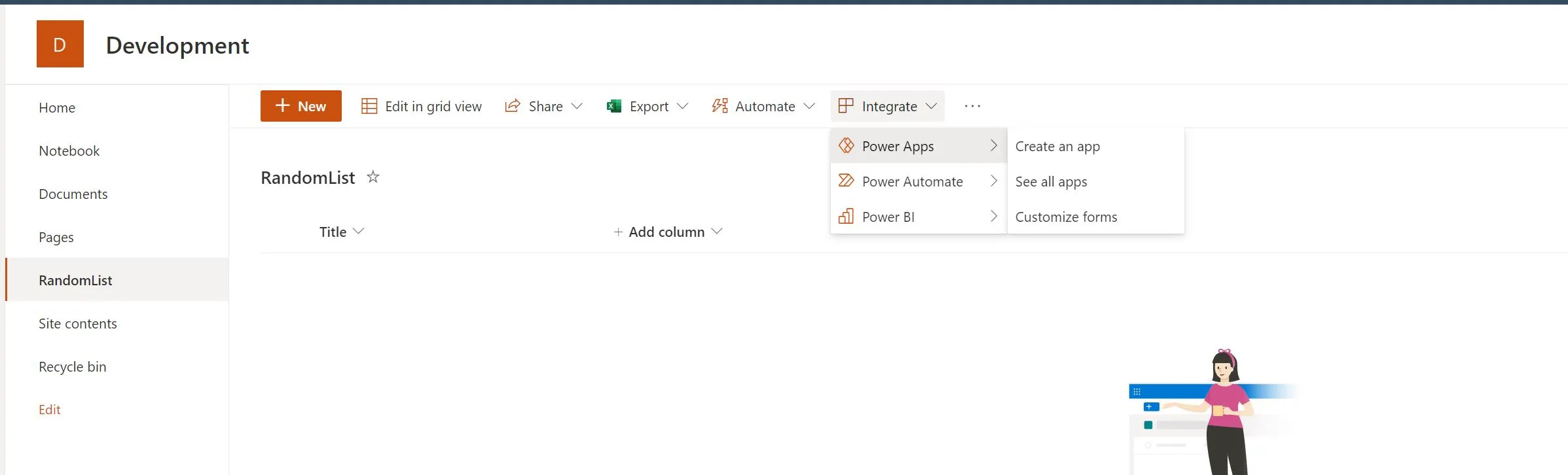
Customizing the form
The https://make.powerapps.com/ page should show up, which created the Form based on the column you have in the list.
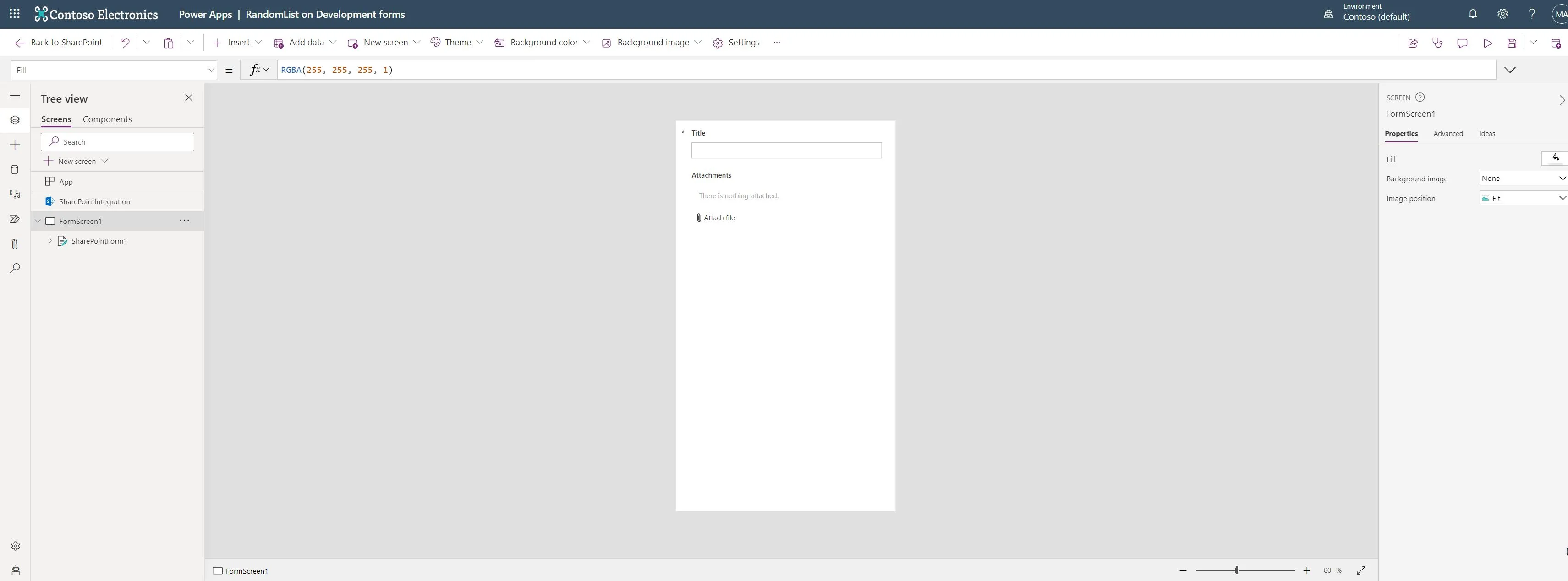
Since we wanted to replace the “Title” column with the People Picker field, we had to use “Office 365 Users”.
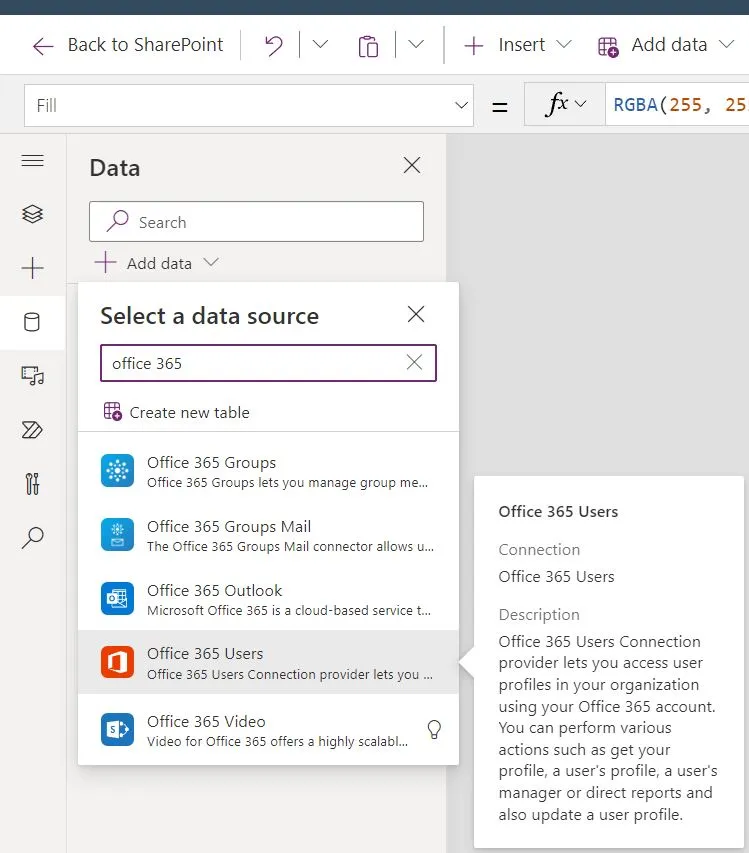
After adding the new Data source, we will insert the Combo Box components(ComboBox1) in our Form. I will add it to the Data Card on my Form.
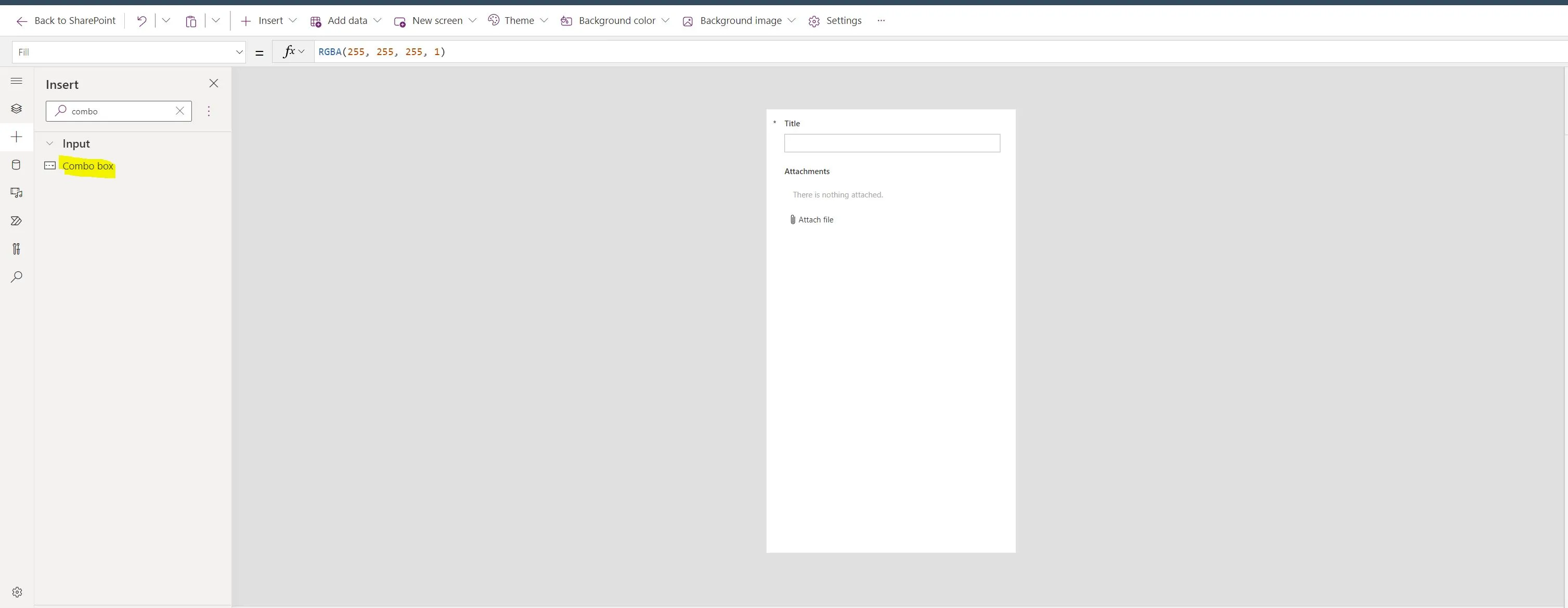
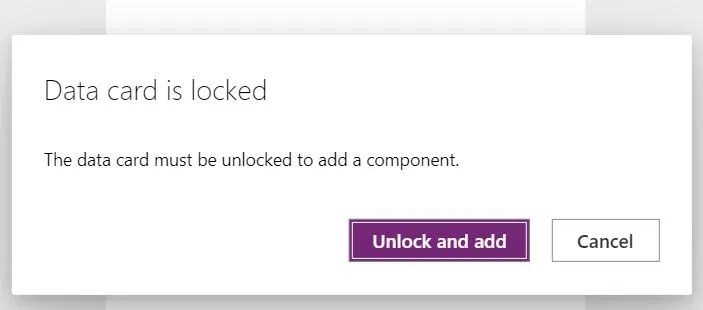
Note: If you get asked if you want to unlock your Data Card, just press “Unlock and Add”
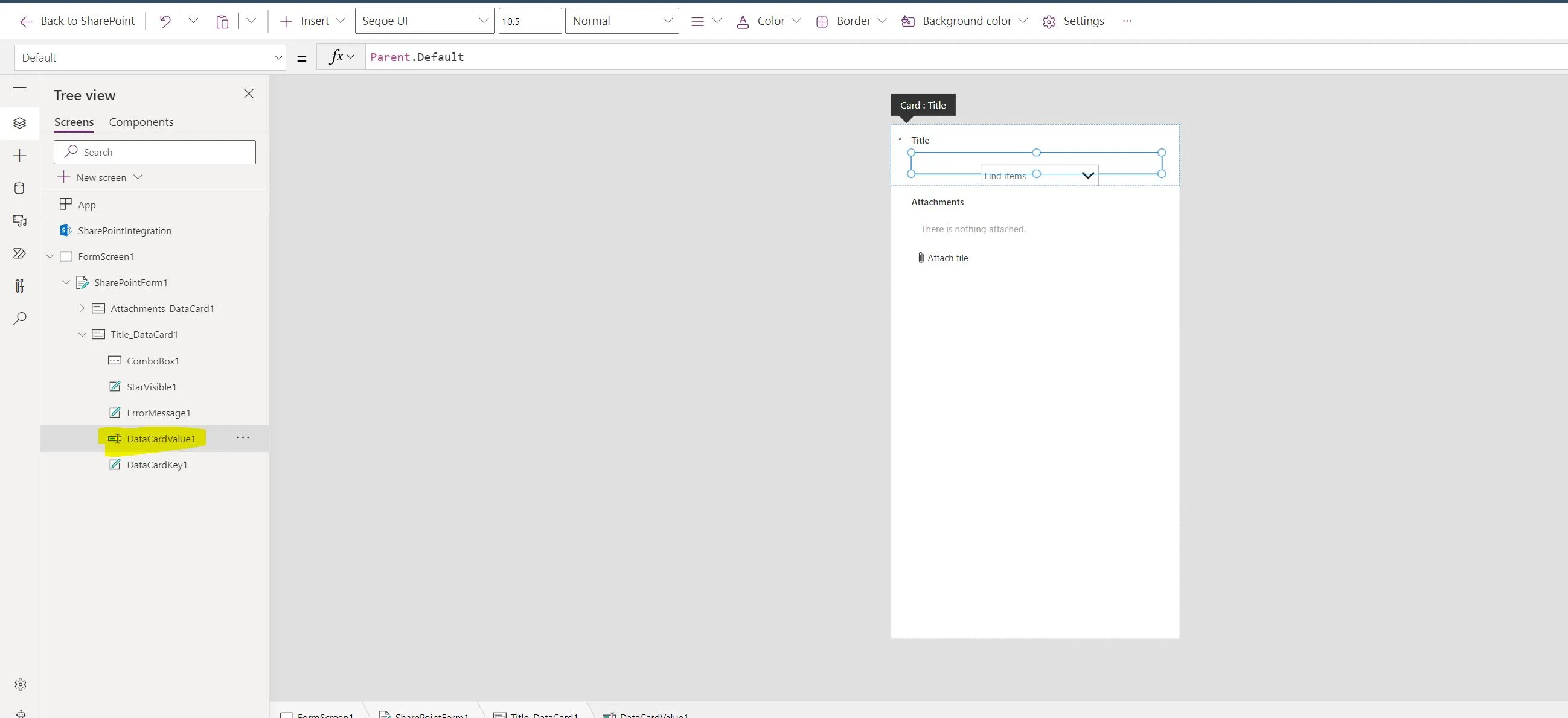
Feel free to delete the existing Single Line Textbox
Select the newly created ComboBox(ComboBox1), and on its “Items” Property, we will use the “Office 365 Users” data source we created earlier, but we will limit the item we will show.
Office365Users.SearchUser({searchTerm:ComboBox1.SearchText, top:10 })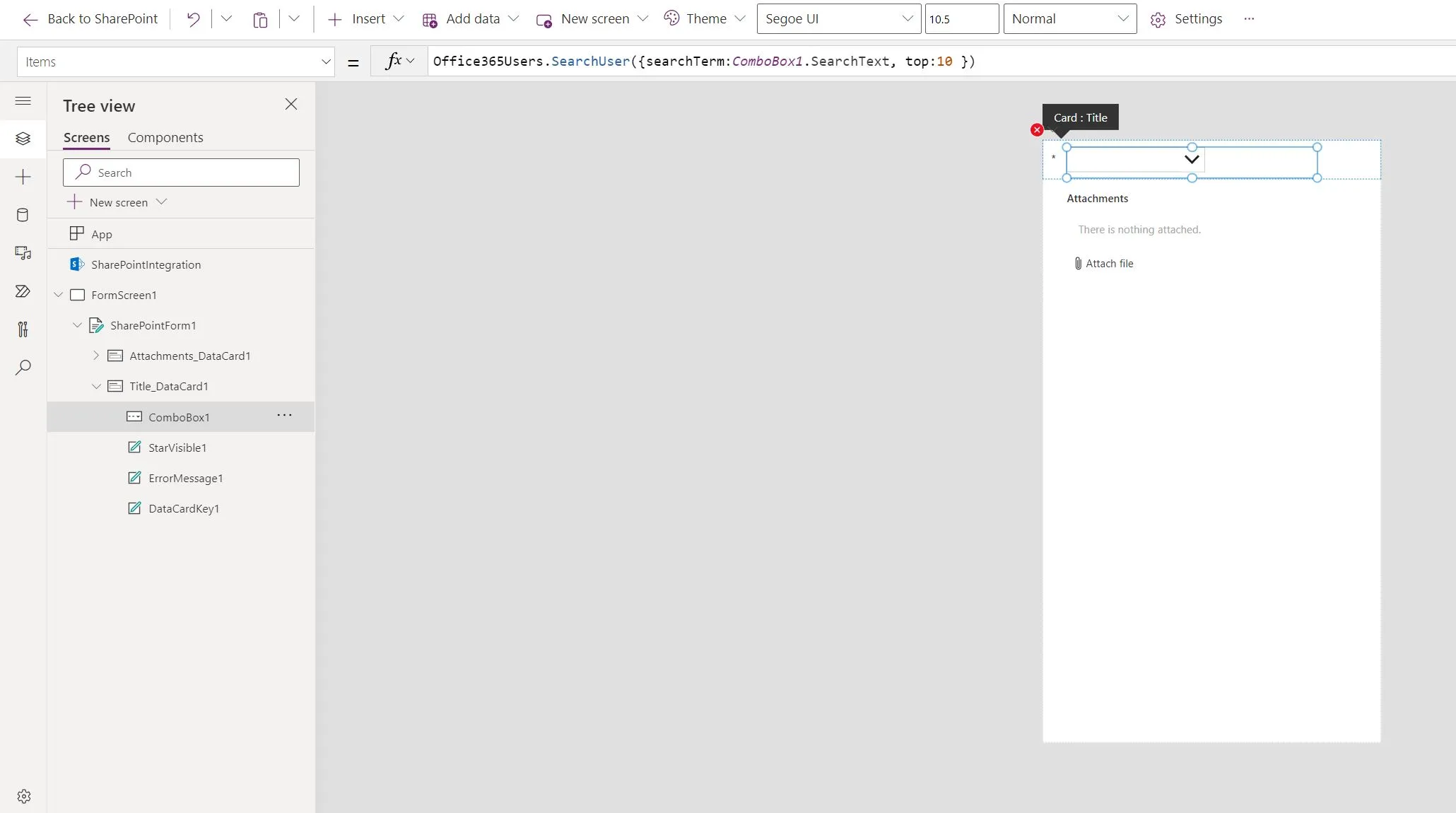
Once the “Item” Property is now set. We need to set the “Fields” property of our ComboBox. We can do that by Selecting the ComboBox and then clicking on “Edit” in the Fields.
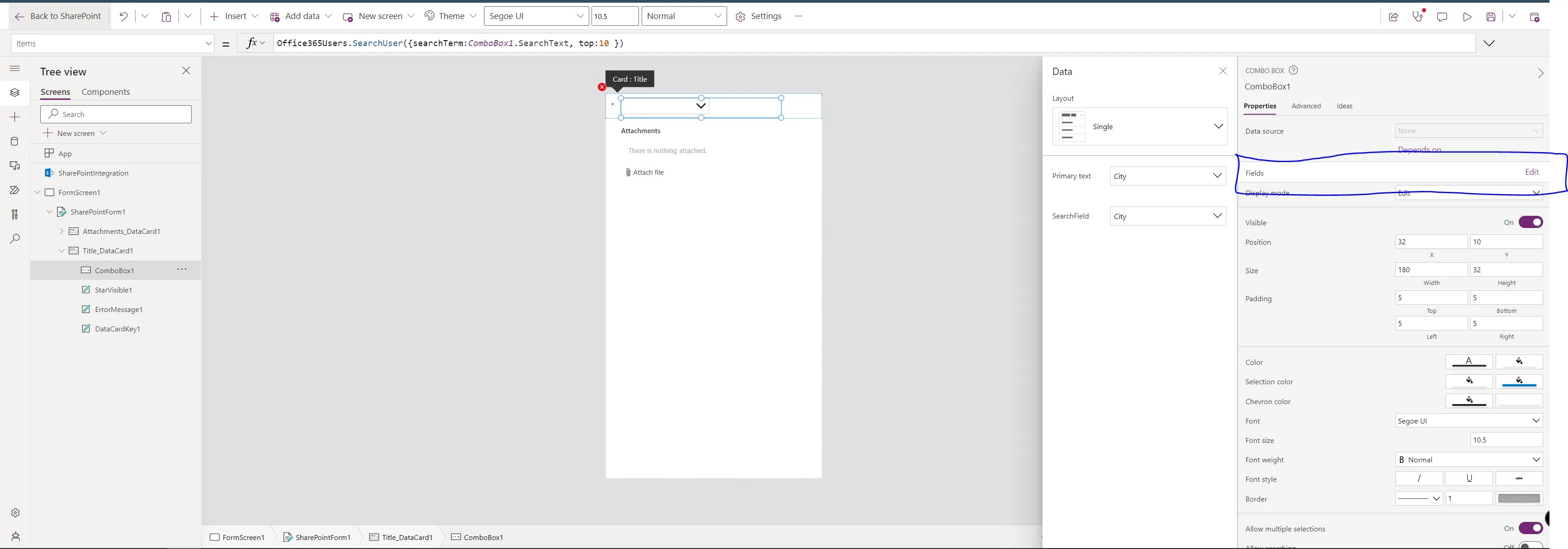
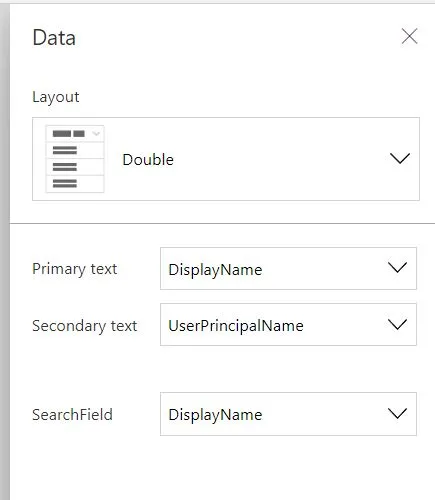
Depending on your requirement but I usually set this to:
- Layout: Double
- Primary:DisplayName
- Secondary: UserPrincipalName (This is the email)
- SearchField: DisplayName
Fixing expected issues
The next step is fixing the error; we have to replace everything now with your ComboBox instead of the old Single Line text.xt.
For me, I need to replace the following:
Old "Y" Property Value:
 "DataCardValue1.Y + DataCardValue1.Height"

New "Y" Property Value:
 "ComboBox1.Y + ComboBox1.Height"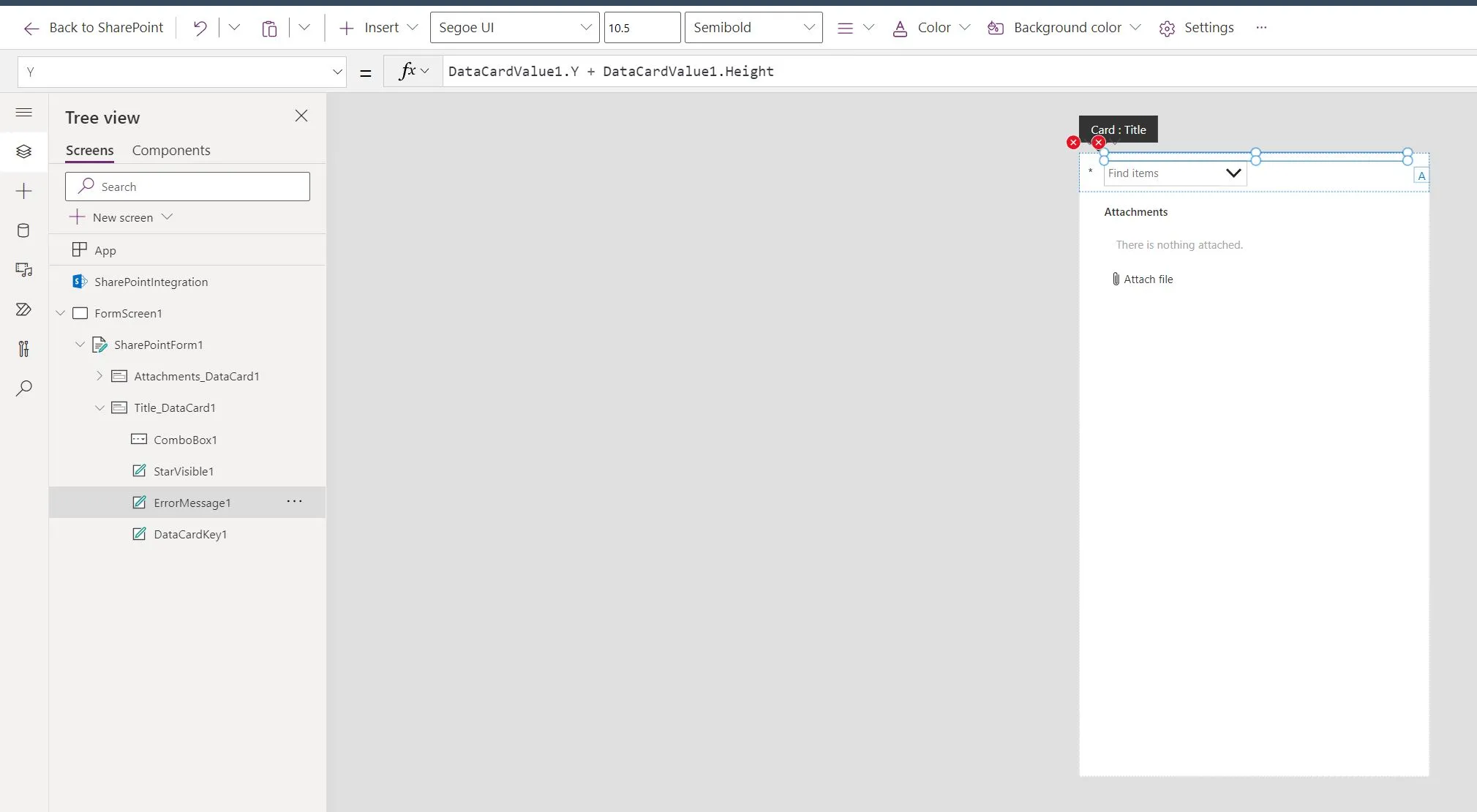
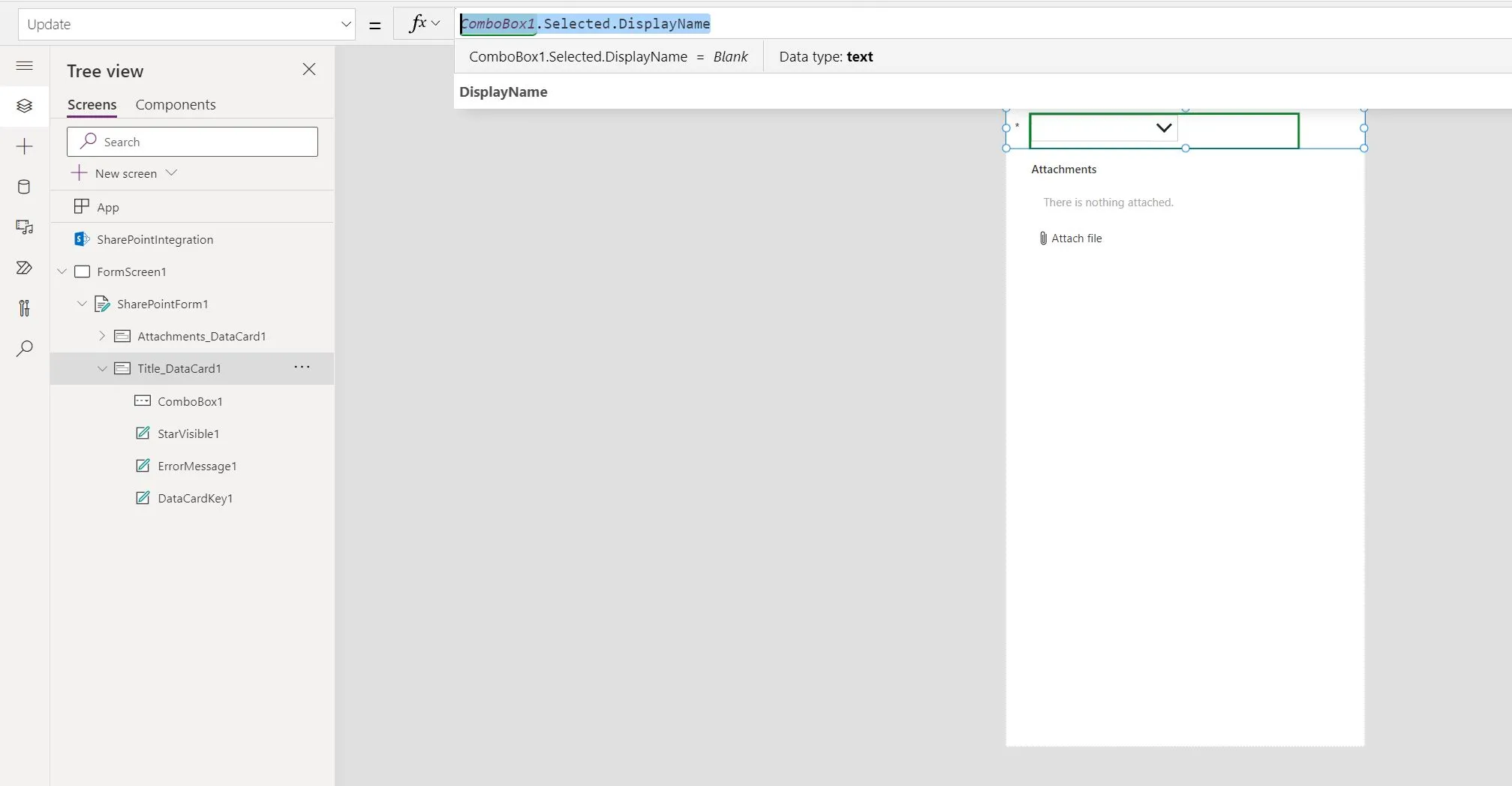
Old "Update" Property Value:
 "DataCardValue1.Text"

New "Update" Property Value:
 "ComboBox1.Selected.DisplayName"
Note: Since I want the “Display Name” of the user I selected to go to my Title Column, I decided on the “DisplayName” Property of my ComboBox. You can replace this one with “UserPrincipalName” if you want to capture Email or any other property.
Publish and Test. You should now be able to use People Picker to fill up your Title Column.
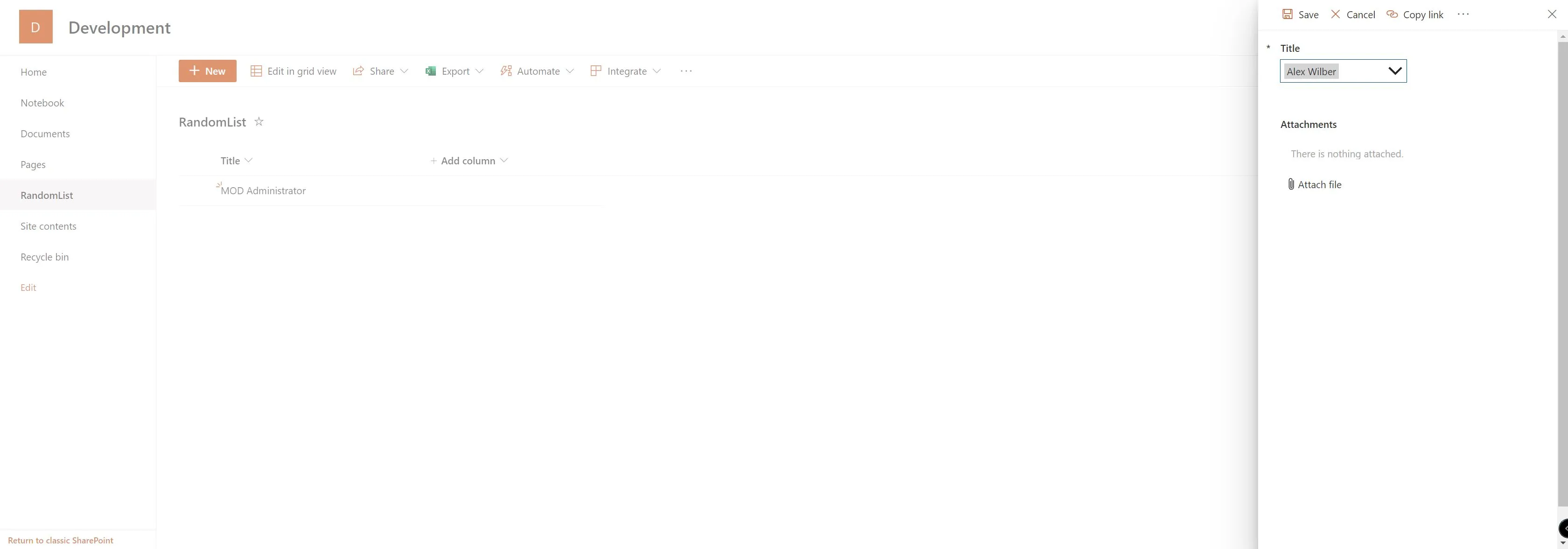
Additional Notes
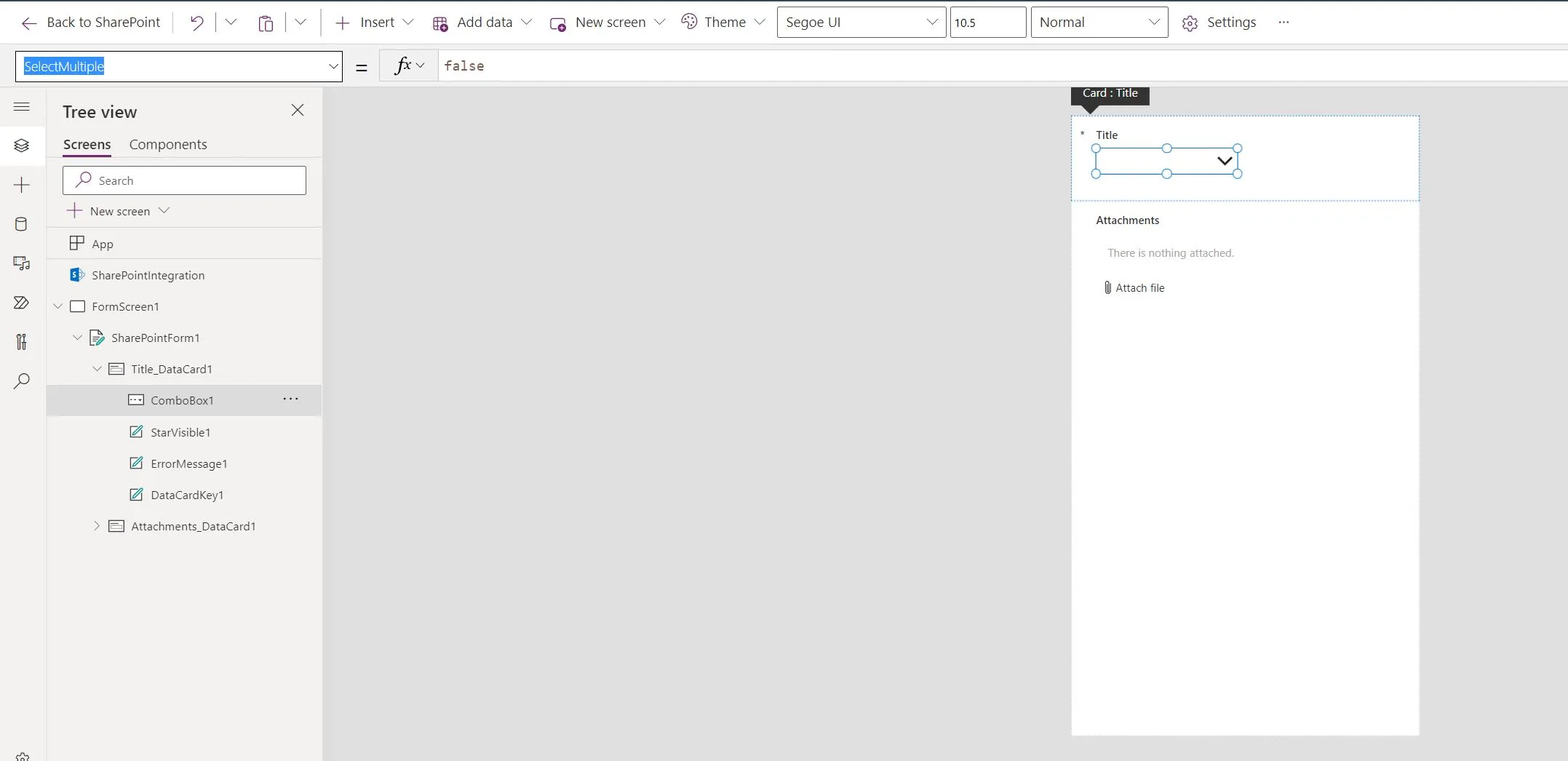
Additional Notes #1: If you only need one user, dont forget to set the “select multiple” to false in your ComboxBox, so it’s much easier for users to select a Person.
Additional Notes #2: When you test it out, use Incognito or different browser when opening the Form from your Lists. Sometimes when you use the same browser, it will still use the Default form.
Need help building or stabilizing Power Apps connected to SharePoint?
I help organizations design Power Apps and Power Automate solutions that are maintainable, governed, and easier to support after launch.
Billy Peralta
SharePoint & Microsoft 365 Specialist • 16+ Years Experience
If you have questions about your SharePoint environment, feel free to reach out.
Need help building or stabilizing Power Apps connected to SharePoint?
I help organizations design Power Apps and Power Automate solutions that are maintainable, governed, and easier to support after launch.