How to Access SharePoint REST API Using Postman

, updated 3 min read

Topics: O365, M365, SharePoint Online, Postman
Update (September 2026): The steps below use Azure Access Control Service (ACS) app-only registration through
appregnew.aspx. Microsoft retired Azure ACS for SharePoint Online on April 2, 2026, so ACS client IDs no longer work even when their client secrets are still valid. To call the SharePoint REST API from Postman today, register an application in Microsoft Entra ID, grant it SharePoint delegated or application permissions (application permissions need a certificate), and request a token from the Microsoft identity platform for thehttps://<tenant>.sharepoint.com/.defaultscope. See Microsoft’s Azure ACS retirement announcement for details. The original walkthrough is kept below for reference.
Do you want to try connecting through SharePoint using Postman? Here is the step-by-step tutorial how to connect Postman with REST API
Requirements
- Postman installed in your machine(https://www.postman.com/)
- SharePoint
Registering an app in SharePoint
Go to <sitecollectionurl>/_layouts/15/appregnew.aspx to login your app in SharePoint. And following the following steps:
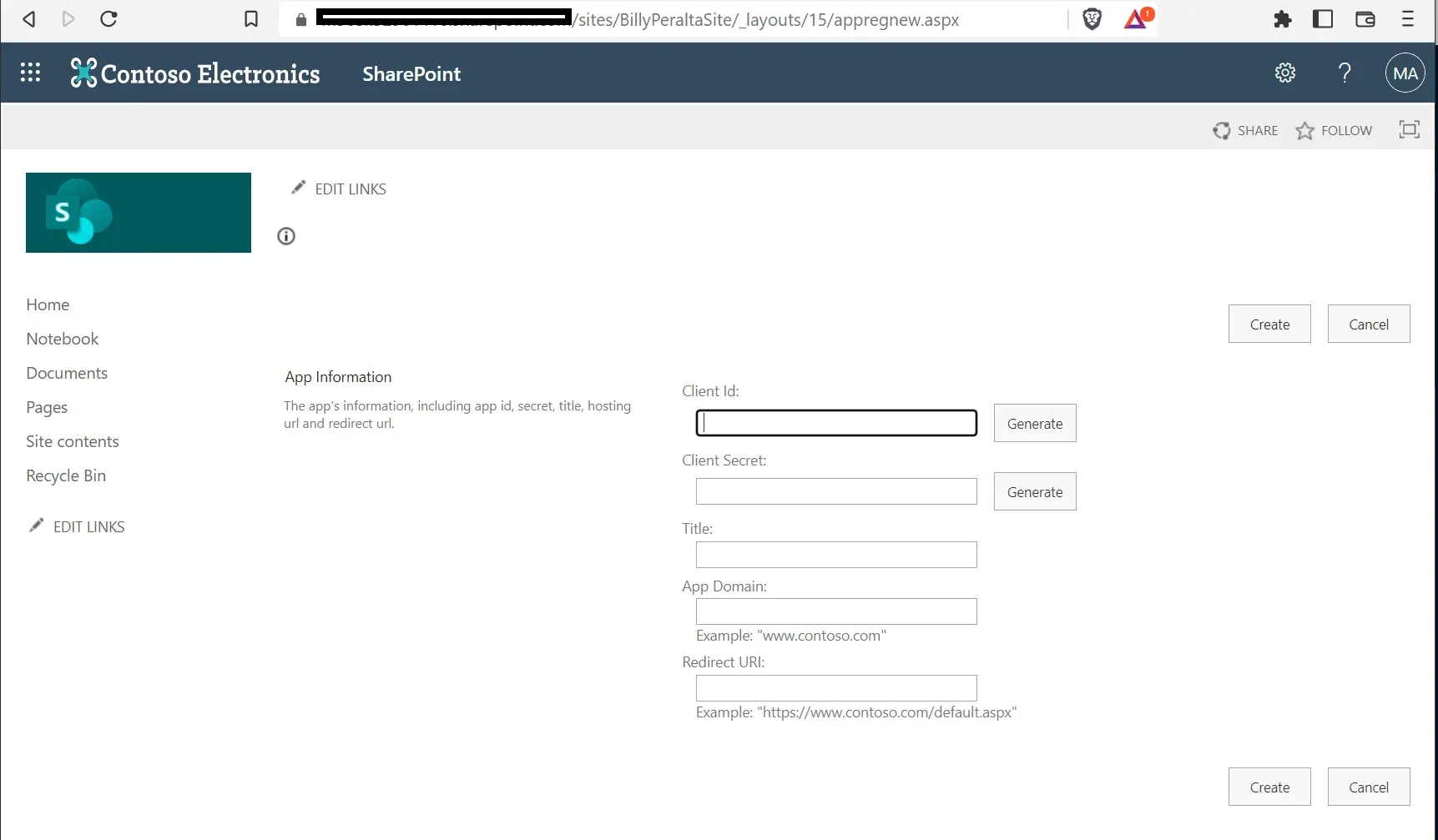
- Click on “Generate” button for the “Client Id”. Save the value you will get in a notepad
- Click on “Generate” button for the “Client Secret”. Save the value you will get in a notepad
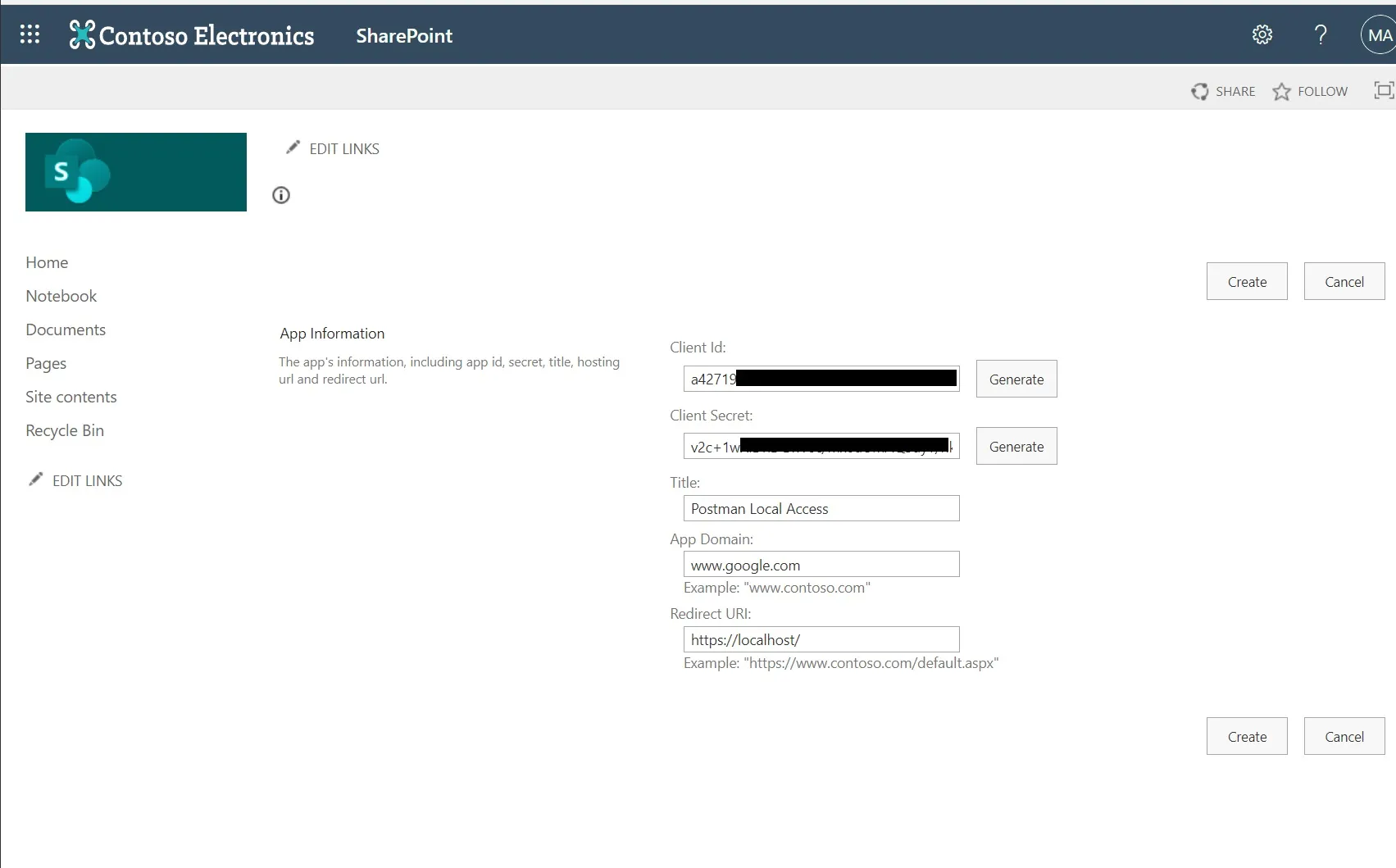
- For the Title, kindly type in the name of your App. Ex: “Postman Local Access”
- For App Domain, just type in www.google.com.
- Redirect Url “https://localhost/”
- Press “Create” to continue registering your app.
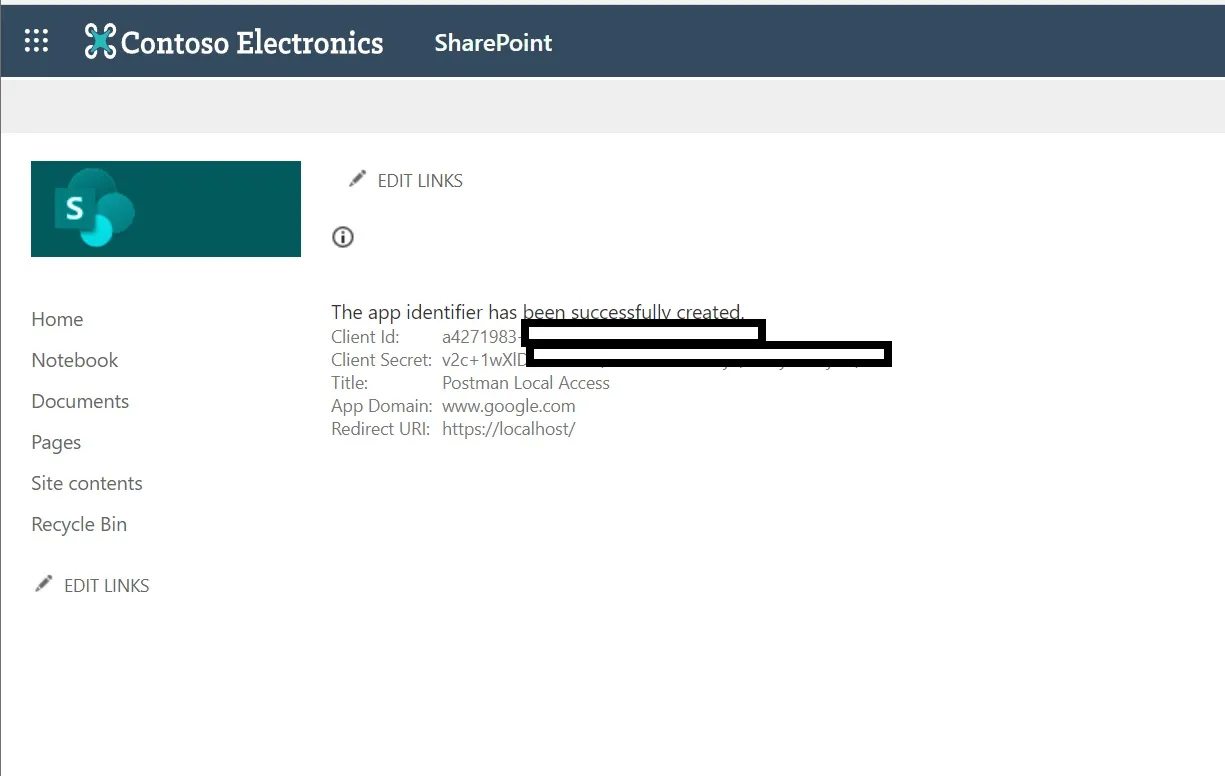
You should be redirected to a success page
Giving permission to the app
After registering, we need to define what kind of permission we want to give the app.
Go to <sitecollectionurl>/_layouts/15/appinv.aspx
Note: if you want to give permission to your whole tenant, you need to use the following url <SP admin url>/_layouts/15/appinv.aspx
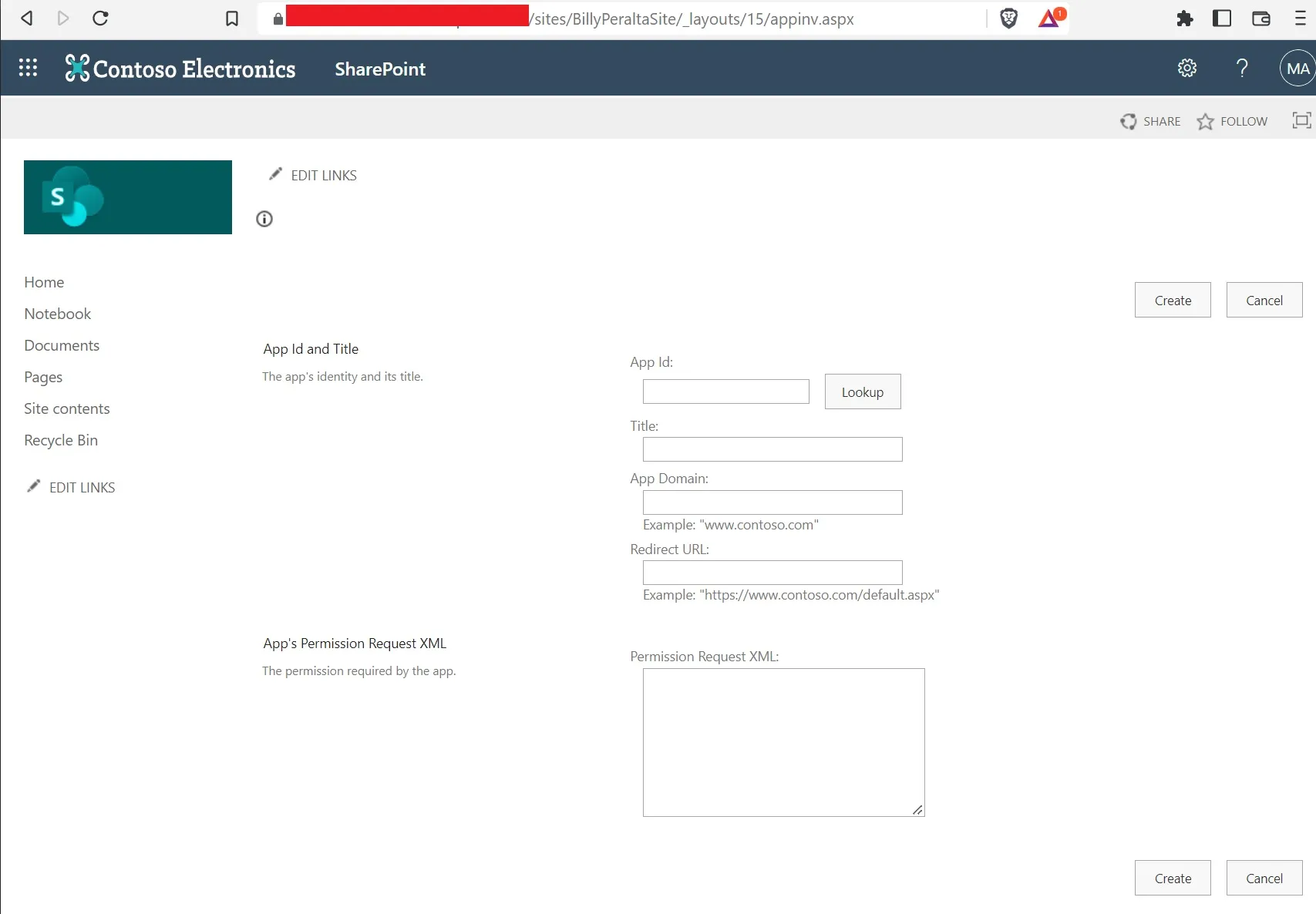
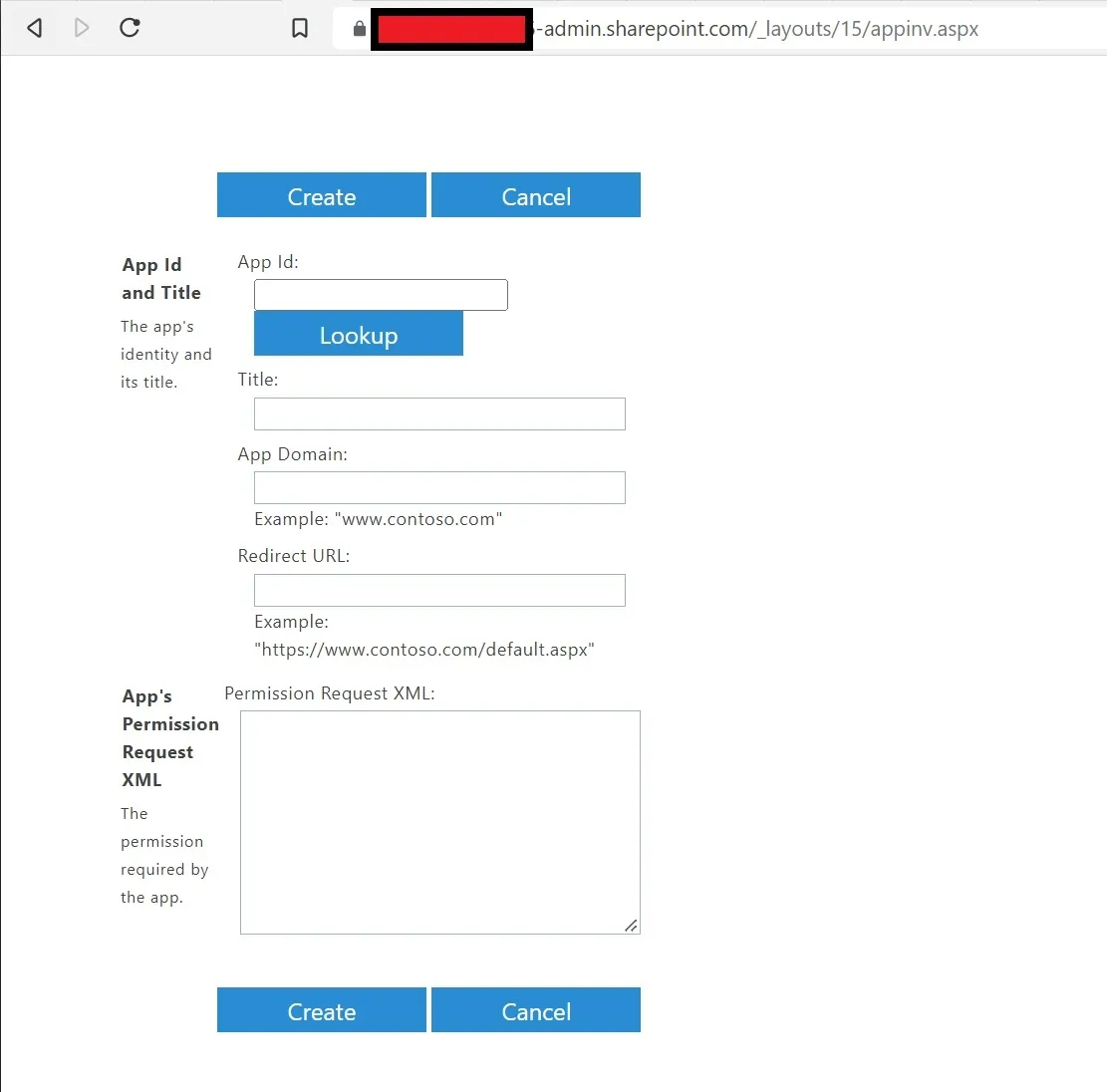
For the “App Id,” try entering in the “Client ID” that we generated earlier, then press the “Lookup” button.
While for the “Permission Request XML” typer the following. Make you replace your Scope
<AppPermissionRequests AllowAppOnlyPolicy="true">
<AppPermissionRequest Scope="http://<<tenanturl>>/content/sitecollection/web" Right="FullControl" />
</AppPermissionRequests> 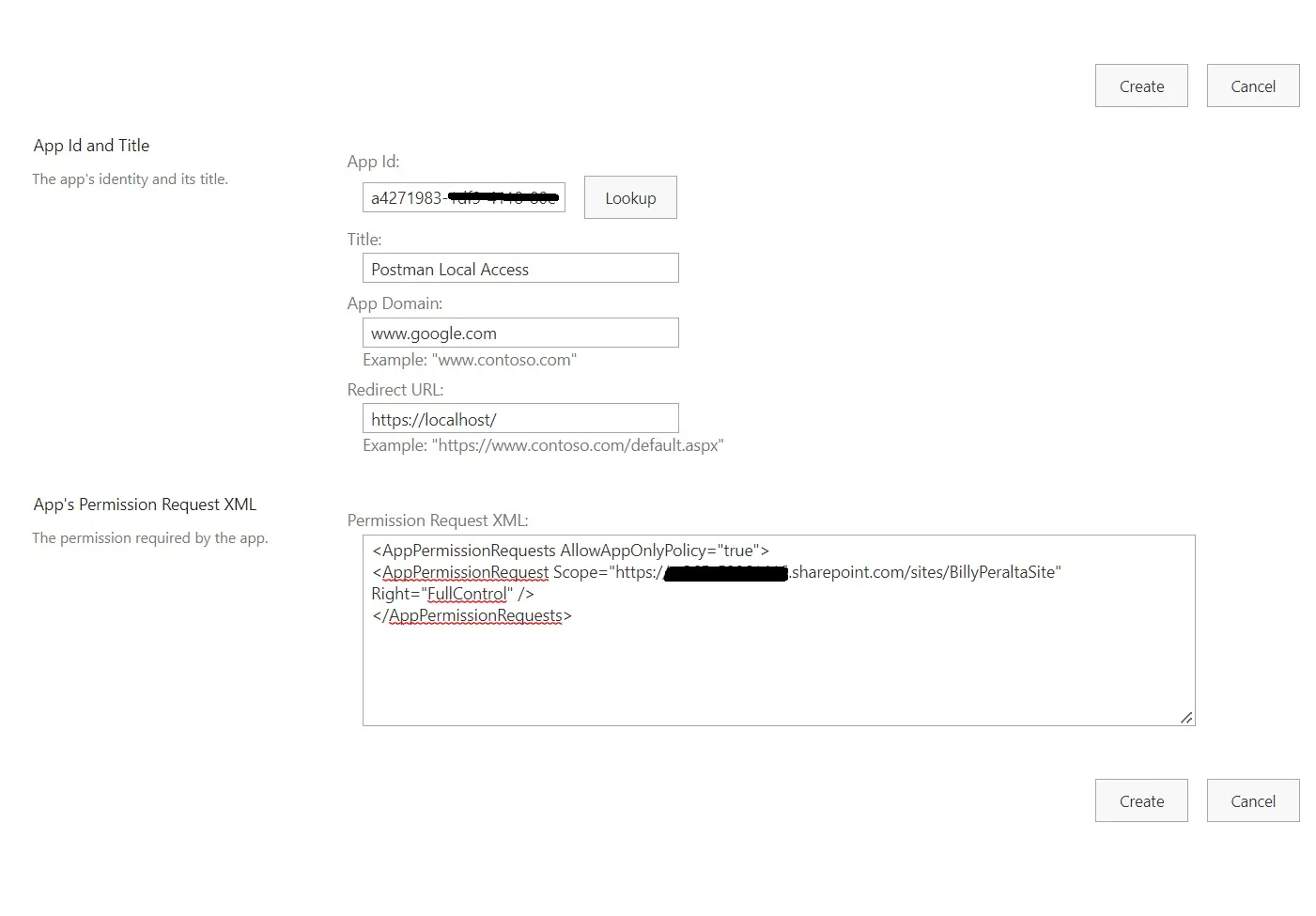
Getting the “Tenant Id”
If you know your Tenant ID, feel free to skip this part. But here is the URL to get your Tenant ID
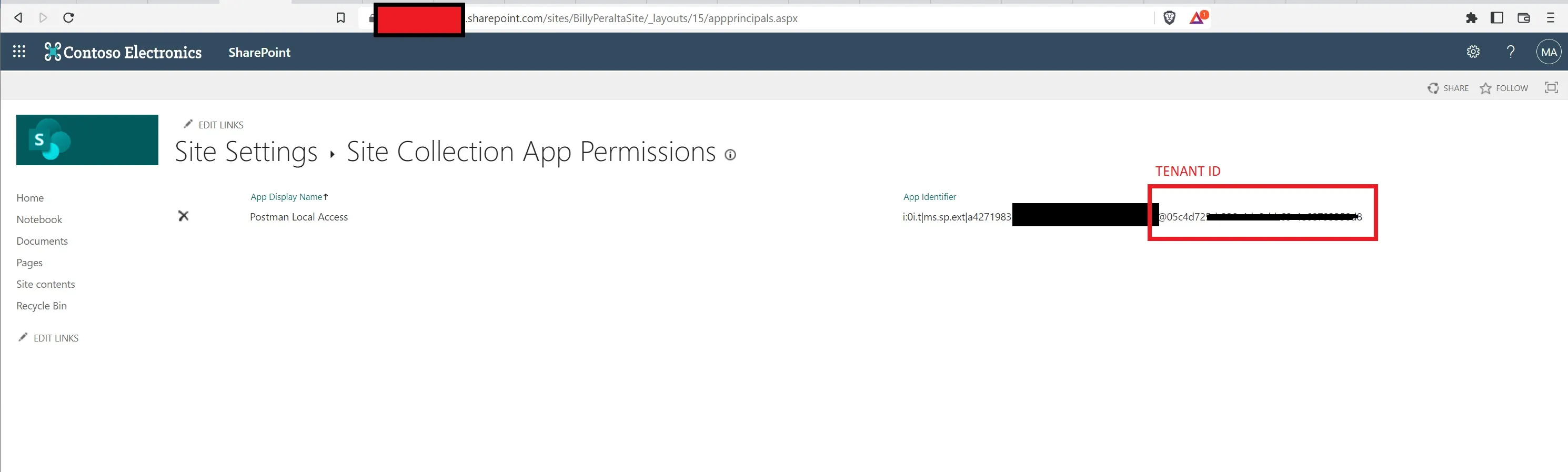
Go to <sitecollectionurl>/_layouts/15/appprincipals.aspx
Your Tenant ID will be the GUID after the ”@” character
Accessing SharePoint from Post machine
We need to generate first the access token of SharePoint before we can start using SharePoint REST API. Open your postman and do the following.
URL: https://accounts.accesscontrol.windows.net/<Tenant ID>/tokens/OAuth/2/
Method: Post
Header: {
  "grant_type": "client_credentials",
  "client id": <Client ID>@<Tenant ID>
  "client secret": <Client Secret>"
  "resource": "00000003-0000-0ff1-ce00-000000000000/<sharepoint root site>.sharepoint.com@<Tenant ID>"

}
After hitting Send in Postman, you should receive an “access_token” reply
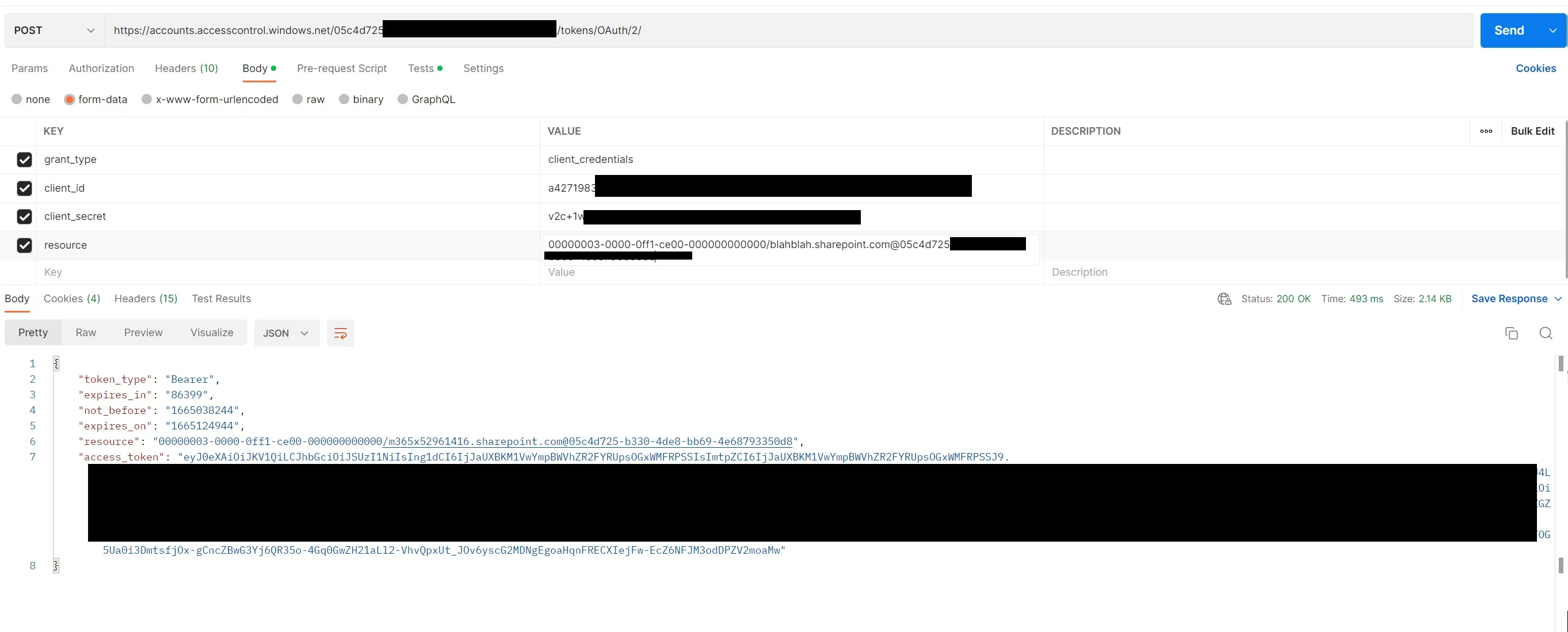
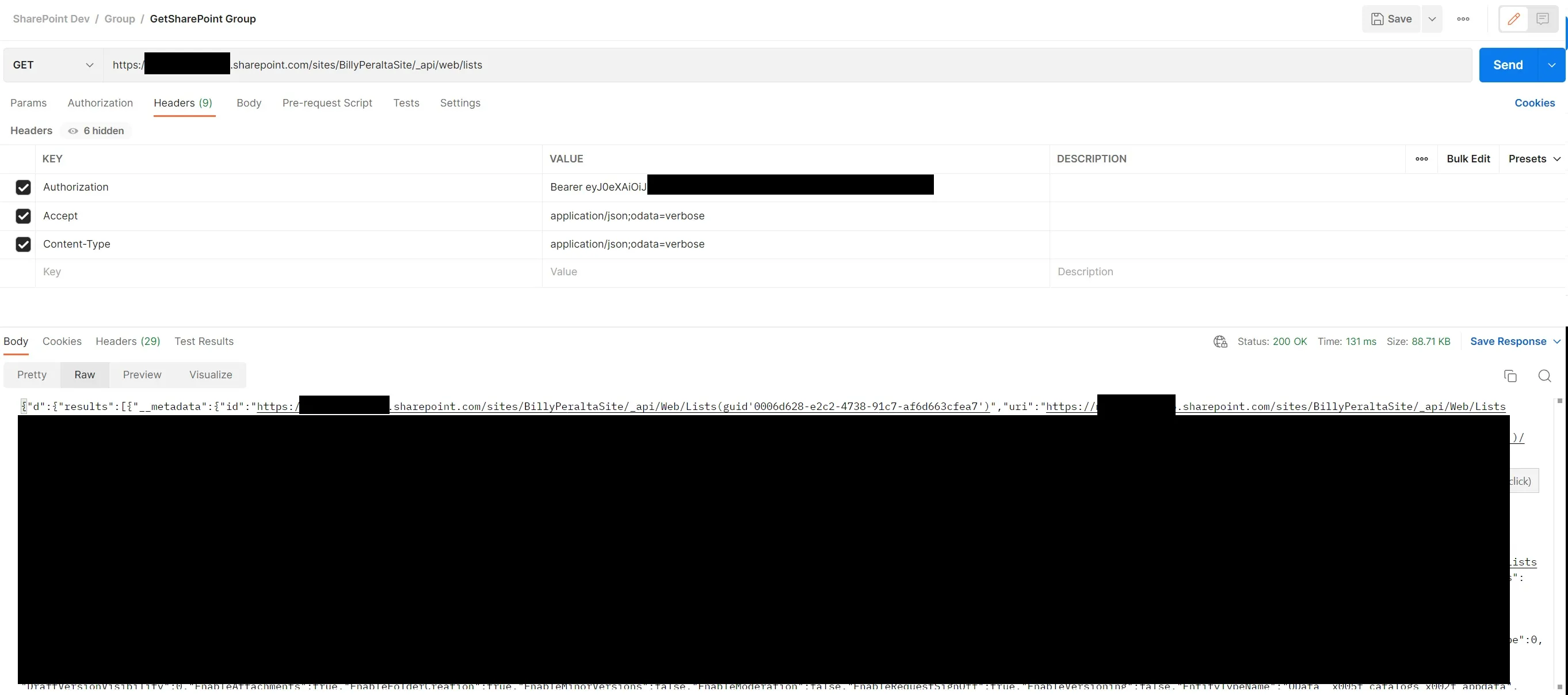
Copy the whole “Access token,” and feel free to use it to access your SharePoint REST API using Postman. As an example, I am going to get all available Lists on my site
URL: https://blahblah.sharepoint.com/sites/BillyPeraltaSite/_api/web/lists
Method: GET
Header: {
  "Authorization": "Bearer <access_token>",
  "Accept": "application/json;odata=verbose"
  "Content-Type": "application/json;odata=verbose"
} 
Postman is a handy way to explore the API before writing code. If you are building custom SharePoint solutions that call the REST API or Microsoft Graph, see my SPFx development consulting page.
Need a production-ready SPFx solution?
I build SharePoint Framework web parts, extensions, dashboards, and integrations using React, TypeScript, PnPjs, and Microsoft Graph.
Free SharePoint planning resource
Solving the technical issue is only part of the Microsoft 365 problem.
Use the checklist to review the governance, permission, ownership, and support decisions that often determine whether a SharePoint solution succeeds long term.
Download the Checklist
SharePoint architect & Microsoft 365 consultant • 16+ years of experience
If you have questions about your SharePoint environment, feel free to reach out.