Building a SharePoint Access Review Prioritizer With PowerShell: From Governance Reports to an Actionable Backlog

20 min read
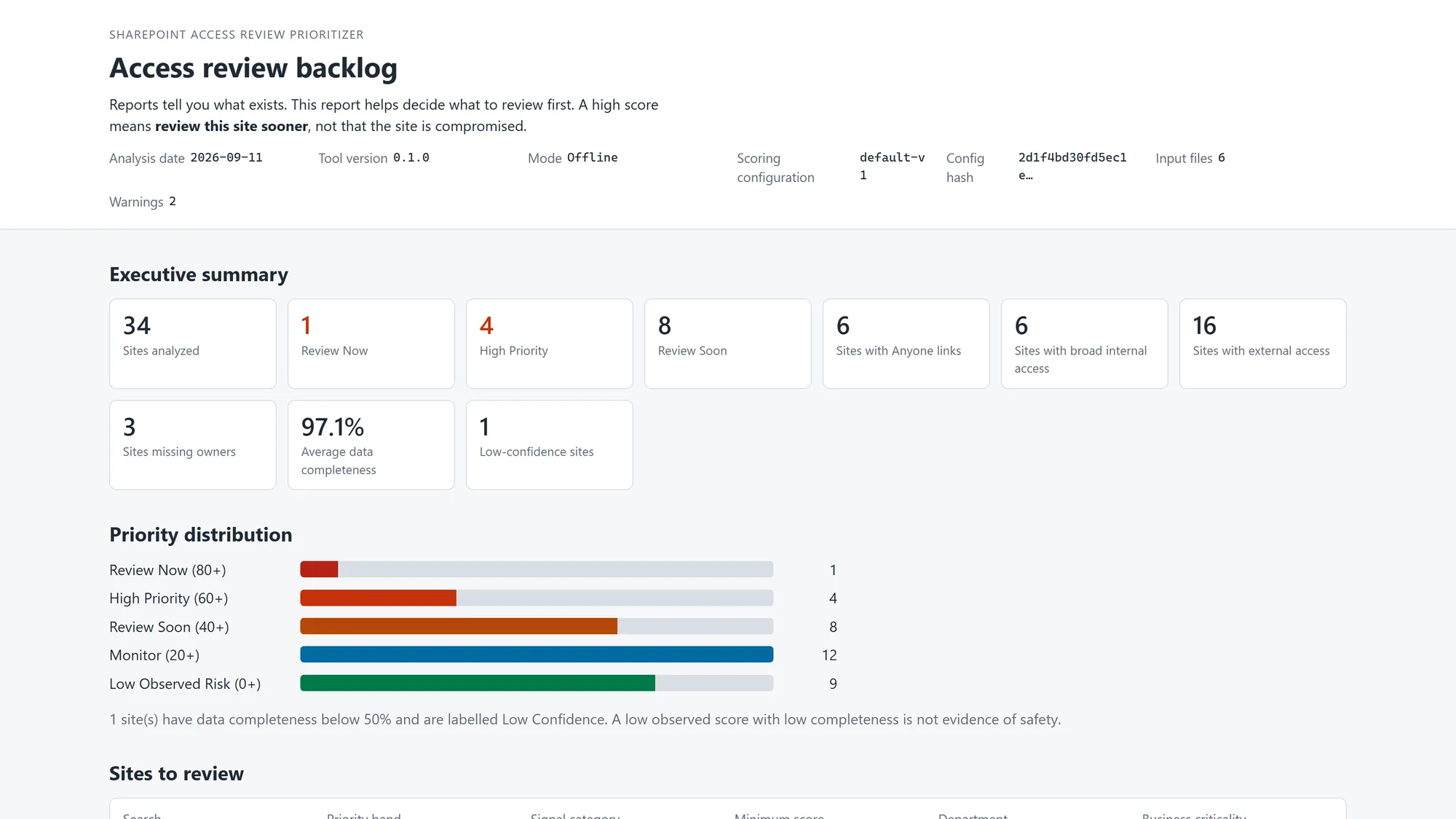
SharePoint Access Review Prioritizer — synthetic Contoso sample data
Topics: SharePoint, SharePoint Online, PowerShell, PnP PowerShell, Microsoft 365 Governance, SharePoint Advanced Management, SharePoint Permissions, Copilot Readiness, Open Source
The hardest part of a SharePoint access review is usually not generating another report.
It is deciding which sites deserve attention first.
Microsoft 365 can already give administrators useful information about site permissions, sharing, unique permissions, inactive sites, ownership, and other governance signals. PnP PowerShell can add more context. But once those exports contain hundreds or thousands of sites, the operational question becomes harder:
Where should the review actually start?
That is the problem I wanted to solve with the open-source SharePoint Access Review Prioritizer.
It is a read-only PowerShell tool that takes SharePoint and Microsoft 365 governance exports, normalizes them into one record per site, calculates transparent review signals, and produces an actionable backlog showing what to review first and why.
The goal is not to build another security scanner or pretend that a numeric score can decide whether business access is legitimate.
The goal is to turn governance data into a review process an administrator can actually use.
TL;DR
- The SharePoint Access Review Prioritizer is an open-source, read-only PowerShell tool for ranking SharePoint sites for access review.
- Its default workflow is CSV-first, so administrators can analyze exported governance data locally without connecting the tool to a tenant.
- It combines signals such as broad access, Anyone links, EEEU/Everyone permissions, external access, permission complexity, ownership, inactivity, and optional business context.
- Every score is explainable. The report shows the raw signal, how it affected priority, and what an administrator should review next.
- Missing information is tracked separately through a data-completeness score so incomplete reports do not accidentally look low-risk.
- Optional PnP PowerShell enrichment can be applied after the first pass, preferably only to higher-priority sites.
- The generated outputs include an offline HTML dashboard, remediation backlog CSV, normalized CSV, JSON results, and run metadata.
- A high score means review sooner. It does not mean a site is compromised, noncompliant, or automatically misconfigured.
Table of Contents
- The problem: governance reports do not create priorities
- Why I built this as PowerShell instead of SPFx
- The architecture
- What data the tool can use
- An explainable scoring model
- Why data completeness matters
- Technical risk and business priority are different
- A practical two-pass review workflow
- Running the sample
- Optional PnP PowerShell enrichment
- Real-world scenario
- Security and operational design
- Business impact
- Recommendations
- Mistakes to avoid
- Practical checklist
- Final thoughts
The Problem: Governance Reports Do Not Create Priorities
SharePoint governance rarely suffers from a complete lack of data.
The problem is that the data is distributed.
A permissions snapshot may tell you that a site has Anyone links, Everyone Except External Users permissions, thousands of permissioned users, or many uniquely secured items.
An inactive-site report may tell you when the workspace was last used and how many owners it has.
A site inventory may tell you the template, storage, sharing capability, group connection, or other administrative context.
A custom business inventory may tell you that one site supports Legal, Finance, executive operations, or a regulated process while another is a temporary project workspace.
Each report is useful.
But administrators still have to answer:
- Which sites should be reviewed first?
- Which signal is actually driving the concern?
- Is broad access expected for this site?
- Is external access still tied to a valid project or vendor?
- Are there enough owners to make a business decision?
- Is the site’s permission model becoming too fragmented to explain?
- Is an old site still externally shared even though it has been inactive for a year?
- Do we have enough data to trust the conclusion at all?
This becomes especially important when an organization is preparing for a migration, permissions cleanup, audit, external-sharing review, ownership campaign, or Microsoft 365 Copilot rollout.
Microsoft’s current Data Access Governance snapshot reporting can expose organization-wide permission signals such as unique permissions, Anyone links, and broad SharePoint groups. That is valuable evidence.
But evidence still needs to become a work queue.
That is where the Access Review Prioritizer fits.
Why I Built This as PowerShell Instead of SPFx
I already have an open-source SPFx Permission Visualizer focused on making SharePoint permissions easier to inspect interactively.
This project solves a different problem.
The Permission Visualizer is useful when you are examining permissions inside a SharePoint experience and want to understand inheritance, principals, access paths, and individual findings.
The Access Review Prioritizer is designed for tenant/report-level triage.
That changes the architecture.
For this problem, PowerShell makes sense because the job is primarily:
- ingest exported data;
- validate schemas;
- normalize multiple sources;
- aggregate by site;
- calculate deterministic rules;
- optionally call Microsoft 365 for enrichment;
- export a backlog and report.
That is administrative batch processing, not a browser-first interaction.
The first version therefore does not require SPFx, React, a hosted API, a database, or an Azure Function.
The default workflow can run entirely on an administrator’s workstation.
That keeps the architecture simpler and also reduces the permissions needed just to try the tool.
The Architecture
At a high level, the flow looks like this:
Microsoft governance CSV exports
            |
            v
 Detect -> Validate -> Normalize
            |
            +---- optional business context CSV
            |
            +---- optional read-only PnP enrichment
            |
            v
      Merge by site
            |
            v
 Data completeness engine
            |
            v
 Technical risk signals
            |
            v
 Business priority context
            |
            v
 Recommendation engine
            |
            v
 Ranked access-review backlog
            |
     +------+------+------+
     |      |      |      |
    HTML   CSV    JSON  normalized CSV
The project deliberately separates these stages.
The adapter that reads a Microsoft CSV should not also decide whether the site is high risk.
The scoring engine should not need to understand every original report schema.
The HTML renderer should display normalized results rather than reimplementing the rules.
That separation makes the tool easier to test and easier to extend when Microsoft changes a report or another organization wants to map a custom CSV.
What Data the Tool Can Use
The repository currently supports multiple report types and a custom-mapping path.
One of the most useful sources is Microsoft’s Site permissions for your organization Data Access Governance snapshot report.
Microsoft currently documents fields that can include:
- site identity and URL;
- site template;
- file count;
- items with unique permissions;
- People in Your Org links;
- Anyone links;
- Everyone Except External Users permissions;
- Everyone permissions;
- report date.
The project can also consume the item-level Sites and files shared via special SharePoint groups report, the Microsoft 365 admin center SharePoint site usage report, the SharePoint Advanced Management inactive-site policy report, and a PnP-generated tenant inventory. Report types are detected from their column headers, not from file names.
That matters because one report rarely contains enough context by itself.
For example, a permission report may tell us that external access exists. An inactive-site report may show that the same site has not been active for a long period. A business-context file may tell us the site was a temporary vendor project.
The combined picture is more useful than any individual export.
The tool merges supported inputs into one normalized site record, primarily by stable Site ID and then normalized URL.
It deliberately does not join by site title because titles are neither unique nor stable enough for reliable governance analysis.
An Explainable Scoring Model
I did not want a dashboard that simply says:
Risk score: 83
without explaining where 83 came from.
Every score contribution should be traceable.
A site might receive a high technical score because of a combination such as:
+20 Anyone links detected
+10 External participant permissions
+5  Guest permissions
+10 Elevated unique-permission count
+3  Broad permissioned-user population
+5  Only one confirmed owner
+5  Fragmented permissions plus weak ownership
+15 Anyone links on highly sensitive content
+10 External access on highly sensitive content
The exact values are configuration-driven.
The important design decision is not the number itself.
It is the explanation.
For each signal, the result can carry information such as:
- signal code;
- category;
- severity;
- points;
- source field;
- raw value;
- plain-language summary;
- explanation;
- recommended next action.
Here is what that looks like in the generated report for a synthetic Legal site from the sample dataset. Each row expands to show the evidence behind the score:
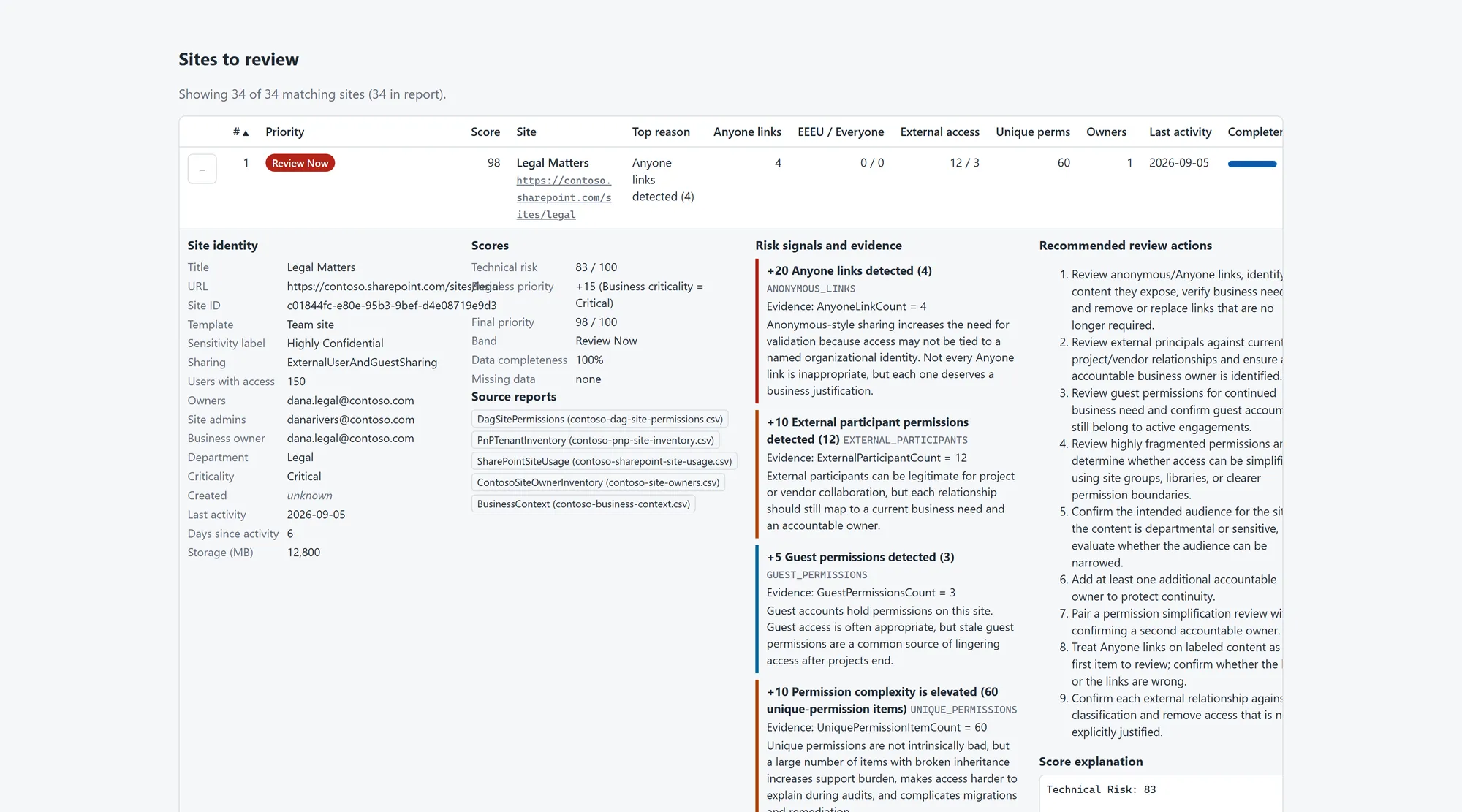
That gives administrators something they can defend and discuss with business owners.
“The Legal site is high priority because it has external access, anonymous links, one owner, and an elevated number of unique permissions” is useful.
“The Legal site scored 83” is not enough.
A high score also does not mean the access is wrong.
A client collaboration site may legitimately have guests.
A corporate intranet may legitimately have thousands of readers.
A sensitive site may legitimately use unique permissions.
The score tells us where review effort is likely to be valuable.
The business decision still belongs to the appropriate owner and governance process.
Why Data Completeness Matters
One of the easiest mistakes in governance reporting is treating missing information as zero.
Those are not the same thing.
Imagine two sites.
Site A
- 0 Anyone links
- 0 EEEU permissions
- 0 guests
- 2 owners
- recent activity
- sensitivity information available
Site B
- the import only contained a site URL and title
If both sites received a low score, the dashboard could create false confidence.
For Site A, the low observed risk is based on actual evidence.
For Site B, we simply do not know enough.
The project therefore calculates a separate data-completeness score.
The current design considers ten data groups:
- identity;
- users with access;
- Anyone links;
- EEEU / Everyone;
- external or guest information;
- unique permissions;
- owners;
- activity;
- sharing capability;
- sensitivity.
If important groups are missing, the report labels the result as low confidence.
That distinction is important operationally:
Low observed risk is not the same as sufficient evidence of low risk.
For access reviews, uncertainty is information too.
Technical Risk and Business Priority Are Different
I also wanted to avoid putting every decision into one technical score.
A test workspace and a Legal site could have similar permission signals but very different business impact.
The project can therefore keep technical risk separate from business priority.
An optional business-context CSV can add fields such as:
SiteUrl,BusinessCriticality,Department,BusinessOwner
https://contoso.sharepoint.com/sites/legal,Critical,Legal,dana.legal@contoso.com
https://contoso.sharepoint.com/sites/intranet,High,Communications,comms.lead@contoso.com
This allows a final review priority to consider organizational importance without hiding the underlying technical score.
For the sample Legal site above:
Technical Risk: 83
Business Priority: +15 (Business criticality = Critical)
Final Priority: 98
Priority Band: Review Now
The administrator can still see exactly which part came from technical evidence and which part came from business context.
That is much easier to govern than an opaque “AI risk score.”
A Practical Two-Pass Review Workflow
The architecture also supports a cost- and permission-aware workflow.
Instead of immediately connecting to every site and making detailed calls across a large tenant, the preferred process is:
Pass 1 — Analyze exports locally
Use the governance data the organization already has.
Normalize it.
Score it.
Generate the first backlog.
Pass 2 — Enrich only the highest-priority sites
If additional context is needed, use read-only PnP PowerShell calls for the top 50, top 100, or selected priority bands.
That can add information such as:
- tenant site properties;
- sharing capability;
- storage;
- last content change;
- sensitivity label;
- site collection administrators;
- Microsoft 365 group owners.
The repository supports -EnrichTop and -EnrichPriorityBand so the administrator can bound the work.
This is a much better pattern than assuming every run should make detailed live calls against every site.
It reduces unnecessary tenant calls, lowers the chance of throttling, and makes the offline analysis useful even when the administrator does not want to configure live authentication.
Running the Sample
The repository includes synthetic sample data so the tool can be tested without production tenant information.
Clone the repository:
git clone https://github.com/BillySharePoint/sharepoint-access-review-prioritizer.git
cd sharepoint-access-review-prioritizer
For the offline sample, PnP PowerShell is not required.
Run:
pwsh ./scripts/Install-Dependencies.ps1 -SkipPnP

pwsh ./scripts/Invoke-AccessReviewPrioritizer.ps1 `
  -InputPath ./samples `
  -OutputPath ./output `
  -CustomMappingPath ./samples/custom-mapping-example.json `
  -BusinessContextPath ./samples/contoso-business-context.csv
The console walks through detection, normalization, scoring, and export:
SharePoint Access Review Prioritizer v0.1.0

Mode:   Offline
Input:  ./samples
Output: ./output
Analysis date: 2026-09-11 (UTC)

[1/6] Discovering and validating reports...
      6 file(s) found, 6 usable
      contoso-dag-site-permissions.csv           Imported   DagSitePermissions (100%)
      contoso-dag-special-groups-items.csv       Imported   DagSpecialGroupsItems (100%)
      contoso-pnp-site-inventory.csv             Imported   PnPTenantInventory (100%)
      contoso-sam-inactive-sites.csv             Imported   SamInactiveSitePolicy (100%)
      contoso-sharepoint-site-usage.csv          Imported   SharePointSiteUsage (100%)
      contoso-site-owners.csv                    Imported   ContosoSiteOwnerInventory (100%)
[2/6] Loading scoring configuration...
      Scoring configuration: default-v1 (scoring.default.json)
[3/6] Normalizing and merging records...
      Business context: 30 site(s) matched, 1 unmatched
      34 unique SharePoint sites
[4/6] Calculating risk...
           1 Review Now
           4 High Priority
           8 Review Soon
          12 Monitor
           9 Low Observed Risk
[5/6] Exporting reports...
[6/6] Complete

Top findings:
  6 site(s) contain Anyone links
  6 site(s) contain broad EEEU/Everyone access
  16 site(s) have external or guest access
  4 site(s) have external access and <= 1 confirmed owner
  3 site(s) have no confirmed owner
  1 site(s) have low data completeness
  Average data completeness: 97.1%
Then open:
./output/sharepoint-access-review-prioritizer-report.htmlThe sample report uses synthetic Contoso-style data. It is intentionally safe to use for screenshots, demonstrations, and testing.
The generated HTML report works offline and includes summary information, prioritization, search/filtering, and site-level evidence.
The run also produces artifacts intended for different audiences:
| Output | Purpose |
|---|---|
sharepoint-access-review-prioritizer-report.html | Human-readable offline dashboard |
remediation-backlog.csv | Operational review queue |
normalized-sites.csv | Power BI, validation, or further analysis |
results.json | Machine-readable complete results |
run-metadata.json | Versions, hashes, warnings, effective configuration |
run-YYYYMMDD-HHMMSS.log | Troubleshooting and execution history |
The remediation backlog deliberately includes blank workflow columns so a team can add review status, assignment, target date, and reviewer notes instead of treating the report as the end of the process.
Optional PnP PowerShell Enrichment
The offline mode is the default architecture.
PnP PowerShell is optional.
The repository currently tests its enrichment path with PnP.PowerShell 3.4.1 and requires PowerShell 7.4 or later. Windows PowerShell 5.1 is not supported.
PnP authentication should use the organization’s own Entra app registration. PnP.PowerShell 3.x no longer ships a shared default client ID.
A typical enrichment run looks like:
Invoke-SPARPPrioritization `
    -InputPath .\exports `
    -OutputPath .\analysis `
    -TenantAdminUrl https://contoso-admin.sharepoint.com `
    -ClientId 00000000-0000-0000-0000-000000000000 `
    -EnrichFromTenant `
    -EnrichmentLevel Standard `
    -EnrichTop 100
The important part is -EnrichTop 100.
The administrator can first use offline evidence to determine which sites are worth deeper inspection, then spend live calls on those sites.
Three enrichment levels are available. Basic and Standard each make a single tenant-level call for site properties. Detailed connects to each selected site for site collection administrators, sensitivity information, and Microsoft 365 group ownership where supported and permitted.
This path remains read-only. An integration test scans the module source and fails if any write cmdlet appears.
The project documentation also separates permissions by feature instead of asking for a giant permission set “just in case.”
That makes the tool easier to evaluate in an enterprise environment.
Real-World Scenario
Consider an organization with several thousand SharePoint sites.
The Microsoft 365 team is preparing for a broader governance and Copilot-readiness initiative.
They already have Data Access Governance exports, a site usage report, and an inactive-site report.
The initial spreadsheet review identifies hundreds of sites with at least one interesting signal:
- some have Anyone links;
- some have broad internal access;
- some have many unique permissions;
- some contain guests;
- some are inactive;
- some have only one owner;
- some are business-critical;
- some simply have incomplete reporting data.
A flat spreadsheet does not make the next step obvious.
The team runs the prioritizer.
A stale vendor collaboration site rises near the top because it still contains external access, has no confirmed owner, and has been inactive for a long period.
That does not mean the tool should automatically remove anyone.
It means the site deserves a business conversation:
- Is the vendor relationship still active?
- Does the site still need to exist?
- Who owns the access decision?
- Does retention require the content to remain?
- Should external access be removed while the content is preserved?
Another high-scoring site belongs to Legal.
Its business-criticality context raises its final review priority.
The review finds that the access is intentional but the owner information is outdated.
The right remediation is ownership/governance work, not necessarily permission removal.
A third site is the corporate intranet.
It has thousands of permissioned users, but no anonymous links, expected broad readership, current owners, and normal activity.
The tool may still surface the large audience as context, but that single factor should not overpower the legitimate purpose of the site.
The outcome is not “the tool fixed SharePoint.”
The outcome is better:
IT has a defensible order of operations.
The highest-value conversations happen first.
Security and Operational Design
Governance tools often need sensitive information to identify sensitive access.
That means the tool itself needs conservative defaults.
Read-only by default
The tool does not automatically:
- remove users;
- delete sharing links;
- change owners;
- restore permission inheritance;
- alter sharing configuration;
- apply sensitivity labels.
This is intentional.
Access remediation can have business consequences, and approval/rollback requirements should be defined before automation starts changing permissions.
Local processing
Offline analysis processes CSV exports locally.
There is no requirement to upload governance data to an external service.
The generated dashboard has no CDN dependency or telemetry requirement.
Output protection
Governance outputs can reveal:
- site names;
- URLs;
- sensitive project names;
- external access;
- administrators;
- ownership gaps;
- permission structures.
Treat the generated files as governance data, not as harmless screenshots.
Do not publish a production report publicly.
Use the synthetic sample dataset for demos and social posts.
Injection protection
The project also treats imported data as untrusted input.
The HTML report renders imported content through DOM APIs from an escaped JSON data island, pins its single inline script and stylesheet with a hashed Content-Security-Policy, and the CSV export path accounts for spreadsheet formula-injection risks.
Those details are less visually exciting than a dashboard, but they are exactly the kind of things that determine whether an admin utility is supportable.
Business Impact
The real value is not the score.
It is reducing the cost of deciding where governance effort goes.
Administrators get a manageable review queue
Instead of reconciling several exports manually, they can start with the highest-priority sites and see the supporting evidence.
Security teams get explainable findings
A review item can say:
Anonymous links + external participants + weak ownership + inactive site
rather than presenting an unexplained red badge.
Business owners get focused questions
It is easier to ask:
Do these external users still need access to this inactive vendor workspace?
than:
Can you review 4,000 permission rows?
Migration teams can find governance debt earlier
High permission complexity, broad access, stale sites, and weak ownership often turn into migration rework if they are discovered too late.
Prioritization can help identify which content needs an owner decision before it moves. If you are copying permissions forward from file shares, see Before You Copy File Share Permissions Into SharePoint, Review These 7 Things.
Copilot-readiness work becomes more practical
Microsoft 365 search and Copilot operate on existing permissions.
If access is broader than intended, better discoverability can expose that governance debt more quickly.
The right response is not to blame Copilot.
It is to understand and improve the underlying access model.
For broader governance work, see my SharePoint governance consulting page and my article on SharePoint Advanced Management and access review before Copilot.
Recommendations
If you are building or running a similar access-review process, I would keep these principles.
- Start with exports before making live calls everywhere. Existing governance reports may already contain enough information to establish a first review queue.
- Keep unknown separate from zero. Missing data must not become a green status.
- Explain every score. Administrators and business owners should be able to understand why a site was prioritized.
- Separate technical risk from business impact. A technically similar finding can have very different importance depending on the site.
- Use high-risk results to drive deeper enrichment. Make expensive tenant calls where they add value instead of treating every site identically.
- Keep the first release read-only. Visibility and prioritization are useful even before remediation is automated.
- Treat exported governance data as sensitive. Store it in controlled locations and use synthetic data for demos.
- Make the backlog operational. Include reviewer, status, target date, rationale, and notes so findings become accountable work.
- Do not treat the score as compliance evidence. It is a prioritization tool, not a certification engine.
- Tune rules to the organization. An intranet, Legal workspace, vendor project, and public collaboration area should not be interpreted with identical business context.
Mistakes to Avoid
Building another report without a decision model
A large CSV may be technically correct and still leave administrators with the same workload.
Calling everything “high risk”
If every broad-access site is red, the report quickly loses credibility.
Context matters.
Hiding scoring logic
Opaque scoring makes it difficult to challenge, tune, or defend results.
Treating missing data as clean
Incomplete evidence should lower confidence, not lower risk.
Connecting to every site by default
Large tenants can turn a simple governance script into a slow, throttled sequence of unnecessary calls.
Automating remediation too early
Removing guests or restoring inheritance can disrupt valid business processes.
Confusing the primary admin with the business owner
Administrative control is not the same thing as accountability for the content.
Publishing a real report in a blog or GitHub README
Permission metadata can expose confidential site names, business relationships, and security posture.
Use synthetic data.
Practical Checklist
Before using a prioritization workflow in production, verify that it can:
- identify sites consistently by Site ID or canonical URL;
- ingest the supported Microsoft reports you actually use;
- preserve unknown values instead of changing them to zero;
- distinguish anonymous/broad access from normal group access;
- surface external or guest access;
- show permission complexity without assuming every unique permission is wrong;
- identify owner gaps from a trustworthy source;
- include inactivity when a reliable activity date exists;
- keep business priority separate from technical risk;
- explain every score contribution;
- identify low-confidence records;
- allow scoring thresholds to be configured;
- export an operational remediation backlog;
- protect HTML and CSV output from untrusted input;
- keep authentication secrets out of logs;
- use least-privileged permissions for optional enrichment;
- bound live enrichment to the sites that need it;
- preserve a run/configuration record for reproducibility;
- keep auto-remediation disabled until ownership, approval, logging, and rollback are defined.
Final Thoughts
SharePoint access reviews do not become difficult because administrators cannot generate reports.
They become difficult because governance evidence has to be turned into decisions.
Which sites deserve attention first?
Why?
How confident are we in the evidence?
Who owns the decision?
What should the reviewer look at next?
The SharePoint Access Review Prioritizer is my attempt to make that part of the process more practical.
It is intentionally PowerShell-first, CSV-first, explainable, and read-only.
That also makes it complementary to my SPFx Permission Visualizer. One helps inspect access interactively; the other helps decide which sites should be inspected first. Both are listed on my open-source projects page.
The project is open source under the MIT license. If you work with SharePoint governance, permissions cleanup, Data Access Governance, or Copilot readiness, I would be interested in the report types and prioritization signals you find most useful.
You can review the code, sample data, scoring model, architecture, tests, and documentation on GitHub.
If your organization is trying to turn permissions, ownership, external sharing, and lifecycle reports into an actionable governance plan, see my SharePoint governance services or contact me to discuss the environment and scope.
Technical References
- SharePoint Access Review Prioritizer on GitHub
- Microsoft — Site permissions for your organization snapshot report
- Microsoft — Data Access Governance reports
- Microsoft — Sites and files shared via special SharePoint groups
- Microsoft — Inactive site policies
- PnP PowerShell — Authentication
- PnP PowerShell — Default Client ID / own Entra app registration
Need to clean up SharePoint permissions?
I help organizations find broken inheritance, broad access groups, stale guests, and risky sharing links, then fix them in an order that site owners can follow.
Free SharePoint planning resource
Before expanding Microsoft 365 usage, review your SharePoint risks.
Use the readiness checklist to review permissions, ownership, external sharing, retention, and lifecycle gaps before they become production issues.
Get the Checklist
SharePoint architect & Microsoft 365 consultant • 16+ years of experience
If you have questions about your SharePoint environment, feel free to reach out.