Building a SharePoint Permission Visualizer: How to Find Broken Inheritance and Risky Access Faster

11 min read
Zulfugar Karimov on Unsplash
Topics: SharePoint, SharePoint Online, SPFx, Microsoft Graph, Microsoft 365 Governance, SharePoint Permissions, Broken Inheritance
SharePoint permission problems usually grow through years of reasonable-looking exceptions: direct sharing, temporary contractors, confidential folders, and external users who still need access “for now.”
The difficulty appears when an administrator must explain who can access what, why the access exists, and whether it should survive a migration, audit, reorganization, or Copilot rollout.
A permissions export may produce thousands of rows without showing where the review should begin. A practical visualizer should turn that data into clear, prioritized findings.
TL;DR
- Distinguish inherited access from unique access instead of treating every assignment as equally risky.
- Prioritize direct users, external principals, sharing links, elevated roles, sensitive locations, and ownerless exceptions.
- Use SharePoint REST or PnPjs for role assignments and inheritance. Use Microsoft Graph selectively for identity enrichment and drive-item sharing permissions.
- Treat risk scores as a review aid, not proof that access is wrong.
- Start read-only. Add remediation only after approvals, logging, rollback, and ownership are defined.
Table of Contents
- Why permission cleanup becomes difficult
- What the visualizer should surface
- A practical technical architecture
- An explainable risk model
- Real-world scenario
- Technical recommendations
- Business impact
- Recommendations
- Mistakes to avoid
- Practical checklist
- Final thoughts
Why Permission Cleanup Becomes Difficult
SharePoint permissions are hierarchical. A site, library, folder, document, or list item may inherit access from its parent or use unique role assignments.
That flexibility supports valid confidential and collaboration scenarios. The problem is not unique permissions themselves; it is permission structures that no one can explain or maintain.
Common governance problems include:
- Broken inheritance with no documented reason or owner
- Individuals assigned directly instead of through managed groups
- External users whose business relationship has changed
- Edit or Full Control granted when Read would be enough
- Custom permission levels that are hard to interpret
- Large libraries containing many item-level exceptions
- Legacy access copied during migration without validation
These are the same patterns that quietly raise the price of every migration, audit, and support ticket — I have broken that down separately in the hidden cost of messy SharePoint permissions before and after migration.
Manual inspection becomes slow across deep folder structures and years of exceptions. A flat report still leaves one question unanswered:
Where should the review start?
What the Visualizer Should Surface
A useful visualizer should answer five questions without forcing administrators to interpret raw access-control objects.
Where does inheritance stop?
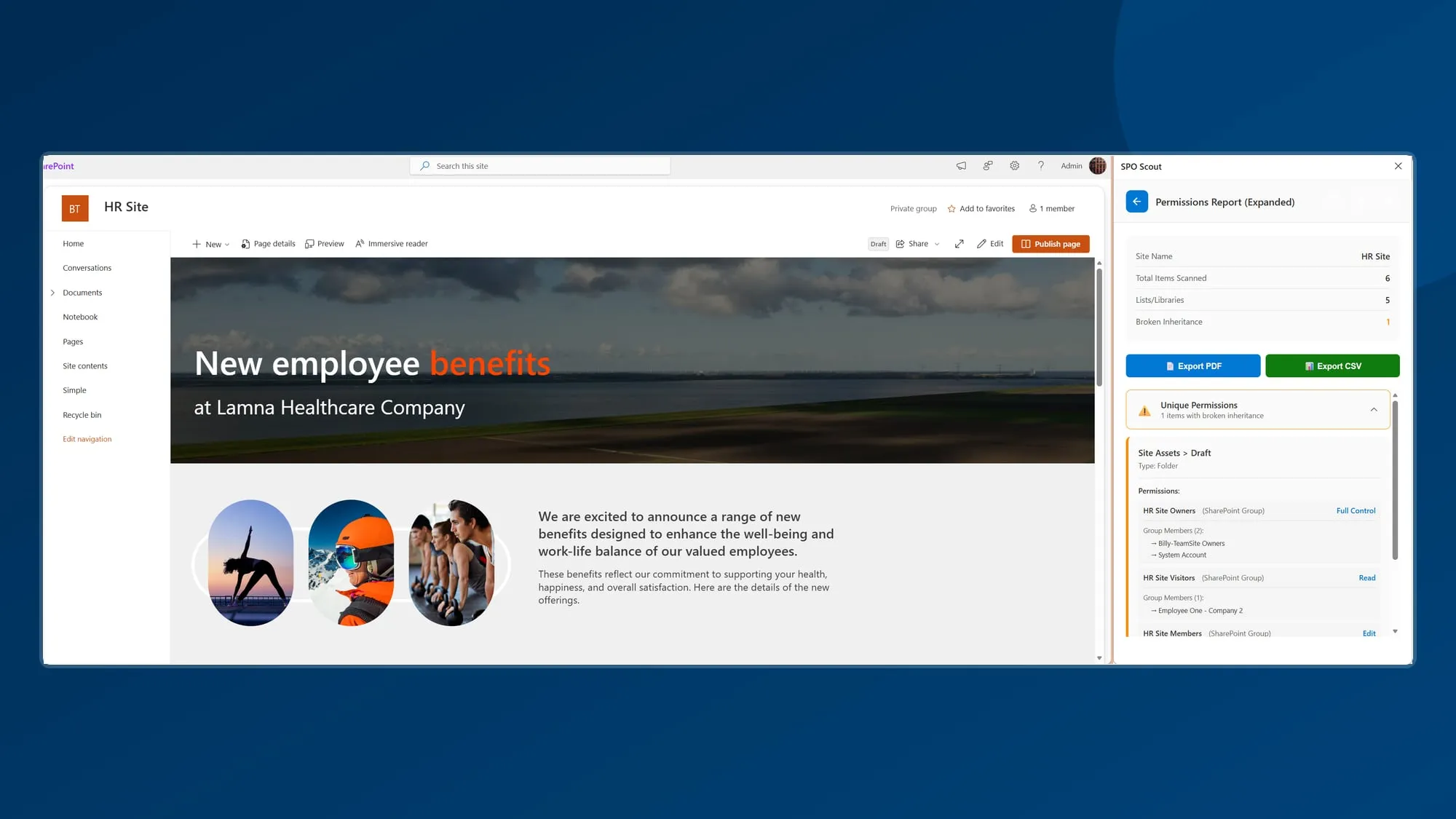
Mark where access becomes unique and show the parent, path, assignment count, and any child exceptions. One intentional restricted library is different from hundreds of unexplained folder-level breaks.
Who receives access?
Separate principals into categories:
- SharePoint groups
- Microsoft 365 or security groups
- Individual users
- Guests or external users
- Sharing links
- Applications, when relevant
Direct access may be valid, but it is harder to govern through role changes and offboarding.
What access was granted?
Normalize permission levels into practical categories such as Read, Edit, Manage, Full Control, Limited Access, and Custom.
Where custom levels exist, show both the friendly name and the underlying role definition when available.
How was access granted?
Show whether access came from inheritance, a SharePoint group, a directory group, a direct assignment, a sharing link, or an application permission.
A tree or path view can explain the access route, not only the final user and role.
Why was the result flagged?
Every finding should have a plain-language explanation:
External guest has Edit access to a uniquely secured client folder.
Individual user has Full Control through a direct assignment.
Restricted library has no confirmed owner.
This makes the output usable in conversations with site owners, security teams, migration leads, and auditors.
A Practical Technical Architecture
A permission visualizer does not need to force every access question through one API.
SPFx for the admin experience
SPFx provides a familiar, site-aware admin experience with React components, tenant-approved API requests, and app-catalog deployment.
Keep the first version read-only. Visibility is valuable before high-impact remediation is automated.
SharePoint REST or PnPjs for the permission model
SharePoint REST or PnPjs is the natural source for inheritance, role assignments, principals, role definitions, and the list items representing secured folders or files.
An illustrative REST sequence is:
GET /_api/web/lists/getbytitle('Documents')/items(42)
    ?$select=Id,FileRef,HasUniqueRoleAssignments

GET /_api/web/lists/getbytitle('Documents')/items(42)/roleassignments
    ?$expand=Member,RoleDefinitionBindings
Production code still needs paging, retries, throttling handling, and clear treatment of inaccessible resources.
Microsoft Graph for enrichment and sharing
Microsoft Graph is useful, but it should not be described as a complete replacement for SharePoint role assignments.
For driveItem files and folders, Graph can return direct or inherited sharing permissions, with inheritedFrom identifying the source when available.
Inside SPFx, MSGraphClientV3 provides an authenticated client:
const graphClient =
  await this.context.msGraphClientFactory.getClient("3");

const result = await graphClient
  .api(`/sites/${siteId}/drive/items/${itemId}/permissions`)
  .get();
Use Graph for sharing permissions, links, guests, directory groups, and identity enrichment. Do not treat GET /sites/{siteId}/permissions as a report of employee access; that endpoint represents application permissions on the site.
Normalize the results
Convert API responses into a consistent finding model:
interface PermissionFinding {
  resourceUrl: string;
  resourceType: "site" | "library" | "folder" | "file" | "item";
  hasUniquePermissions: boolean;
  principalType: "user" | "guest" | "group" | "link" | "application";
  principalName: string;
  permissionLevel: string;
  accessSource: "inherited" | "direct" | "group" | "link" | "application";
  riskReasons: string[];
  riskScore: number;
  owner?: string;
  reviewStatus?: "new" | "accepted" | "remediate" | "closed";
}
The UI should work with understandable findings rather than exposing API-specific structures directly.
An Explainable Risk Model
A risk score helps prioritize results, but it must remain transparent.
One simple model is:
Risk priority = exposure + permission strength + governance uncertainty + content sensitivity
Example review weights could include:
| Condition | Example weight |
|---|---|
| Anonymous sharing link | +5 |
| External principal | +4 |
| Direct user assignment | +3 |
| Full Control | +3 |
| Edit access | +2 |
| Unique permissions | +2 |
| Sensitive location | +3 |
| No confirmed owner | +2 |
Thresholds should reflect the content and workspace. Always show the reasons: “external guest + Edit + unique folder + no owner” is more useful than “Score 14.” A high score means review is needed, not that access is automatically wrong.
Real-World Scenario
Consider a professional-services organization preparing to migrate client files into SharePoint Online.
The migration team runs the visualizer against a pilot client area. It identifies many unique scopes, direct users, guest accounts, elevated access below the library level, and restricted folders without confirmed owners. The tool groups these into review patterns instead of one long spreadsheet.
A former contractor has direct Edit access to active-client folders, so the assignments are removed. A sensitive finance folder scores highly too, but its group-based access is intentional and owner-approved, so the exception is documented.
Another folder contains twelve valid direct users; the team replaces them with a managed engagement group. A broad link points to a town-hall file stored in the wrong workspace, so the content is relocated rather than simply locked down.
The tool has not made business decisions automatically. It has made the decisions visible:
- Remove access with no current need
- Replace valid direct assignments with managed groups
- Preserve approved exceptions with an owner and rationale
- Move content when location is the real problem
- Build approved access into the migration mapping
This is how a visualizer connects technical implementation to governance and migration planning.
Technical Recommendations
Scan in layers
Do not retrieve every detailed assignment immediately.
- Inventory sites and libraries.
- Identify objects with unique permissions.
- Retrieve detailed assignments for those objects.
- Enrich higher-priority findings with Graph or directory data.
- Export or store the review results.
This reduces unnecessary calls and keeps the interactive experience more responsive.
Separate interactive and large-scale scanning
Use SPFx for a current site or limited scope. Use an Azure Function or scheduled backend for tenant-wide batching, retries, throttling, and snapshots.
Use least privilege
Request only the access the tool requires. For background services limited to approved sites, resource-specific approaches such as Sites.Selected can reduce tenant-wide exposure.
Least privilege improves security, but it also makes approval and long-term support easier.
Protect the report
Restrict the tool, exports, logs, and snapshots. Permission metadata can reveal confidential locations, guests, groups, administrators, and sharing details.
Show uncertainty
Distinguish among:
- No risky access found
- No permissions returned
- Insufficient rights to inspect
- Resource failed to scan
- Scan incomplete or throttled
A blank result must not be presented as proof that the resource is safe.
Business Impact
A permission visualizer reduces the cost of understanding access.
Administrators spend less time tracing groups and reconciling spreadsheets. Migration teams can estimate where owner decisions, guest validation, group redesign, or separate waves are required. Security teams receive an explainable review queue rather than an unfiltered export.
Business owners can answer focused questions such as, “Do these six guests still need Edit access to these client folders?” That is more practical than validating thousands of rows.
The long-term result is less governance debt: fewer cleanup projects, investigations, migration rework, audit explanations, and access-related support tickets. When the review keeps surfacing the same debt, a structured SharePoint permissions cleanup is usually faster than fixing findings one ticket at a time.
Recommendations
- Start read-only. Validate findings and review workflows before adding permission-changing actions.
- Prioritize patterns, not counts. One anonymous link may deserve more attention than many valid group assignments.
- Require an owner and rationale. Valid exceptions should be documented instead of rediscovered during every review.
- Prefer groups for repeatable roles. Replace individual assignments when a managed role-based group is practical.
- Keep API responsibilities clear. Use SharePoint APIs for role assignments and Graph where it adds sharing or identity context.
- Export an operational review queue. Include owner, reviewer, decision, rationale, due date, status, and verification date.
- Track trends. Compare unique scopes, direct users, external access, and unresolved high-priority findings over time.
- Use the tool before major change. Run it during migrations, owner transitions, Copilot readiness reviews, and external-sharing cleanup.
Mistakes to Avoid
- Treating every unique permission as a defect. Some exceptions are intentional and necessary.
- Calling a CSV a visualizer. Administrators also need grouping, filtering, inheritance paths, and explanations.
- Assuming Graph exposes every SharePoint ACL detail. Graph and SharePoint APIs serve overlapping but different purposes.
- Scanning an entire tenant from the browser. Use a backend for large, scheduled, or long-running scans.
- Adding one-click cleanup too early. Restoring inheritance can remove legitimate access.
- Storing reports in broad-access locations. Permission metadata itself may be sensitive.
- Hiding incomplete scans. Unknown is safer than a false green status.
- Ignoring business ownership. IT can surface risk, but owners validate the business need.
Practical Checklist
Before calling the tool production-ready, confirm that it can:
- Identify unique permissions at the levels included in scope
- Show where inheritance stops
- Separate users, groups, guests, links, and applications
- Display permission levels and elevated roles
- Explain each risk flag in plain language
- Distinguish clean results from incomplete scans
- Filter by resource, owner, principal type, role, and risk reason
- Export owner, decision, rationale, due date, and status
- Protect the interface and exported data
- Use least-privileged API permissions
- Handle paging, retries, throttling, and large libraries
- Keep remediation disabled until controls are approved
- Support accepted exceptions
- Connect findings to migration and access-review processes
- Verify remediation after changes are made
Final Thoughts
SharePoint permission signals are distributed across inheritance, groups, direct assignments, sharing, sensitivity, and ownership.
A good visualizer brings them together without replacing administrator judgment. Its value is moving an organization from “we have a report” to “we know what needs review, who owns the decision, and what happens next.”
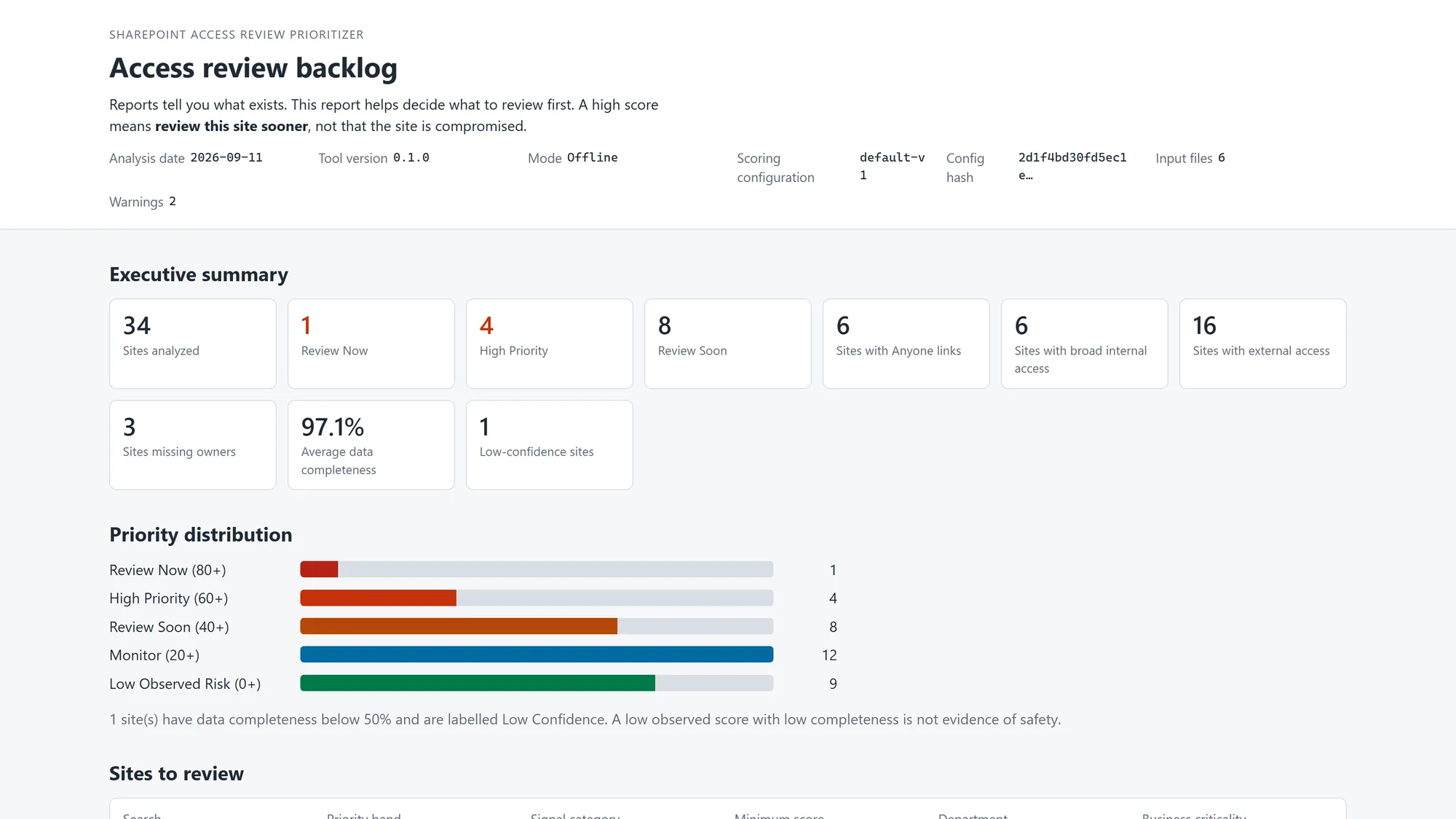
For tenant-level triage before drilling into individual permission paths, I also built the open-source SharePoint Access Review Prioritizer, a PowerShell tool that turns governance exports into an explainable review backlog.
Review the related open-source SharePoint projects and the original SPFx Permission Visualizer build article. For migration-specific access decisions, see Before You Copy File Share Permissions Into SharePoint, Review These 7 Things.
For organizations that need a supportable admin experience instead of another one-off report, see SPFx development consulting. For broader ownership, external sharing, and access-review decisions, see SharePoint governance consulting.
If you are planning a permissions review, a migration, or a Copilot rollout and want a second set of eyes on your permission model first, contact me here — a short conversation about scope and risk is usually the fastest way to start.
Technical References
- Use MSGraphClientV3 to connect to Microsoft Graph in SPFx
- Consume Microsoft Graph in a SharePoint Framework solution
- List sharing permissions for a drive item
- Microsoft Graph permission resource
- Selected permissions for OneDrive and SharePoint
- Resource-specific consent for Microsoft Graph and SharePoint Online
- Set custom SharePoint permissions with the REST interface
Need to clean up SharePoint permissions?
I help organizations find broken inheritance, broad access groups, stale guests, and risky sharing links, then fix them in an order that site owners can follow.
Free SharePoint planning resource
Before expanding Microsoft 365 usage, review your SharePoint risks.
Use the readiness checklist to review permissions, ownership, external sharing, retention, and lifecycle gaps before they become production issues.
Get the Checklist
SharePoint architect & Microsoft 365 consultant • 16+ years of experience
If you have questions about your SharePoint environment, feel free to reach out.