How I Audit SharePoint Permissions: Native Tools vs PowerShell vs SPO Scout
Billy Peralta
September 22, 2026 · 18 min read

SPO Scout permissions report on a demo tenant
SharePoint permission problems rarely start as permission problems.
They usually start as something simple:
- a project team needs a private folder;
- someone shares a document with an external partner;
- a department adds a new SharePoint group;
- a migration brings over years of inherited file-share access;
- a site owner grants someone direct access because it is faster than redesigning the permission model.
Each decision may be reasonable on its own.
The problem appears later, when an administrator has to answer a much harder question:
Who can actually access this site, library, folder, or file, and why?
That is where SharePoint permissions become an operational problem rather than just a configuration problem.
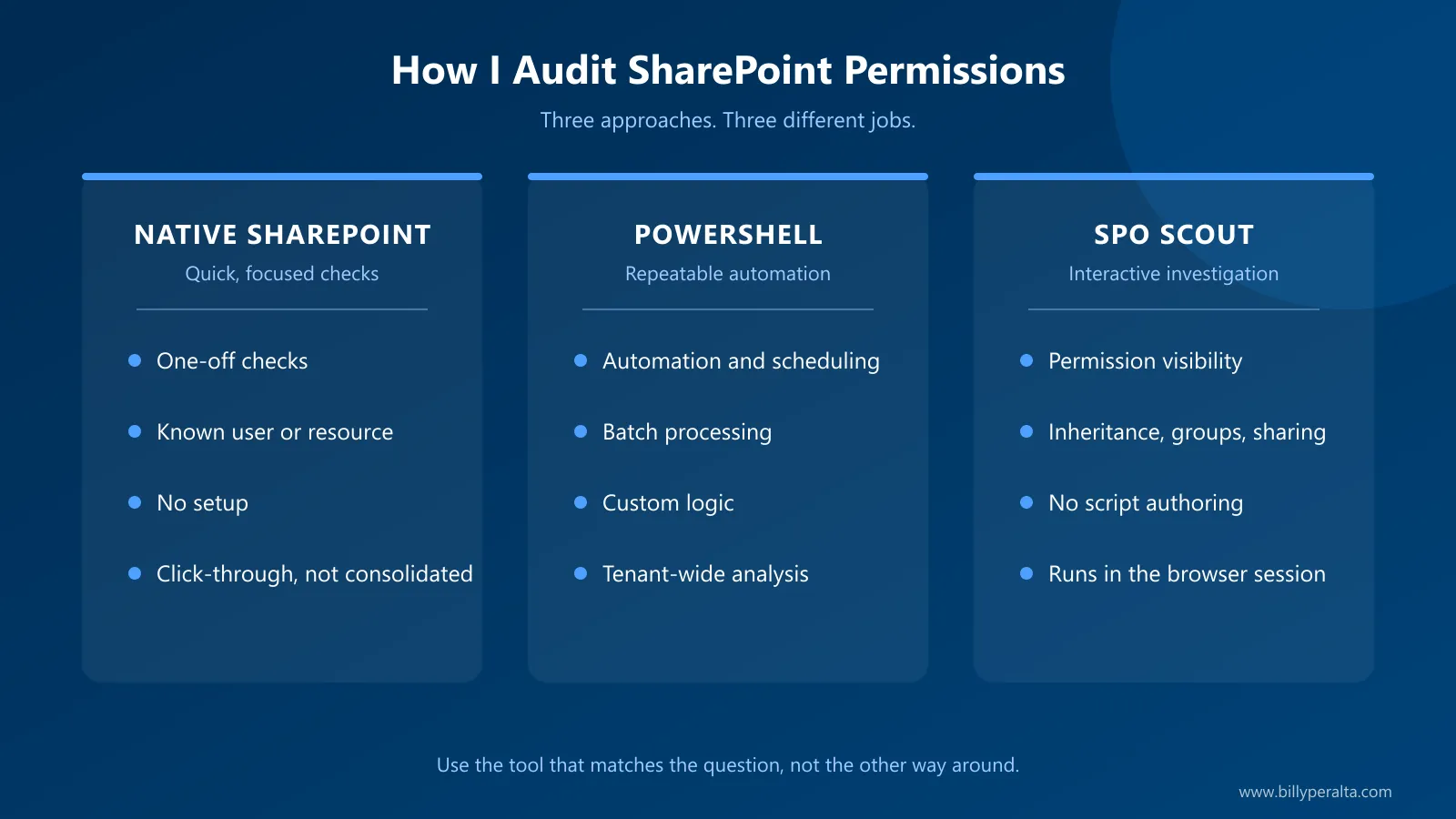
I use three different approaches depending on the job:
- SharePoint’s native tools for quick, focused checks.
- PowerShell for automation, repeatable batch analysis, and tenant-level work.
- SPO Scout for interactive permission investigation and reporting directly from the browser.
I built SPO Scout because I kept running into a gap between the first two options.
This post explains how I decide which approach to use, where each one works well, and where each one becomes inefficient.
Disclosure: I built SPO Scout. This is not an independent product review. It is a practical explanation of where I use the tool in my own SharePoint administration workflow and where I still prefer native Microsoft tools or PowerShell.
TL;DR
- Use native SharePoint tools when you already know the site, library, file, or user you need to inspect.
- Use PowerShell when the job needs repeatability, batch processing, automation, custom logic, or tenant-wide analysis.
- Use SPO Scout when you need to interactively investigate permissions, unique access, group membership, sharing, and related SharePoint administration tasks without writing a new script.
- SPO Scout is not a replacement for PowerShell and is not intended to replace large enterprise migration or governance platforms.
- The important question is not which tool is “best.” It is which approach matches the administrative problem you are trying to solve.
Table of Contents
- Why SharePoint permission audits get difficult
- What I check during a permission review
- Option 1: SharePoint native tools
- Option 2: PowerShell and PnP PowerShell
- Option 3: SPO Scout
- Native vs PowerShell vs SPO Scout
- A practical workflow I use
- Where SPO Scout fits and where it does not
- Security and data handling
- Common mistakes to avoid
- Business impact
- Recommendations
- Final thoughts
Why SharePoint Permission Audits Get Difficult
The SharePoint permission model itself is not mysterious.
Permissions can exist at multiple scopes:
- site;
- list or document library;
- folder;
- item;
- file.
By default, child objects inherit access from their parent. Once inheritance is broken, that object can have its own unique permission assignments.
Microsoft documents this model clearly in its guidance on permission scopes and inheritance.
The challenge is not understanding the concept.
The challenge is dealing with the reality of a SharePoint environment that has been evolving for years.
A site may contain:
- Microsoft 365 group membership;
- SharePoint Owners, Members, and Visitors groups;
- security groups;
- direct user permissions;
- external guests;
- sharing links;
- folders with broken inheritance;
- files with unique permissions;
- permission levels that differ from the parent;
- old access left behind after projects or staff changes.
When the question is simply:
“Does Jane have access to this file?”
the native interface may be enough.
When the question becomes:
“Show me where this site breaks inheritance, who is inside every group, which users are external, and what needs review before we enable Copilot or complete a migration,”
the job becomes much more involved.
That is the difference between checking access and auditing access.
What I Check During a SharePoint Permission Review
Before choosing a tool, I define what I actually need to know.
A practical permission review usually includes some combination of the following.
Permission structure
- Is the site using a simple inherited permission model?
- Which libraries break inheritance?
- Which folders have unique permissions?
- Which files or items have their own permission scope?
Principals
- Who is in the Owners group?
- Who is in the Members group?
- Who is in the Visitors group?
- Are users assigned directly instead of through groups?
- Are security groups or Microsoft 365 groups involved?
External access
- Which users are external?
- Which guests still have access?
- Are there broad sharing links?
- Are old project collaborators still present?
Governance
- Is access aligned with current ownership?
- Are sensitive areas isolated appropriately?
- Does the permission structure still make sense?
- Is the environment ready for migration, Copilot, or a compliance review?
I covered the underlying governance patterns in more detail in SharePoint Site Permissions Best Practices and in my article on messy SharePoint permissions before and after migration.
The important point here is that the tool should follow the question.
Not the other way around.
Option 1: SharePoint Native Tools
For a small, known problem, I start with SharePoint itself.
That is often the fastest path.
Where native tools work well
If someone asks:
“Why can this user open this document?”
or:
“Who currently has access to this library?”
I may not need a script or another tool.
The SharePoint interface gives you several useful options:
- Site permissions
- Advanced permissions
- Check Permissions
- Manage access
- Library permissions
- Folder and file sharing details
These are especially useful when:
- the scope is small;
- you already know what object you are investigating;
- you are troubleshooting one user or one resource;
- you need to confirm a specific access path.
For a one-off support ticket, native SharePoint is often exactly what I want.
Where native tools become inefficient
The problem is repetition.
Imagine checking:
- 12 libraries;
- 40 folders with broken inheritance;
- dozens of SharePoint groups;
- multiple external users;
- direct permission assignments;
- sharing links.
The native interface was not designed to give you one consolidated investigative view across all of those objects.
You end up clicking through layers of settings pages, opening groups, checking individual objects, and manually keeping track of what you found.
That is manageable for one object.
It becomes tedious for an audit.
My rule
Use native SharePoint tools when the question is narrow and you already know where to look.
Once the question becomes broader, I move to PowerShell or an interactive reporting tool.
Option 2: PowerShell and PnP PowerShell
PowerShell is still one of the most useful tools in a SharePoint administrator’s toolkit.
I use it regularly.
The mistake is assuming that every SharePoint administration problem should automatically become a PowerShell script.
Where PowerShell is the right choice
PowerShell is excellent when I need the following.
Repeatability. If I need to perform the same analysis every week or every month, a script makes sense.
Batch processing. If I need to evaluate hundreds or thousands of sites, browser-based investigation is not the right architecture.
Custom logic. PowerShell lets me combine:
- SharePoint data;
- Microsoft Graph;
- CSV exports;
- business metadata;
- governance rules;
- scoring logic;
- external systems.
Automation. If a job needs to run unattended through:
- Azure Automation;
- Azure Functions;
- a pipeline;
- a scheduled task;
PowerShell or an API-driven solution is usually the better fit.
Tenant-level triage. I recently built a SharePoint Access Review Prioritizer with PowerShell for exactly this reason.
That project is designed to take governance exports, normalize them, calculate review signals, and turn them into an actionable backlog.
That is a batch-processing problem.
PowerShell fits it naturally.
What a small PnP PowerShell permission check looks like
For reference, this is the shape of a minimal PnP PowerShell pass that lists the libraries in one site that break inheritance, along with the principals assigned on each one. The tenant, site, and client ID are placeholders.
# PnP.PowerShell 3.x requires your own Entra app registration (no shared default client ID)
Connect-PnPOnline -Url "https://contoso.sharepoint.com/sites/finance" `
  -Interactive -ClientId "00000000-0000-0000-0000-000000000000"

$lists = Get-PnPList -Includes HasUniqueRoleAssignments, RoleAssignments |
  Where-Object { -not $_.Hidden -and $_.HasUniqueRoleAssignments }

foreach ($list in $lists) {
  foreach ($ra in $list.RoleAssignments) {
    Get-PnPProperty -ClientObject $ra -Property Member, RoleDefinitionBindings | Out-Null
    [pscustomobject]@{
      Library   = $list.Title
      Principal = $ra.Member.Title
      Type      = $ra.Member.PrincipalType
      Level     = ($ra.RoleDefinitionBindings | Select-Object -ExpandProperty Name) -join ", "
    }
  }
}
That is fine as a starting point. It is also incomplete: it does not walk folders and items with unique permissions, expand group membership, resolve sharing links, handle throttling, or produce a report anyone else can read. Each of those is more code to write and, later, more code to maintain.
Where PowerShell becomes friction
The cost of PowerShell is not the syntax.
The cost is everything around the syntax:
- authentication;
- module versions;
- permissions;
- error handling;
- throttling;
- output formatting;
- group expansion;
- pagination;
- maintaining the script;
- explaining the script to the next administrator.
A script that answers one question today often becomes a script you need to maintain six months from now.
For a repeatable process, that investment is worthwhile.
For an ad-hoc investigation, it may not be.
A common example
Suppose I am already inside a SharePoint site and want to know:
- which libraries have unique permissions;
- which folders break inheritance;
- who is inside the SharePoint groups;
- whether external users are present;
- what the current access structure looks like.
I can absolutely write PowerShell for that.
But if the task is investigative rather than automated, I may not want to stop, open a terminal, authenticate, modify a script, run it, export results, and then go back to SharePoint.
That gap is what led me to build SPO Scout.
Option 3: SPO Scout
SPO Scout is a browser extension I built for practical SharePoint administration.
The idea is simple:
If I am already working inside SharePoint, I should be able to investigate common administrative problems without writing a new script every time.
The main use case I focus on is permissions.
SPO Scout can help with workflows such as:
- reviewing site, library, folder, and file permissions;
- finding unique permissions and broken inheritance;
- expanding SharePoint or Microsoft 365 groups where supported;
- identifying external users;
- reviewing sharing-related access;
- exporting permission results;
- investigating storage and version-related issues;
- comparing SharePoint libraries;
- validating migration results.
Some of those capabilities, such as group expansion and item-level exports, sit in the Pro tier. The exact feature set continues to evolve, so I keep the current capabilities documented on the SPO Scout features page.
For permission-specific workflows, I also maintain a dedicated SharePoint Permissions Report page.
Where I use it
SPO Scout fits best when I am doing interactive administration.
For example:
I am on a Finance site and want to understand why the permission structure looks different between the site, a library, and several folders.
That is not necessarily a tenant automation problem.
It is an investigation.
Instead of building a temporary PowerShell script, I can stay in the browser, run the analysis, inspect the results, and export what I need.
That is the workflow the tool is designed around.
Here is what that looks like on a demo HR site. The SharePoint page stays open on the left, and the report runs in the side panel on the right: the summary counts the lists and libraries scanned, flags the one folder that breaks inheritance, and expands each SharePoint group on that folder to the accounts inside it, with the permission level next to each one.

SPO Scout is designed for interactive permission investigation directly from the SharePoint browser workflow.
Native SharePoint vs PowerShell vs SPO Scout
There is no universal winner.
Here is how I think about the trade-off.
| Scenario | Native SharePoint | PowerShell | SPO Scout |
|---|---|---|---|
| Check one user’s access | Excellent | Possible | Useful |
| Inspect one site’s permissions | Good | Good | Strong fit |
| Find broken inheritance interactively | Manual | Good | Strong fit |
| Expand groups during investigation | Manual | Strong | Strong fit |
| Tenant-wide batch analysis | Limited | Excellent | Not the primary use case |
| Scheduled reporting | Limited | Excellent | Not the primary use case |
| Custom business logic | Limited | Excellent | Limited |
| Ad-hoc troubleshooting | Good for narrow cases | More setup | Strong fit |
| Large migration program | Limited | Useful component | Useful for validation, not a full migration platform |
| Repeatable automation | Limited | Excellent | Not the primary use case |
| No script authoring | Yes | No | Yes |
The point is not to eliminate PowerShell.
The point is to use PowerShell where automation actually creates value.
A Practical Workflow I Use
A real permission review often uses more than one tool.
Here is a pattern I like.
Step 1: Understand the problem
Start with the business question.
Examples:
- We are preparing this site for Copilot.
- We are migrating this department.
- An external user appears to have unexpected access.
- We need to document who can access a sensitive library.
- The site has accumulated years of broken inheritance.
Do not start with “Which tool should I run?”
Start with:
What decision do I need to make?
Step 2: Use native SharePoint for the obvious checks
I look at:
- site membership;
- Owners, Members, and Visitors;
- sharing settings;
- the specific user or resource involved.
If the problem is obvious, stop there.
Not every support ticket needs an audit.
Step 3: Use SPO Scout for interactive investigation
If the permission structure is more complex, I use the browser workflow to inspect:
- inheritance;
- unique permissions;
- group membership;
- external access;
- object-level differences.
This gives me a faster way to understand the shape of the problem.
If the environment also has an SPFx footprint and you prefer something that lives inside a SharePoint page rather than a browser extension, my open-source SPFx Permission Visualizer covers a similar interactive inspection job from a web part.
Step 4: Use PowerShell when the investigation needs to become a process
If I discover that the same issue exists across 300 sites, the problem has changed.
Now I may need:
- PnP PowerShell;
- Microsoft Graph;
- SharePoint Advanced Management data;
- an Azure Function;
- scheduled reporting;
- a governance backlog.
At that point I move from interactive investigation to automation.
That distinction matters.
A browser tool is great for helping me understand one environment.
PowerShell is great for turning a known rule into a repeatable process.
Where SPO Scout Fits and Where It Does Not
I do not position SPO Scout as a universal replacement for SharePoint administration tools.
That would not be realistic.
Good fit
SPO Scout is a good fit when an administrator wants to:
- investigate permissions quickly;
- avoid writing a one-off PowerShell script;
- understand broken inheritance;
- inspect group membership;
- review external access;
- export findings;
- troubleshoot a SharePoint site interactively;
- validate SharePoint content during or after a migration.
PowerShell is a better fit when
Use PowerShell when you need:
- unattended execution;
- scheduled jobs;
- custom APIs;
- tenant-wide batch processing;
- custom remediation logic;
- integration with other systems;
- repeatable automation.
Enterprise platforms are a better fit when
Larger platforms can make more sense when an organization needs:
- full migration orchestration;
- broad governance across many workloads;
- centralized policy enforcement;
- enterprise reporting;
- large-scale operational workflows;
- formal platform ownership across a large IT organization.
SPO Scout sits in a different space.
I think of it as the practical middle ground between:
clicking through SharePoint manually
and
building another script or buying a much larger platform for a smaller administrative problem.
Security and Data Handling
Browser extensions deserve extra scrutiny in enterprise environments.
I treat that as part of the product, not something to hide in a privacy policy.
SPO Scout performs SharePoint analysis locally in the browser using the administrator’s existing SharePoint session.
SharePoint content and permission-report data are not uploaded to SPO Scout servers for analysis.
SPO Scout does use server-side infrastructure for licensing. Licensing-related requests can include information such as the licence key and tenant domain, and optional feedback is sent only when the user submits it.
There is:
- no SharePoint-side server deployment;
- no separate Entra app registration required for the core browser workflow;
- no usage analytics or telemetry inside the extension.
For the detailed request-by-request data model, browser permissions, local storage, licensing, and enterprise deployment information, see SPO Scout Security and Data Handling.
If I were evaluating any browser extension for an enterprise tenant, I would ask the same questions:
- What can it read?
- What leaves the browser?
- What is stored?
- What permissions does it request?
- Does it require tenant-wide consent?
- How is licensing handled?
- How can IT deploy or remove it?
Those questions should have clear answers before deployment.
Common Mistakes to Avoid
1. Treating every permission issue as a scripting problem
PowerShell is powerful.
That does not mean the fastest path to every answer is writing a script.
If the job is investigative and one-off, the script may cost more time than the analysis.
2. Treating browser tools as automation platforms
The opposite mistake is also common.
If you need to process every SharePoint site in a tenant every night, use an architecture designed for batch automation.
Do not force an interactive tool into an unattended workload.
3. Fixing permissions before understanding why they exist
A unique permission may be:
- a mistake;
- an old exception;
- a real business requirement.
Do not automatically remove it because a report says it is unique.
First determine the business context.
4. Looking only at users and ignoring groups
A user’s effective access may come through:
- Microsoft 365 groups;
- SharePoint groups;
- security groups;
- direct assignments;
- sharing links.
An audit that only lists direct user assignments is incomplete.
5. Ignoring broken inheritance during migration
Migration projects often focus on:
- file count;
- size;
- unsupported characters;
- metadata;
- versions.
Permissions deserve the same attention.
If you migrate years of unmanaged access without reviewing it, you are moving the old governance problem into the new platform.
Business Impact: Why Permission Visibility Matters
Permission auditing sounds technical, but the impact is broader.
Security
You need to know whether users have access they no longer need.
Governance
A site nobody can explain is difficult to govern.
Migration
Complex permissions increase migration risk and validation effort.
Copilot readiness
Microsoft 365 Copilot respects existing permissions.
That makes oversharing and stale access more visible, not less important.
Supportability
A permission model that only one administrator understands is not a sustainable design.
Cost
The right tooling can reduce repetitive investigation work, but the goal should be operational efficiency, not replacing thoughtful governance.
Recommendations
If you are trying to improve SharePoint permission administration, I would use this decision model.
Use native SharePoint when:
- the question is narrow;
- the affected object is known;
- you are checking one user or one resource.
Use PowerShell when:
- the job needs automation;
- you need tenant-wide coverage;
- you need repeatability;
- you need custom logic.
Use SPO Scout when:
- you are investigating permissions interactively;
- you want visibility without writing another script;
- you need to inspect inheritance, groups, external access, and related SharePoint details from the browser.
And in mature environments, use all three.
They solve different problems.
Final Thoughts
I still use PowerShell.
I still use native SharePoint administration.
And I built SPO Scout because there was a class of SharePoint administration work where neither option felt efficient enough.
The tool came from a practical question:
Why am I writing another script just to understand what is happening in the SharePoint site already open in front of me?
That does not mean scripts are obsolete.
It means administrators should have more than one option.
If you need scheduled tenant governance, build the automation.
If you need enterprise migration orchestration, use a platform designed for it.
If you need to quickly investigate SharePoint permissions, inheritance, groups, or access while working inside the site, a browser-based workflow can be much more practical.
That is the space SPO Scout is designed to fill.
Try SPO Scout
If you manage SharePoint and want to investigate permissions without writing another one-off PowerShell script, you can try the Free version of SPO Scout.
For the permissions workflow specifically, see the SharePoint Permissions Report page, and for security and data-handling details, see SPO Scout Security.
Need help with a more complex SharePoint environment?
A tool can help expose the permission structure.
It cannot decide your governance model for you.
If your organization is dealing with migration cleanup, external sharing, Copilot readiness, complex permission inheritance, or a broader Microsoft 365 governance problem, I also work directly with organizations on SharePoint and Microsoft 365 consulting. See my SharePoint Governance Consulting page or contact me to discuss the environment and scope.
Technical References
Planning a SharePoint migration or cleanup?
I help organizations assess SharePoint environments, clean up stale content, review permissions, and build practical migration roadmaps before moving to Microsoft 365.
Free SharePoint planning resource
Planning a file share to SharePoint migration?
Download the SharePoint Migration & Governance Readiness Checklist and review scope, ROT cleanup, permissions, governance, and adoption before you move another folder.
Download the ChecklistBilly Peralta
SharePoint & Microsoft 365 Specialist • 16+ Years Experience
If you have questions about your SharePoint environment, feel free to reach out.
Continue Reading
View all posts arrow_forward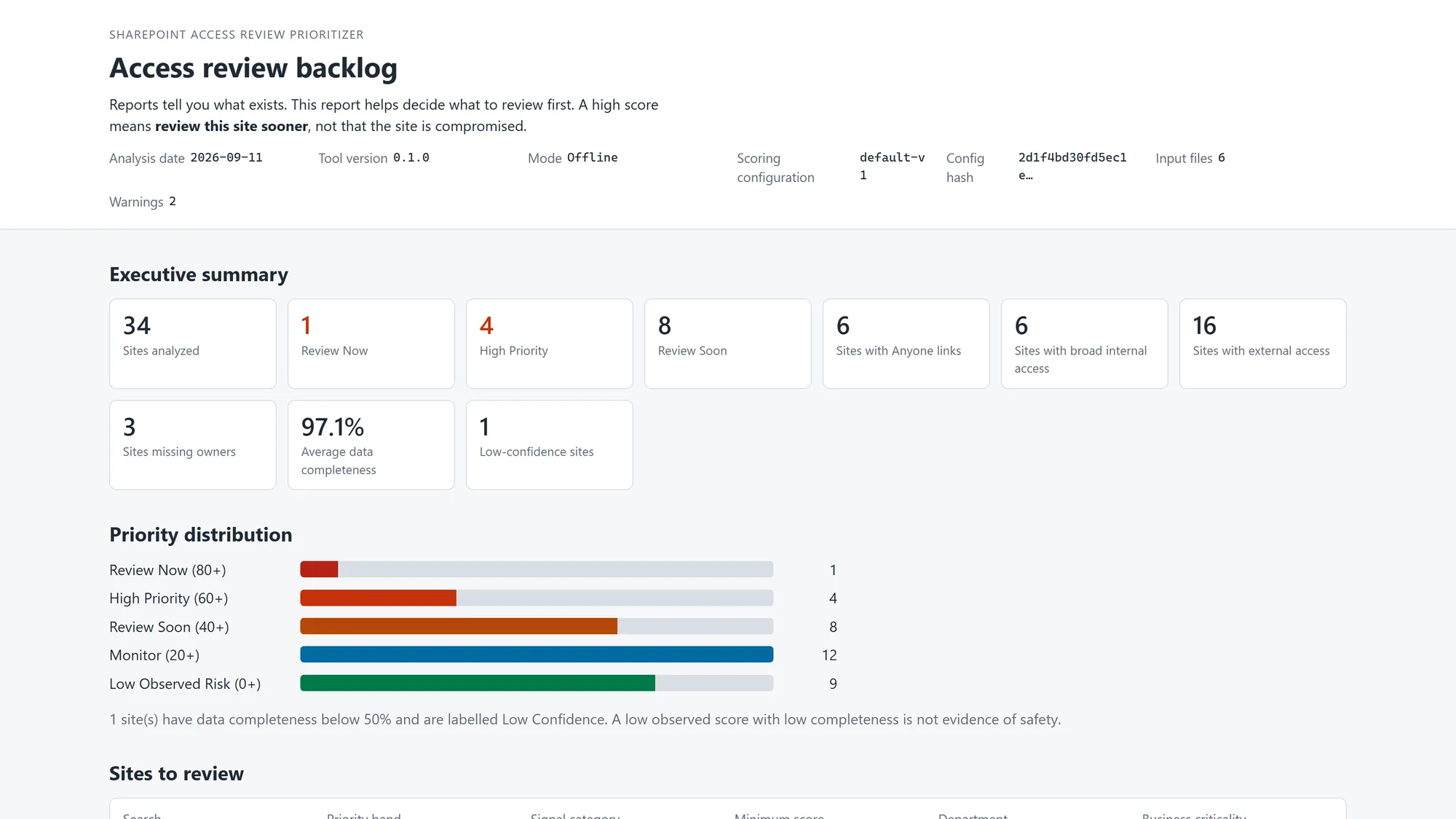
Building a SharePoint Access Review Prioritizer With PowerShell: From Governance Reports to an Actionable Backlog
Build a read-only PowerShell tool that turns SharePoint governance exports into an explainable, prioritized access-review backlog with optional PnP enrichment.

Building a SharePoint Permission Visualizer: How to Find Broken Inheritance and Risky Access Faster
Learn how an SPFx permission visualizer can expose broken inheritance, direct access, external sharing, and risky SharePoint permissions faster.

SharePoint Advanced Management: What to Review Before Copilot Expands Access
Learn how to use SharePoint Advanced Management to control oversharing, run site access reviews, and prepare permissions before Copilot expands content access.