SharePoint Admin Center Now Lets You Add Trusted Script Sources for GA4 and SPFx CSP Issues
Billy Peralta
June 4, 2026 · 10 min read
In my earlier post, Why GA4 Tracking Is Breaking on Modern SharePoint Pages in 2026 — and How to Fix It, I covered why Google Analytics 4 or Google Tag Manager can fail when used with SharePoint Framework customizations and Content Security Policy restrictions.
There is now a cleaner admin experience for this.
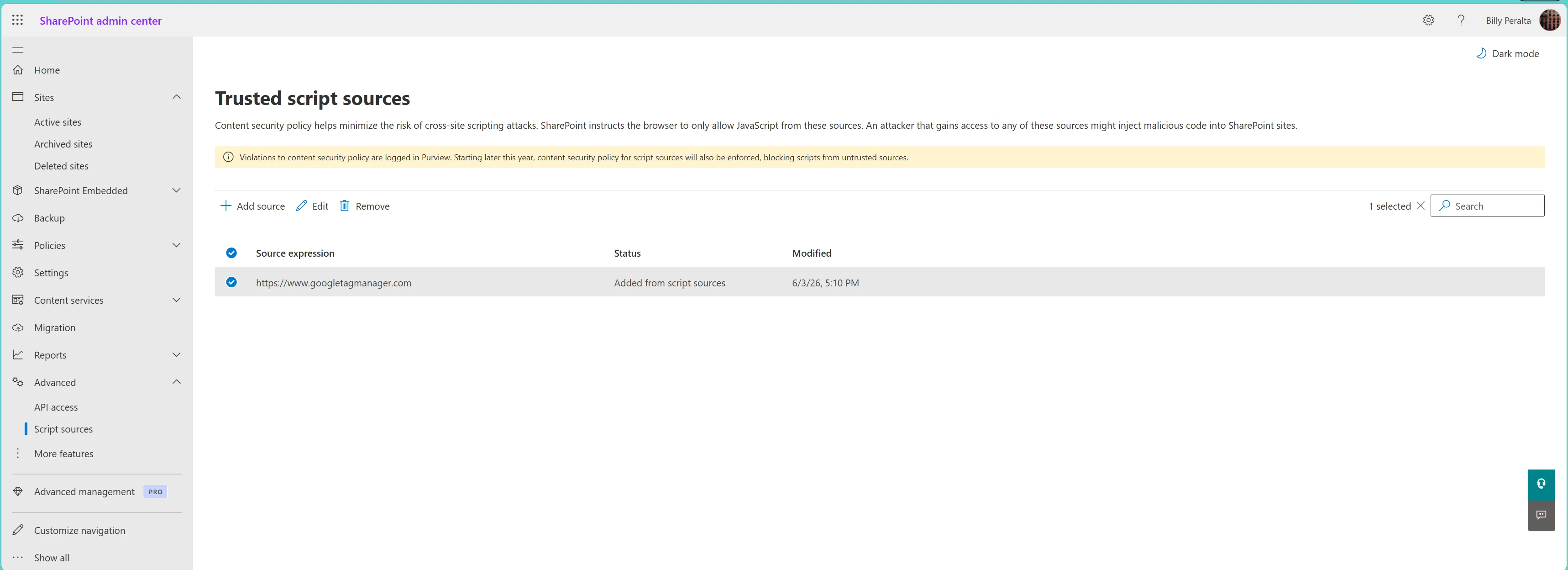
SharePoint Online includes a Trusted script sources page inside the SharePoint admin center, where tenant admins can add approved script source URLs such as:
https://www.googletagmanager.comThis matters because many organizations use SPFx extensions to inject analytics, banners, personalization scripts, or enterprise widgets across modern SharePoint sites. If those scripts are loaded from external domains, SharePoint needs to know which sources are trusted.
Instead of only thinking about this as a developer problem, this should be treated as a SharePoint governance and operational readiness issue.
TL;DR
- SharePoint Online has a Trusted script sources page in the SharePoint admin center.
- You can find it under SharePoint admin center → Advanced → Script sources.
- For Google Tag Manager or GA4 scenarios loaded through SPFx, add
https://www.googletagmanager.com. - This helps SharePoint allow scripts from that source when CSP enforcement applies.
- Do not add broad or unnecessary sources.
- Avoid inline JavaScript in SPFx or script editor-style web parts.
- Test your SharePoint pages after adding the trusted source.
- Document why each script source is trusted, who owns it, and what business function depends on it.
Table of Contents
- What changed
- Why this matters for GA4 and Google Tag Manager
- Where to add the trusted script source
- What URL should be added for Google Tag Manager
- Why this is not just a developer setting
- Recommended validation steps
- What not to do
- Governance checklist for trusted script sources
- Example scenario
- Technical notes for SPFx developers
- Final thoughts
What changed
Previously, fixing CSP-related script loading issues in SharePoint often felt like a mix of developer troubleshooting, browser console errors, tenant settings, and SPFx packaging decisions.
The admin center experience makes this easier to manage.
In the SharePoint admin center, there is now a dedicated page called Trusted script sources. From this page, an admin can review existing trusted sources and manually add a new source when a script needs to be loaded from an external location.
The navigation path is:
SharePoint admin center → Advanced → Script sourcesFrom there, select Add source, then enter the source expression, such as:
https://www.googletagmanager.comThis is especially useful when an SPFx solution loads Google Tag Manager or another external JavaScript dependency at runtime.
Why this matters for GA4 and Google Tag Manager
Many SharePoint intranets and portals use Google Analytics 4 through Google Tag Manager to understand:
- Which pages users visit
- Which departments or content areas get traffic
- Whether employees engage with intranet content
- Which announcements, resources, or knowledge pages are being used
- Whether navigation and page layout changes improve adoption
From a business perspective, analytics help answer practical questions:
- Are employees finding the resources they need?
- Are users clicking important calls to action?
- Which intranet pages should be improved or retired?
- Are adoption campaigns actually working?
From a technical perspective, the issue is that Google Tag Manager is loaded from an external domain. If SharePoint CSP does not trust that script source, the browser may refuse to load the script when CSP enforcement applies.
That means your analytics implementation may look correct in code, but tracking may silently fail or show browser console errors.
Where to add the trusted script source
To add Google Tag Manager as a trusted script source:
- Open the SharePoint admin center.
- Go to Advanced.
- Select Script sources.
- Select Add source.
- Enter
https://www.googletagmanager.com. - Save the entry.
- Re-test the SharePoint page where the SPFx solution is installed.
After the source is added, it should appear in the list of trusted sources with a status similar to:
Added from script sourcesThis indicates that the entry was manually added from the admin center interface.
What URL should be added for Google Tag Manager
For most Google Tag Manager SPFx scenarios, the source to add is:
https://www.googletagmanager.comHowever, do not treat this as a reason to add every analytics, marketing, or third-party domain into SharePoint. The trusted script source list should stay intentional and controlled.
For each source, ask:
- What script is being loaded from this domain?
- Which SPFx solution depends on it?
- Which SharePoint sites use it?
- Who owns the script or tag configuration?
- What business purpose does it support?
- What happens if the source is removed?
For GA4 and Google Tag Manager, the answer is usually analytics and traffic measurement. That is a valid business need, but it still needs governance.
Why this is not just a developer setting
It is tempting to treat this as a quick technical fix: add the Google Tag Manager URL and move on.
That would be a mistake.
Trusted script sources affect what JavaScript SharePoint pages are allowed to load. That means the setting has security, governance, support, and compliance implications.
A developer may know which script is needed, but a SharePoint admin or Microsoft 365 owner should understand the tenant-level impact.
A proper implementation should include:
- SPFx code review
- Tenant admin review
- Security review if required
- Documentation of the trusted source
- Testing in a non-production site
- Validation through browser developer tools
- Change tracking for future support
The goal is not just to make GA4 work. The goal is to make it work in a way that is supportable and safe.
Recommended validation steps
After adding the trusted source, validate the implementation carefully.
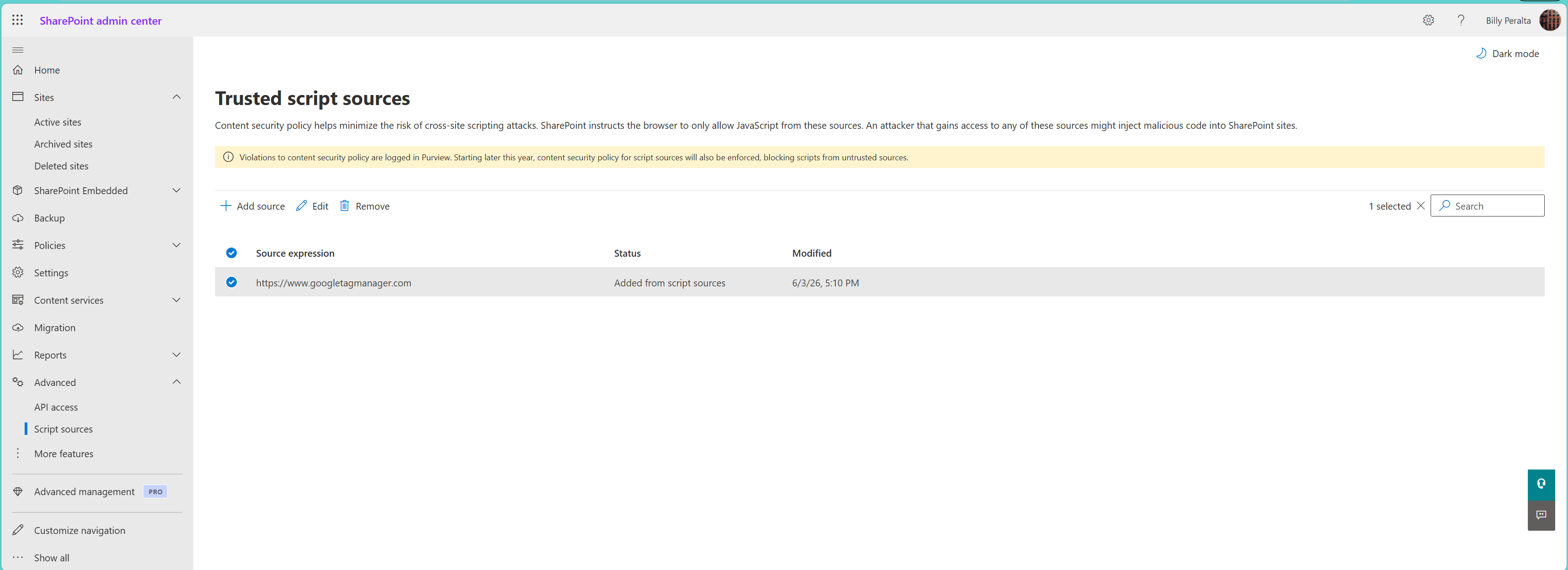
1. Confirm the source exists in SharePoint admin center
Go back to SharePoint admin center → Advanced → Script sources and confirm that the https://www.googletagmanager.com entry exists. Also check the status column. If it was added manually, it should show that it was added from script sources.
2. Test the SharePoint page where the SPFx solution is installed
Open a modern SharePoint page that uses the SPFx extension or web part responsible for loading Google Tag Manager. Use a clean browser session or an InPrivate window if needed.
3. Check the browser console
Open browser developer tools and review the console for CSP-related errors. Look for messages mentioning:
Content Security Policyor:
Refused to load the scriptIf the browser still blocks the script, confirm whether the blocked URL is actually coming from www.googletagmanager.com or another related source.
4. Verify Google Tag Manager loads
Use the browser Network tab to confirm that requests to Google Tag Manager are loading. You can search for gtm.js or googletagmanager.
5. Verify GA4 tracking
Use Google Analytics real-time reports or GTM preview mode to confirm events are being received. Do not assume that the script is working just because the page loads without a visible error.
6. Document the change
At minimum, document:
Source: https://www.googletagmanager.com
Purpose: Google Tag Manager / GA4 analytics for SharePoint Online
Owner: [Team or person]
Related SPFx solution: [Solution name]
Date added: [Date]
Approved by: [Approver]
Review date: [Date]
This helps future admins understand why the source exists.
What not to do
Do not add overly broad sources
Avoid adding broad or careless entries just to make an error go away. For example, do not add wildcard-style sources unless you have a clear reason and understand the impact. The safer approach is to trust the minimum source required.
Do not ignore inline script problems
If an SPFx solution or script editor-style customization relies on inline JavaScript, adding Google Tag Manager as a trusted source may not fix the issue. Inline scripts are a separate CSP concern. A better approach is to move JavaScript into proper script files or implement the logic directly inside the SPFx solution in a maintainable way.
Do not assume all analytics scripts are covered by one source
Google Tag Manager may load additional tags depending on how the GTM container is configured. If a marketing or analytics team adds new tags later, those tags may introduce other domains. That is why SharePoint admins, developers, and analytics owners should coordinate before making tag changes that affect SharePoint.
Do not skip production testing
A trusted source entry may not immediately prove that analytics is working correctly. You still need to test script loading, page views, custom events, consent behavior if applicable, browser console errors, and user experience impact.
Governance checklist for trusted script sources
Use this checklist before adding a source to SharePoint Online.
Business validation
- Is there a clear business reason for the script?
- Is the script required for analytics, user experience, compliance, or an approved application?
- Who requested the script?
- Who owns the configuration after deployment?
Technical validation
- Which SPFx solution loads the script?
- Is the script loaded as an external file instead of inline code?
- Is the source URL specific enough?
- Has the solution been tested on a modern SharePoint page?
- Are there any CSP errors in the browser console?
Security and governance validation
- Has the source been reviewed by the appropriate admin or security owner?
- Is the source documented?
- Is there a review date?
- Is the source still needed?
- Could the script be bundled inside the SPFx package instead?
Analytics validation
- Is Google Tag Manager loading?
- Is GA4 receiving data?
- Are custom events firing correctly?
- Are CTA clicks, contact form visits, or chat interactions being tracked if required?
- Are internal admin or developer visits excluded from reporting if needed?
Example scenario
A company has a SharePoint intranet and wants to track engagement using GA4.
The developer creates an SPFx application customizer that injects Google Tag Manager across modern SharePoint pages.
The code is deployed correctly, but analytics does not work consistently. In the browser console, the admin sees CSP-related messages showing that the browser refused to load an external script.
The fix is not to rewrite the entire analytics solution immediately. The better approach is:
- Confirm the exact blocked source in browser developer tools.
- Confirm the script is required and approved.
- Add the trusted source in SharePoint admin center.
- Re-test the page.
- Validate GTM and GA4 tracking.
- Document the trusted source.
For this case, the trusted source is https://www.googletagmanager.com. This keeps the solution practical while still respecting SharePoint Online security controls.
Technical notes for SPFx developers
If you are building or maintaining the SPFx solution, review how the script is loaded.
A common pattern is loading the GTM script from an SPFx application customizer:
const gtmScript = document.createElement('script');
gtmScript.async = true;
gtmScript.src = 'https://www.googletagmanager.com/gtm.js?id=GTM-XXXXXXX';
document.head.appendChild(gtmScript);
This may work only if the source is trusted under SharePoint CSP rules.
Also review whether your solution uses:
SPComponentLoader.loadScript()- External dependencies in
config.json - CDN-hosted bundles
- Dynamically created script tags
- Inline scripts
- Script editor-style web parts
The more dynamic the script loading behavior is, the more important it becomes to test CSP behavior directly in SharePoint Online.
Final thoughts
This update makes the GA4 and Google Tag Manager fix much easier to explain and operationalize.
Instead of treating CSP issues as hidden browser-console problems, SharePoint admins now have a visible place to manage trusted external script sources.
For organizations using SPFx to support analytics, intranet tracking, banners, widgets, or enterprise integrations, this is a good reminder to review every external script dependency before it becomes a production issue.
The right approach is simple:
- Trust only what is required.
- Avoid inline scripts.
- Validate with browser tools.
- Confirm analytics data is flowing.
- Document the source and owner.
- Review trusted sources regularly.
That is how you keep SharePoint customizations working without losing sight of security and governance.
For the original troubleshooting walkthrough, see Why GA4 Tracking Is Breaking on Modern SharePoint Pages in 2026 — and How to Fix It.
Need a production-ready SPFx solution?
I build SharePoint Framework web parts, extensions, dashboards, and integrations using React, TypeScript, PnPjs, and Microsoft Graph.
Free SharePoint planning resource
Solving the technical issue is only part of the Microsoft 365 problem.
Use the checklist to review the governance, permission, ownership, and support decisions that often determine whether a SharePoint solution succeeds long term.
Download the ChecklistBilly Peralta
SharePoint & Microsoft 365 Specialist • 16+ Years Experience
If you have questions about your SharePoint environment, feel free to reach out.
Continue Reading
View all posts arrow_forward
Building a SharePoint External Sharing Risk Scanner with SPFx
A practical look at why SharePoint external sharing and permission inheritance can become hard to review, and how I built an SPFx web part to surface governance risk indicators inside SharePoint Online.
Building a SharePoint Permission Visualizer with SPFx
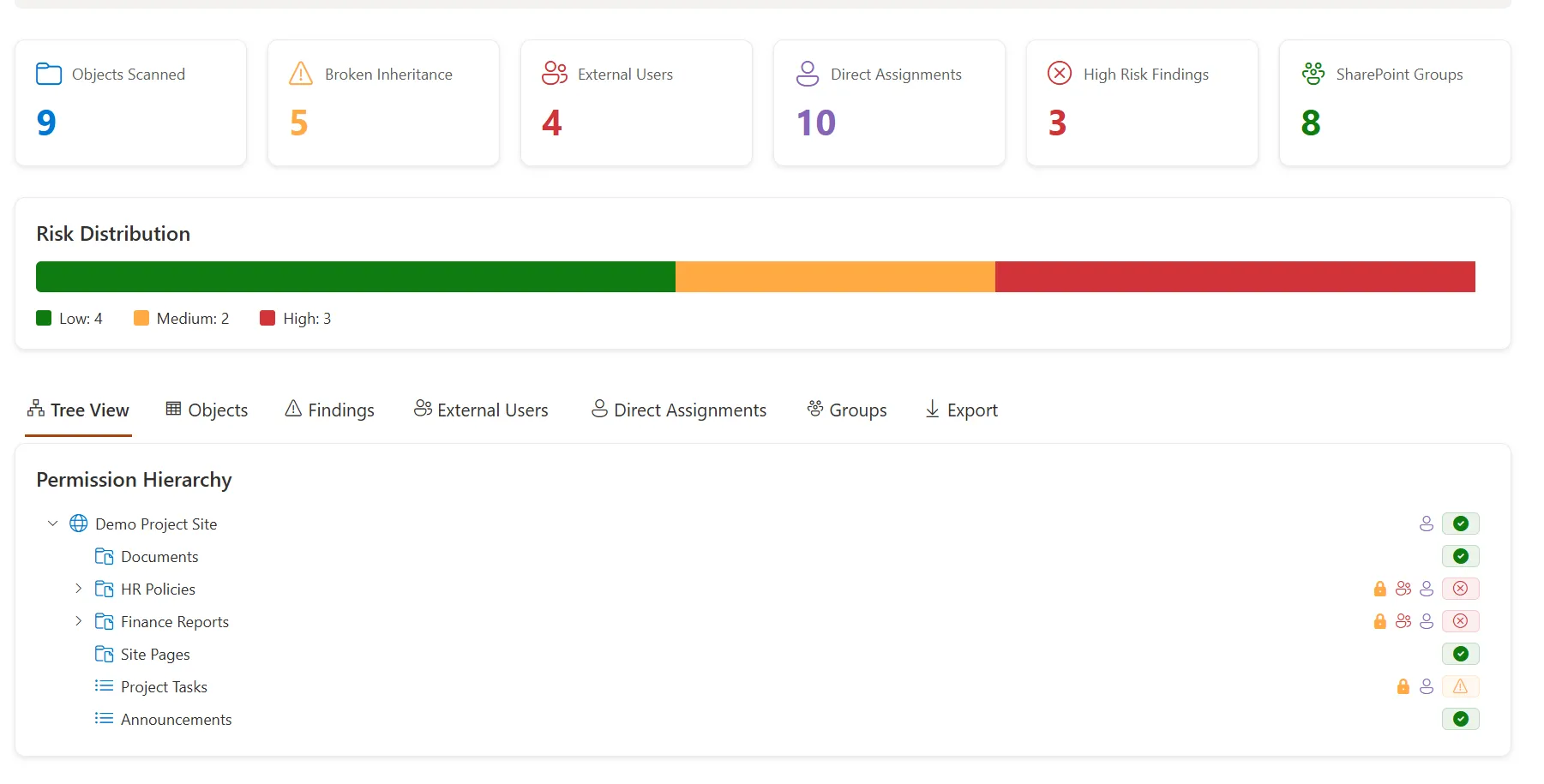
A practical look at why SharePoint permissions become difficult to manage, and how I built an open-source SPFx solution to visualize broken inheritance, external users, direct assignments, SharePoint groups, and access risk.
New Open Source SPFx Project: Policy Acknowledgement Center for SharePoint Intranets
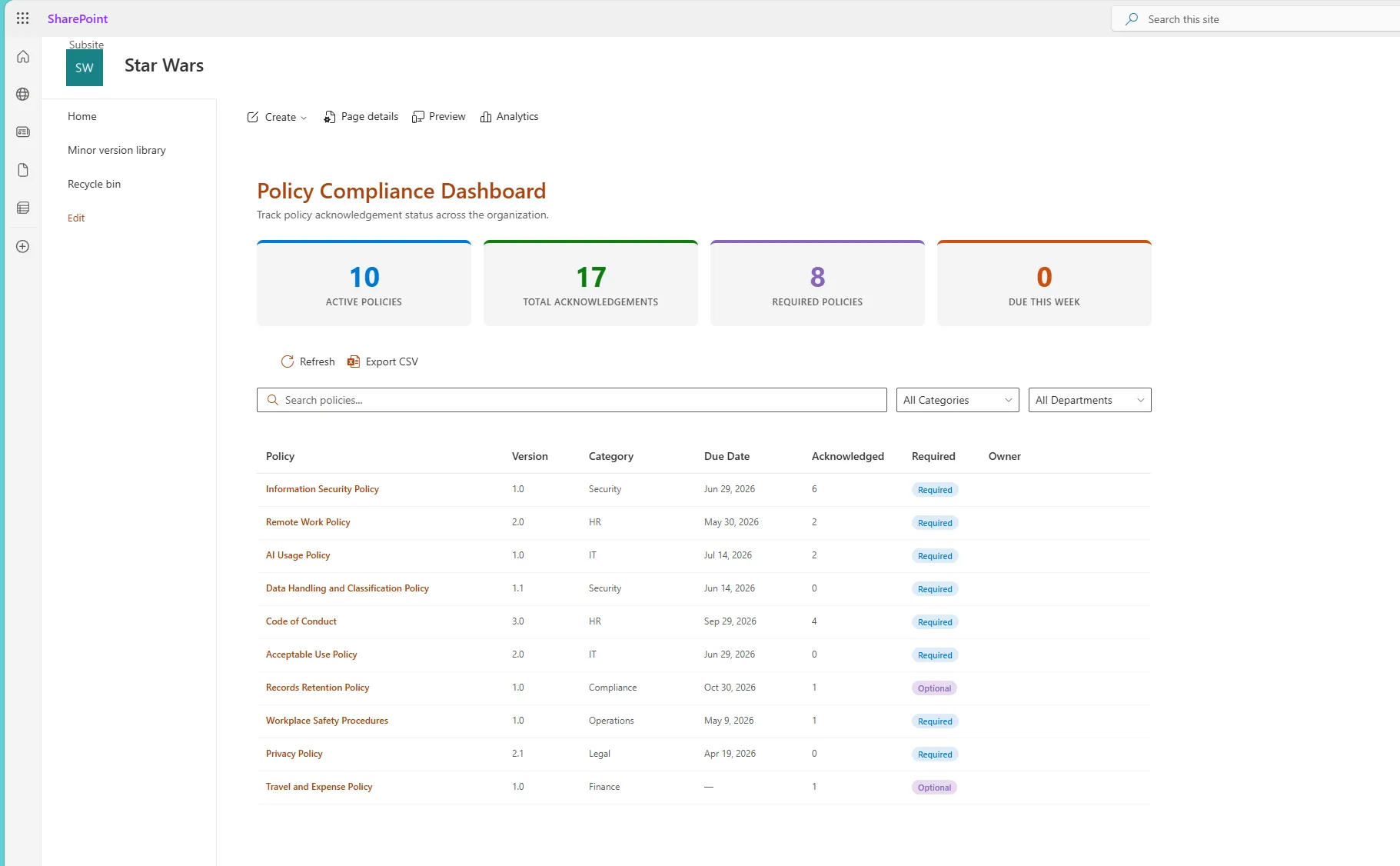
Introducing my new open-source SharePoint Framework project: a Policy Acknowledgement Center for SharePoint intranets that helps organizations publish policies, collect employee acknowledgements, and track compliance using SharePoint Online, PnPjs, Fluent UI, and Microsoft Graph.