Secure Graph API Authentication in SPFx Using Implicit Flow
Billy Peralta
September 21, 2020

Requirements
-
ReactJS
-
react-aad-msal package (https://www.npmjs.com/package/react-aad-msal)
-
axios package(Optional for testing out the API)
Assumption
I assume you have basic knowledge of ReactJS, npm and you already have an existing project.
Setting everything up in Azure
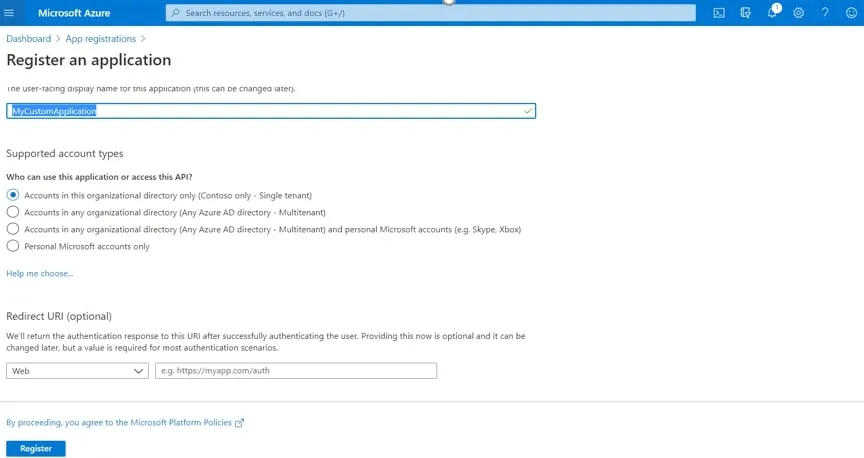
First, we need to set up everything in O365/Azure environment; we need to register our app to Azure so that we can access exclusively access Azure Resource/M365 outside Azure. In the Azure Portal, search for “App Registration.”

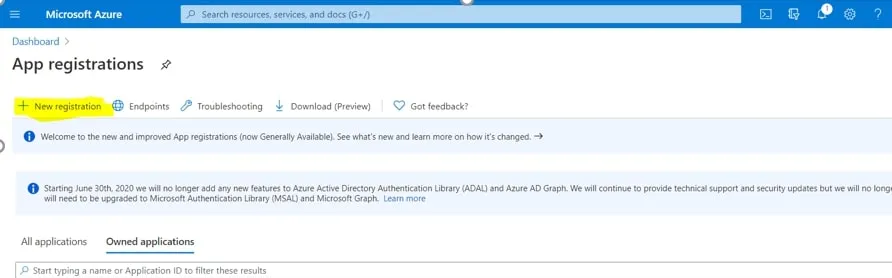
Fill in all information
- Name: MyCustomApplication
- Supported account types: Accounts in this organizational directory only (Contoso only - Single tenant)
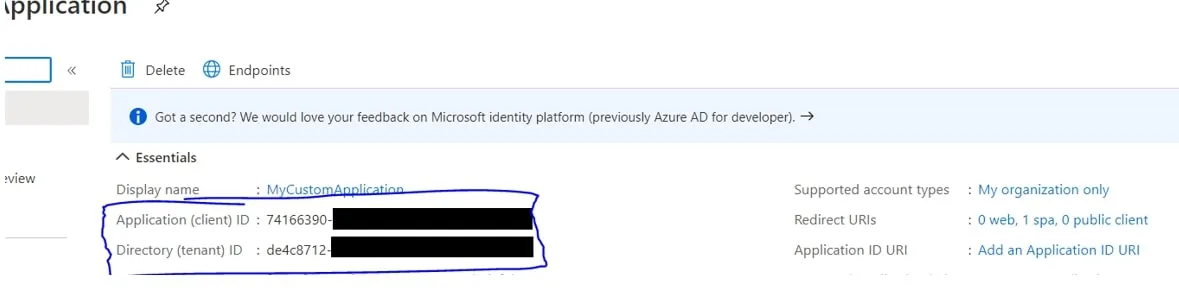
Once you have created the application, please take note of the Application (client) ID and Directory (tenant) ID
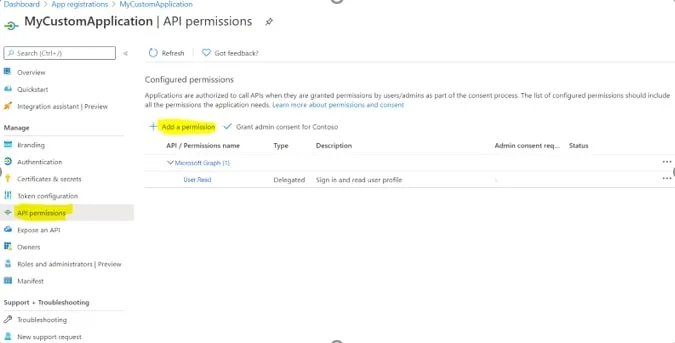
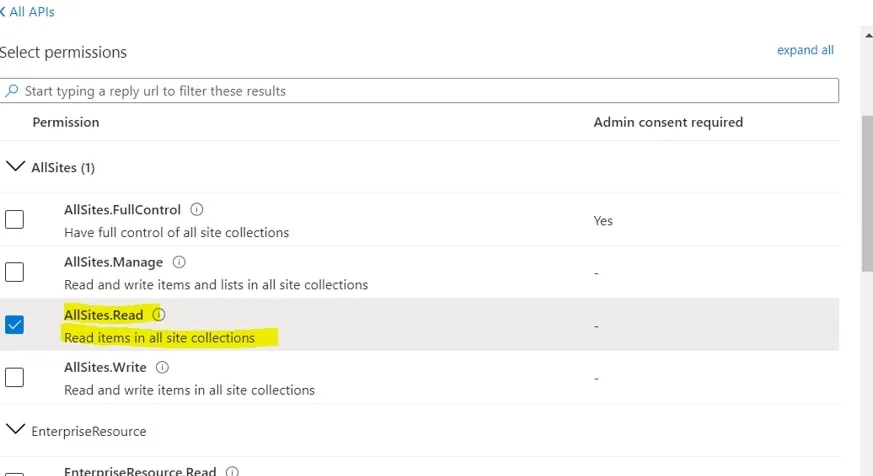
Once created and go to “API Permissions,” then “Add a permission.”
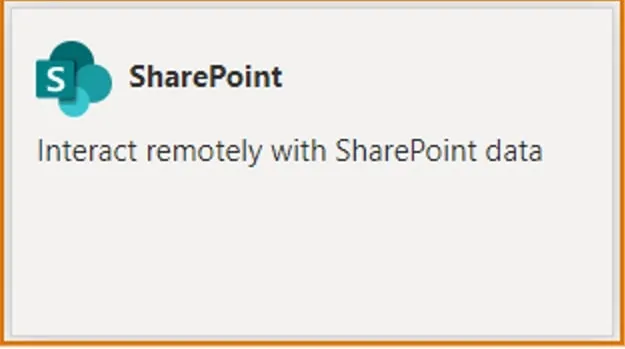
Select “SharePoint” then “Delegated permissions.”
Select “AllSites.Read”
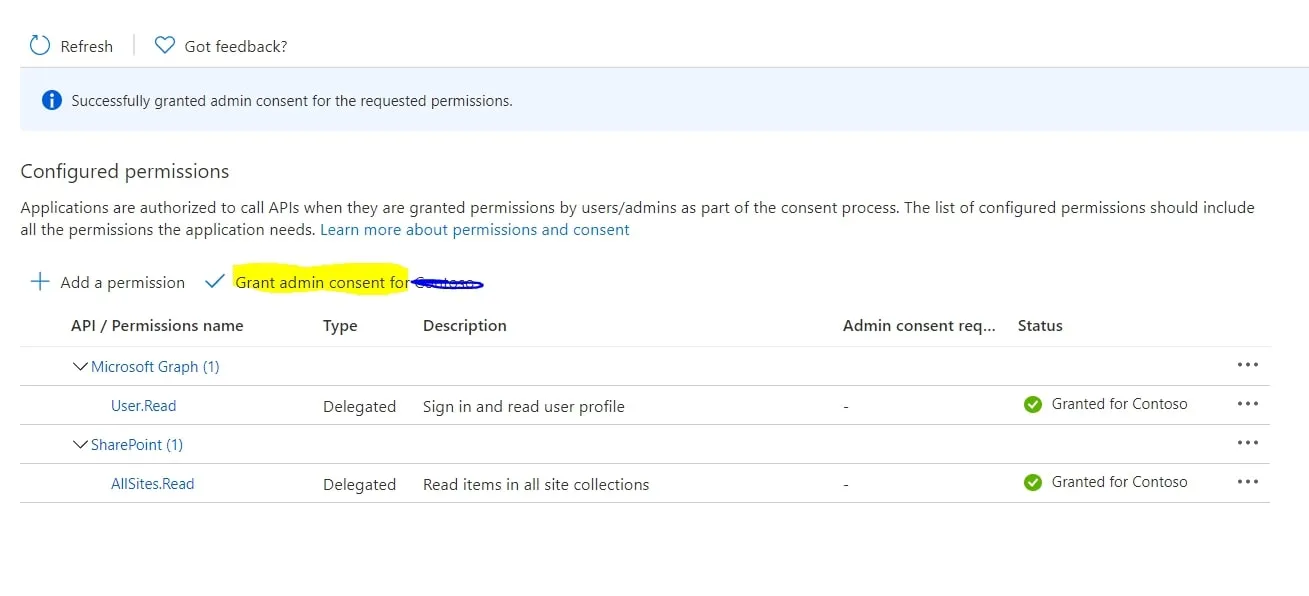
After that click on “Grant Admin consent”
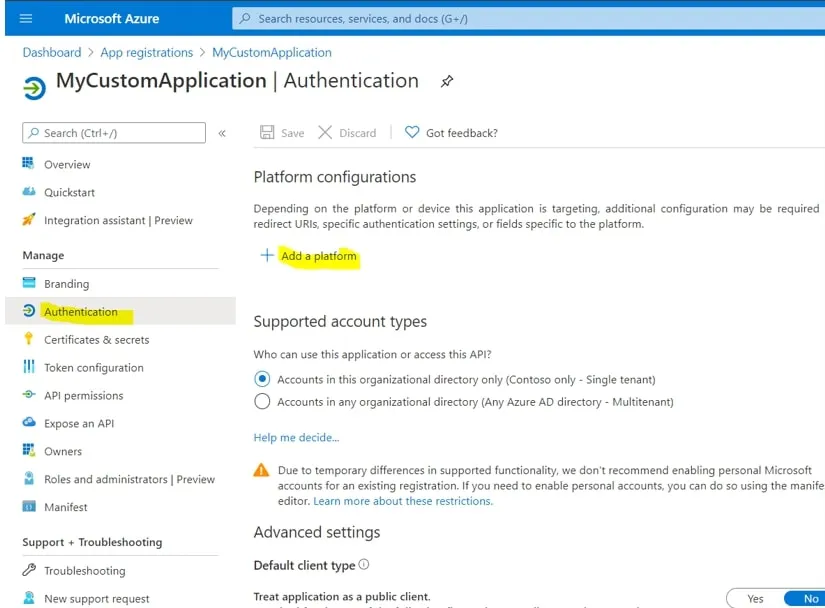
Now lets go to the “Authentication” then click “Add a platform”
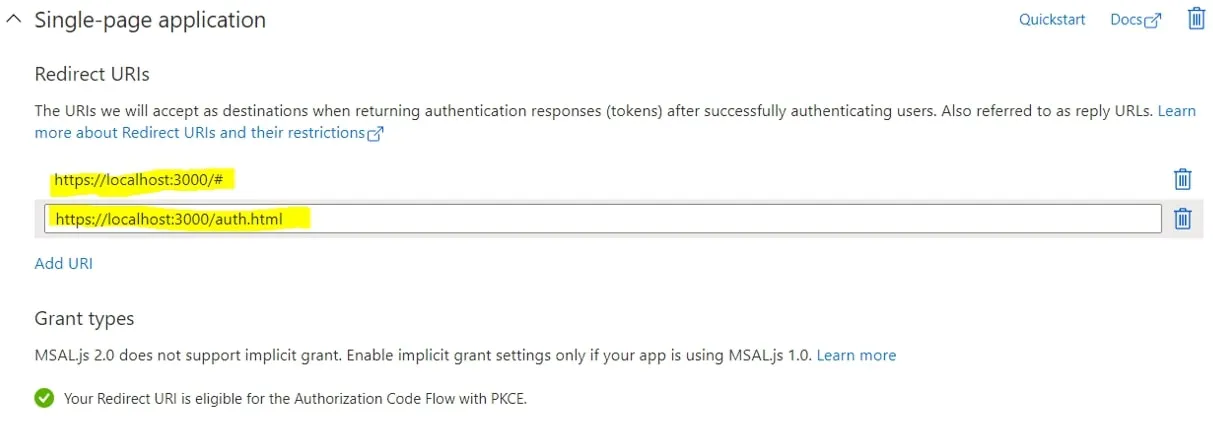
Click on “Single-page application” and fill the information with
- Redirect URI: https://localhost:3000/auth.html
- Logout URI: https://localhost:3000/
Then check “Access Token” and “ID Token” in the implicit grant.
Add another URI by clicking in the “Add URI” then add https://localhost:3000/# then save
Done setting up in Azure, now let move to code :)
Coding(ReactJS)
In your reactjs project install necessary packages
npm i axios
npm i npm i react-aad-msal
Create a new file inside your src folder and name it “authProvider.js.” Please change the tenant ID and Client id based generated value from the app you created earlier.
import { MsalAuthProvider, LoginType } from 'react-aad-msal'

import { Logger, LogLevel } from 'msal'

export const authProvider = new MsalAuthProvider(
  {
    auth: {
      authority: 'https://login.microsoftonline.com/[Enter Tenant ID]', //

      clientId: '[Enter Client ID]',

      postLogoutRedirectUri: 'https://localhost:3000/#',

      redirectUri: 'https://localhost:3000/#',

      validateAuthority: true,

      // After being redirected to the "redirectUri" page, should user

      // be redirected back to the Url where their login originated from?

      navigateToLoginRequestUrl: true
    },

    // Enable logging of MSAL events for easier troubleshooting.

    // This should be disabled in production builds.

    system: {
      logger: new Logger(
        (logLevel, message, containsPii) => {
          console.log('[MSAL]', message)
        },

        {
          level: LogLevel.Verbose,

          piiLoggingEnabled: false
        }
      )
    },

    cache: {
      cacheLocation: 'localStorage',

      storeAuthStateInCookie: true
    }
  },

  {
    scopes: ['AllSites.Read']
  },

  {
    loginType: LoginType.Popup,

    // When a token is refreshed it will be done by loading a page in an iframe.

    // Rather than reloading the same page, we can point to an empty html file which will prevent

    // site resources from being loaded twice.

    tokenRefreshUri: window.location.origin + '/auth.html'
  }
)
Now create another file named “MainFile.jsx”. This would hold all the logic together.
import React, { useState, useEffect } from 'react'

import { AzureAD, AuthenticationState } from 'react-aad-msal'

import axios from 'axios'

// Import the authentication provider which holds the default settings

import { authProvider } from './authProvider'

const MainFile = props => {
  const handleACToken = async () => {
    //Let get first our Access Token

    const token = await authProvider.getAccessToken()

    let farmUrl = '[ChangeYourOwnFarmUrl].sharepoint.com' // Feel free to change this one with you FARM url

    let siteUrl = 'sites/DemoSiteForGraph' //Note that this site collection should exists

    // Once we got it, we will as header when we call graph API that will show details of target site collection

    const request = await axios({
      method: 'GET',

      url: `https://graph.microsoft.com/v1.0/sites/${farmUrl}:/${siteUrl}?$select=id`,

      headers: {
        Accept: 'application/json',

        'content-Type': 'application/json',

        Authorization: `Bearer ${token.accessToken}`
      }
    })

    alert(request.data.id)

    return request
  }

  return (
    <div className='App'>
      <header className='App-header'>
        <h1 className='App-title'>Welcome to the react-aad-msal sample</h1>
      </header>

      <AzureAD provider={authProvider}>
        {({ accountInfo, authenticationState, error, login }) => {
          return (
            <React.Fragment>
              {authenticationState === AuthenticationState.Unauthenticated && (
                <div>
                  <button className='Button' onClick={() => login()}>
                    Login
                  </button>{' '}
                </div>
              )}

              {authenticationState === AuthenticationState.InProgress && (
                <div>Logging in</div>
              )}

              {authenticationState === AuthenticationState.InProgress && (
                <div>Logging in</div>
              )}

              {authenticationState === AuthenticationState.Authenticated && (
                <div>
                  <button className='Button' onClick={() => handleACToken()}>
                    AC
                  </button>{' '}
                </div>
              )}

              <div className='SampleContainer'>
                <div className='SampleBox'>
                  <h2 className='SampleHeader'>Authenticated Values</h2>

                  <p>
                    When logged in, this box will show your tokens and user info
                  </p>

                  {accountInfo && (
                    <div style={{ wordWrap: 'break-word' }}>
                      <p>
                        <span style={{ fontWeight: 'bold' }}>ID Token:</span>{' '}
                        {accountInfo.jwtIdToken}
                      </p>

                      <p>
                        <span style={{ fontWeight: 'bold' }}>Username:</span>{' '}
                        {accountInfo.account.userName}
                      </p>

                      <p>
                        <span style={{ fontWeight: 'bold' }}>
                          Access Token:
                        </span>{' '}
                        {accountInfo.jwtAccessToken}
                      </p>

                      <p>
                        <span style={{ fontWeight: 'bold' }}>Name:</span>{' '}
                        {accountInfo.account.name}
                      </p>
                    </div>
                  )}
                </div>

                <div className='SampleBox'>
                  <h2 className='SampleHeader'>Errors</h2>

                  <p>
                    If authentication fails, this box will have the errors that
                    occurred
                  </p>

                  {error && (
                    <div style={{ wordWrap: 'break-word' }}>
                      <p>
                        <span style={{ fontWeight: 'bold' }}>errorCode:</span>{' '}
                        {error.errorCode}
                      </p>

                      <p>
                        <span style={{ fontWeight: 'bold' }}>
                          errorMessage:
                        </span>{' '}
                        {error.errorMessage}
                      </p>
                    </div>
                  )}
                </div>
              </div>
            </React.Fragment>
          )
        }}
      </AzureAD>
    </div>
  )
}
Now in our index.jsx we will call and use our “MainFile.jsx” component
import React from 'react';

import MainFile from './MainFile;


const App = () => {

return < MainFile />;

};


export default App;
Now lets try to run our code
npm startOnce the page loads, try to click on the Login Button
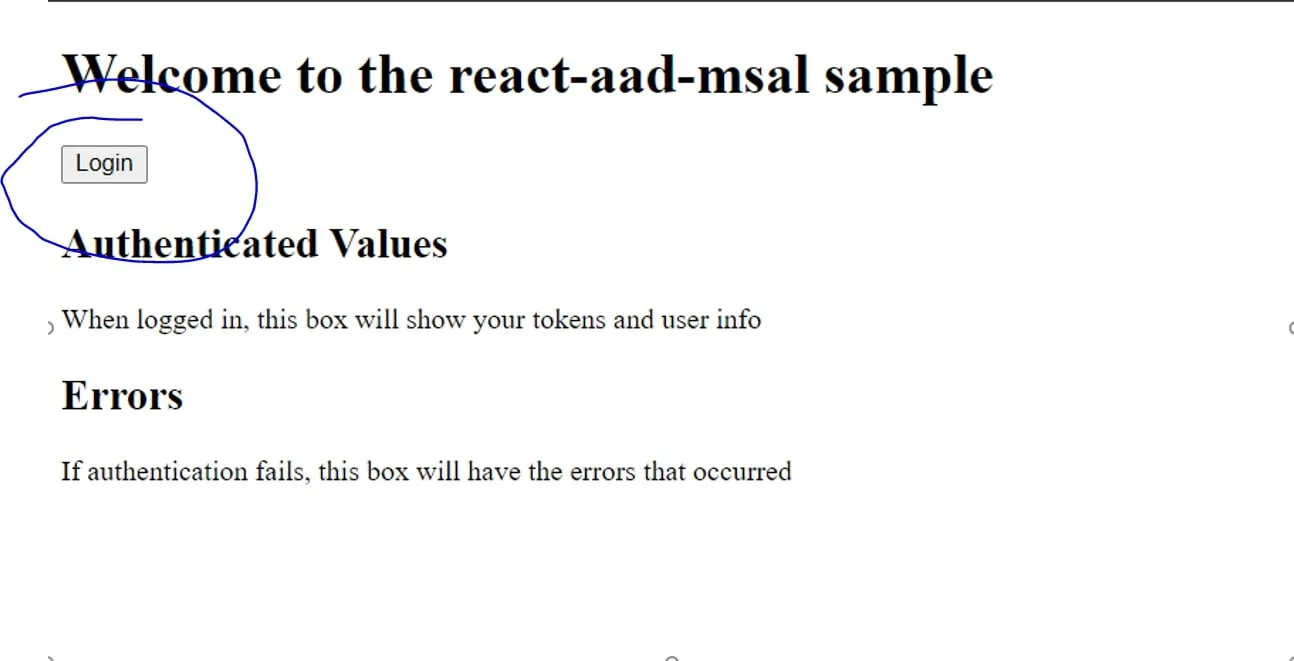
Once you can authenticate, another button should appear (with a level “AC”). Try click on it and should prompt up an alert and shows the target
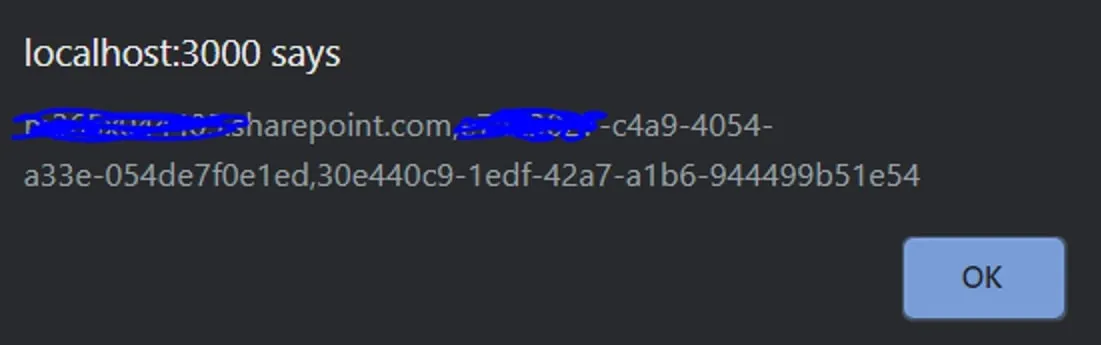
Once you get a window alert, it shows that you were able to get data from SharePoint, and everything is successful
Need a production-ready SPFx solution?
I build SharePoint Framework web parts, extensions, dashboards, and integrations using React, TypeScript, PnPjs, and Microsoft Graph.
Billy Peralta
SharePoint & Microsoft 365 Specialist • 16+ Years Experience
If you have questions about your SharePoint environment, feel free to reach out.
Need a production-ready SPFx solution?
I build SharePoint Framework web parts, extensions, dashboards, and integrations using React, TypeScript, PnPjs, and Microsoft Graph.