MFA Didn't Stop the Attack: How I Helped a Small Business Secure Its Microsoft 365 Tenant

Microsoft documentation checked 12 min read
Topics: Microsoft 365, Exchange Online, Microsoft Entra ID, Security, Incident Response
The owner of a small business got in touch because their email was sending something they never wrote. A phishing email had gone out from their Microsoft 365 mailbox to thousands of contacts, and people were replying to ask if it was real. They had multifactor authentication (MFA) turned on. Their question was simple: how could this happen, and how do we make it stop?
Stopping the email was the easy part. What I found in the logs was worse: someone had been inside that mailbox for weeks, reading about upcoming payments and setting up a payment fraud. This is the story of how I traced what happened, locked down their Microsoft 365 tenant the same day, and left them with a setup that would stop the same attack next time.
The business is anonymized on purpose. No names, industry details, domains, locations or exact figures appear below.
The short version
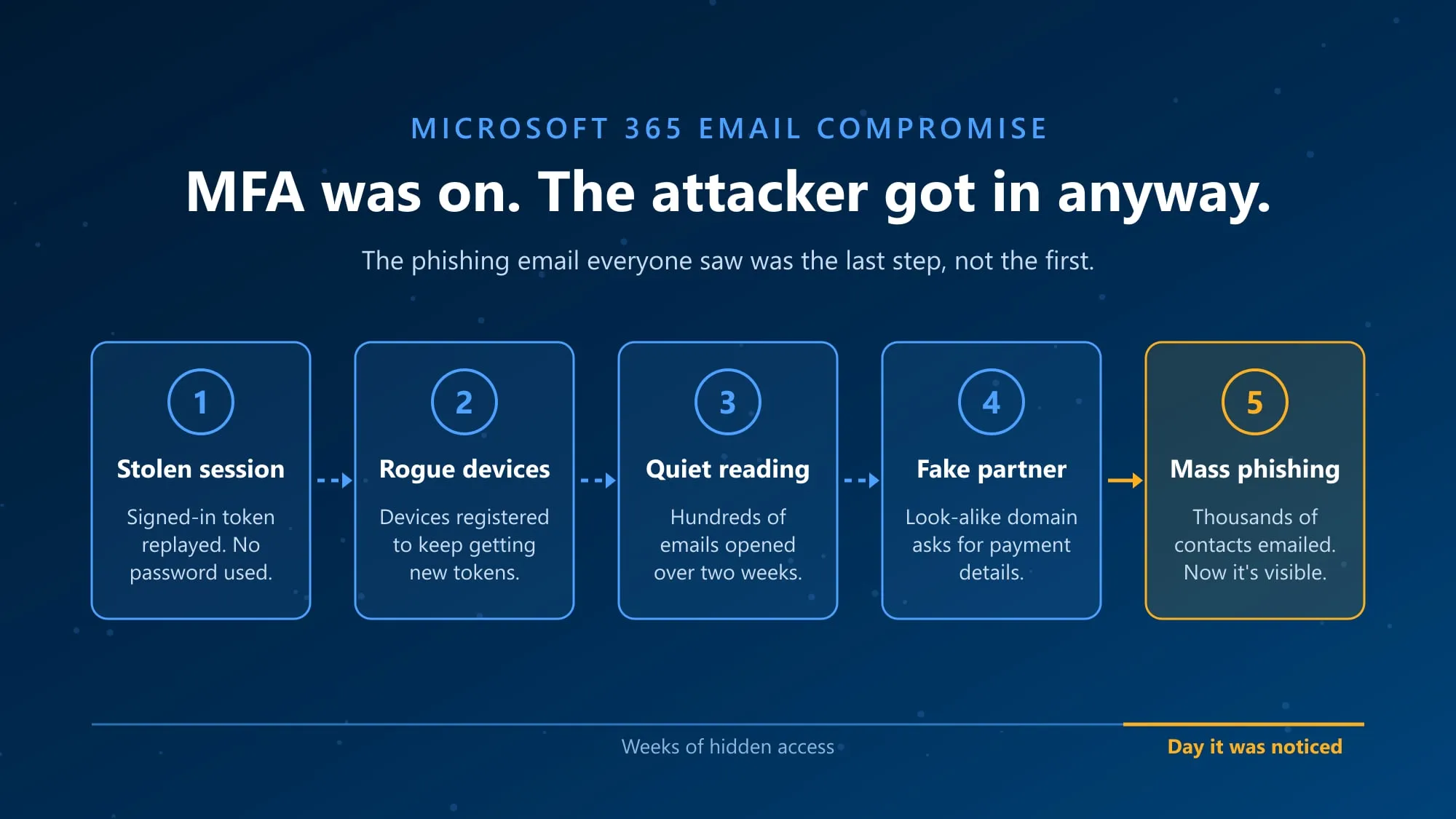
- The attacker never used the password. They replayed a stolen sign-in session that had already passed MFA, so MFA was never asked.
- They kept a way back in by registering devices the owner never owned.
- They read for weeks before acting, focusing on payments due soon, and posed as a trusted business partner from a look-alike domain.
- The mass email was the last step, not the first.
- I locked down the tenant the same day: removed the attacker’s devices and sessions, enforced MFA for everyone, blocked outside forwarding, closed old admin access, and preserved the evidence.
- The lasting fix is a layer behind MFA: control over which devices can sign in, phishing-resistant sign-in, and payment details checked by phone.
A business running on Microsoft 365 with no IT team
This is a small professional-services office. Like most businesses its size, it runs entirely on Microsoft 365 and has no in-house IT or security person. The owner’s inbox is the centre of the business: client documents, payment details and deadlines, and threads with the outside partners the business works with every day.
That is why a hacked mailbox here is not just a spam problem. It is exactly what someone planning payment fraud wants to read. So before touching anything, I needed to answer one question: how long had someone been inside, and what did they see?
Following the trail through the logs
I pulled everything Microsoft 365 had recorded for the period: the unified audit log, Microsoft Entra sign-in logs, device registrations, mailbox rules and message traces. Then I rebuilt a minute-by-minute timeline of the attacker’s activity. It told a clear story.
They never needed the password
When you sign in to Microsoft 365 and complete MFA, Microsoft gives your browser or app tokens that prove you already signed in, so you are not asked again every few minutes. Microsoft describes token theft as attackers who “compromise and replay tokens issued to a user, even if that user has satisfied multifactor authentication” (Microsoft token theft playbook).
That is what the sign-in logs showed. The attacker worked from a session that had already passed MFA, from their own machine. Their one attempt to type the password failed. MFA was not broken. It was simply never asked.
They made sure they could come back
Stolen sessions expire, so over several months the attacker registered multiple devices to the owner’s account. A registered device can keep getting fresh sign-in tokens, which let them return whenever a session ran out. Most of their connections came through hosting and VPN providers, which hides where someone really is.
They studied the business
Over about two weeks, they opened hundreds of emails. It was not random. They went straight to the client, partner and e-signature folders, to payments coming up soon, to sensitive client documents, and to the owner’s own tax records.
They set up a payment fraud
Then they forwarded a real email thread with one of the business’s partners to an outside mailbox. They registered a look-alike of that partner’s domain, one extra letter and a different ending, and wrote to the office as the partner, asking for payment documents and amounts.
The staff handled this well. They replied, but never sent documents or dollar figures. One weak spot did show up: when they tried to double-check with the real partner by email, they mistyped the address and the check never arrived. Checking by email is not really checking.
Then they made noise
On the last day, the attacker created a hidden inbox rule to move replies out of sight, sent a phishing email to thousands of contacts, personally answered people who asked whether it was real, and deleted the bounce-backs. That was the moment the owner noticed, and by then the reading and the fraud setup had already happened.
What I could not confirm, and what was clean
I traced suspicious emails that arrived shortly before each new device appeared. Any of them could have been the way in, for example a fake sign-in page that captures the session as you sign in. None could be confirmed, and I told the owner that plainly. Microsoft’s own playbook says “sometimes, it’s not possible to discover the root cause.”
Knowing what was clean mattered just as much. I checked every Microsoft 365 workload over the whole period. Within that scope, only the one mailbox was compromised; a second account had failed password-guessing attempts. I found no activity in OneDrive, SharePoint, Teams or Power Automate, no tenant setting changes, nothing shared externally, no hidden forwarding, and no evidence of unauthorized fund transfers in the records available to me.
I also gave the owner a list of the emails the audit log recorded as opened, so they knew exactly which clients and partners were exposed.
Locking down the tenant the same day
With the picture clear, I moved to containment. I recorded every setting before and after each change, so any of them could be reversed if it broke something the business relied on.
- Removed the attacker’s way back in. I disabled every unauthorized device and revoked all sessions on the compromised account. Revoking sessions stops new tokens being issued, but an access token already issued can keep working until it expires, one hour by default (revoke user access), which is why I dealt with the devices and the sessions together.
- Turned on Security Defaults for the whole tenant. That requires every user to register for MFA, requires MFA for admins, and blocks legacy authentication (Security Defaults).
- Closed the device trick. I required MFA to register or join a device and stopped users from joining devices to the tenant, which is how the attacker had kept coming back.
- Closed old doors. I blocked a long-unused global admin account that had no MFA and a years-old password, and blocked and reset an account Microsoft had flagged as at risk.
- Blocked automatic forwarding to outside addresses for the whole tenant.
- Blocked the look-alike domain and the attacker’s outside mailbox at the mail gateway.
- Removed an app nobody needed. A third-party AI app had been granted consent to read and send mail as every user. There was no sign it was involved, but that kind of access should not sit unused. (Least-privilege app access is the same principle I cover in Microsoft Graph automation for SharePoint governance.)
- Preserved the evidence. I extended deleted-item retention and saved copies of the audit logs, the forwarded emails and the recipient lists for police, insurers or lawyers.
Speed mattered for that last step. Audit (Standard) records are kept for 180 days by default (audit log retention), and quarantined spam and phishing messages only 15 days under the default anti-spam policy, 30 at most. After that they are “permanently deleted and can’t be recovered” (quarantine retention).
Explaining it to the owner, not to an IT team
The owner did not need a log dump. They needed to know what to do next. So I wrote a short, plain-language report that opened with a “do this now, by phone” list: which clients and partners to call before any upcoming payment, using only numbers they already had, never one from an email.
The rest covered what happened, what I could not confirm, what was exposed and what was clean, what I changed and what that meant for their day-to-day work. It ended with the decisions only the owner could make: reporting to the anti-fraud centre and police, privacy obligations with their lawyer, checking personal devices for info-stealing malware, and securing the personal email used for account recovery.
Making the tenant harder to break into
Containment closes today’s hole. The next step was making sure the same attack would not work again. These were my recommendations:
- Conditional Access. It needs Microsoft Entra ID P1, which is included in Microsoft 365 Business Premium. Policies that only allow sign-in from managed devices, and block unexpected locations, make a replayed session much harder to use. Token Protection goes further by accepting only sign-in tokens bound to a registered device, for supported apps and platforms (Token Protection). No single control removes every token-theft scenario, but this is the layer that was missing.
- Passkeys. A fake sign-in page cannot capture and replay them the way it can a password and a code.
- A separate admin account, instead of running the tenant from a daily mailbox.
- Only an admin releases mail from quarantine. Microsoft often catches the first attempt.
- DKIM and DMARC for the business’s own domain, so others cannot easily send as it.
- Sender and impersonation warnings turned on, which their plan already included.
- Remove an old mail rule that let a whole class of emails skip spam filtering.
The tenant before and after
| Area | Before | After |
|---|---|---|
| MFA | Not required for every user | Required for everyone through Security Defaults |
| Attacker access | Live sessions and several registered devices | Sessions revoked, unauthorized devices disabled |
| Device registration | Users could join devices without extra checks | MFA required to register; users cannot join devices |
| Admin accounts | An unused global admin with no MFA and an old password | Blocked; separate admin account recommended |
| Outside forwarding | Allowed | Blocked for the whole tenant, except one mailbox to one approved partner domain |
| App access to mail | A third-party AI app could read and send mail for every user | Consent removed |
| Look-alike domain | Could reach staff | Blocked at the mail gateway |
| Evidence | At risk of expiring | Retention extended, copies saved |
| Next layer | None | Conditional Access, passkeys, DKIM and DMARC recommended |
What I’d tell any small business on Microsoft 365
- MFA is necessary, but protect sessions too. Token theft works around MFA. Device-based Conditional Access and passkeys close most of that gap.
- Payment fraud starts with reading, not sending. After a compromise, ask what was read, not just what was sent.
- Verify payment details by phone, using a number you already had, never one from the email.
- Check addresses letter by letter. One extra letter and a different ending is all a look-alike domain needs.
- Review devices and dormant admin accounts. An unused global admin with no MFA is an open door.
- Audit mailbox rules, forwarding and app permissions. That is where attackers and stale access hide.
- Act fast and keep the evidence. Then give the decision-maker a plan, not a log dump.
Microsoft 365 security FAQ
Can someone access Microsoft 365 without knowing the password?
Yes. If an attacker steals the tokens issued after a successful sign-in, they can replay them and reach email without typing the password. Microsoft calls this token theft and notes it works “even if that user has satisfied multifactor authentication.” In this case the attacker’s only password attempt failed, yet they read the mailbox for weeks.
Why didn’t MFA stop this Microsoft 365 account compromise?
MFA protects the moment of sign-in. Here the attacker skipped that moment by reusing a session that had already passed MFA, then registered devices to keep getting new tokens. Controls that check the device and the session, such as Conditional Access requiring a managed device, and phishing-resistant methods such as passkeys, address that gap.
What should I do right after a business email compromise?
Revoke the account’s sessions, remove devices you don’t recognize, reset the password, and check for inbox rules and forwarding you did not create. Call anyone with a payment in progress, using numbers you already have. Save the audit logs and suspicious messages before they expire, and talk to your insurer, police and a lawyer about reporting.
How do I check whether someone read my Outlook emails?
An administrator can search the Microsoft Purview audit log for mailbox access events on the account, alongside Microsoft Entra sign-in logs and device registrations, and match them to unfamiliar locations or devices. Audit (Standard) records are kept for 180 days by default. The result shows what the logs recorded, so treat it as strong evidence rather than a complete guarantee.
Can Conditional Access prevent session-token theft?
It does not stop a token being stolen from a user’s device, but it can make a stolen token useless. Policies that require a managed device or block unexpected locations make replay much harder, and Token Protection only accepts sign-in tokens bound to a registered device for supported apps. It needs Microsoft Entra ID P1, included in Microsoft 365 Business Premium.
Where the business stands now
This business did several things right. Staff did not send anything to the fake partner, and the owner asked for help the day the spam went out. What they lacked was a layer behind MFA, and someone looking at the sign-in and audit trail before the attacker chose to make noise. Today the doors the attacker used are closed, and the owner has a clear plan for that next layer.
Is your Microsoft 365 tenant as secure as you think?
I help small and mid-sized businesses find and close the gaps behind MFA, and contain and investigate accounts that have already been compromised.
Free SharePoint planning resource
Planning a SharePoint migration or governance cleanup?
Download the SharePoint Migration & Governance Readiness Checklist to review migration scope, permissions, governance, Teams/OneDrive strategy, retention, and Copilot readiness.
Download the Checklist
SharePoint architect & Microsoft 365 consultant • 16+ years of experience
If you have questions about your SharePoint environment, feel free to reach out.