How to Add Google Analytics 4 to SharePoint with SPFx

3 min read

Topics: O365, M365, SharePoint Online, SPFx
In accordance with Google’s guidelines:
Effective from July 1, 2023, standard Universal Analytics properties will cease to process data. This comprehensive guide will assist you in seamlessly incorporating Google Analytics 4 into your SharePoint Sites, enabling you to effectively monitor and analyze your site.
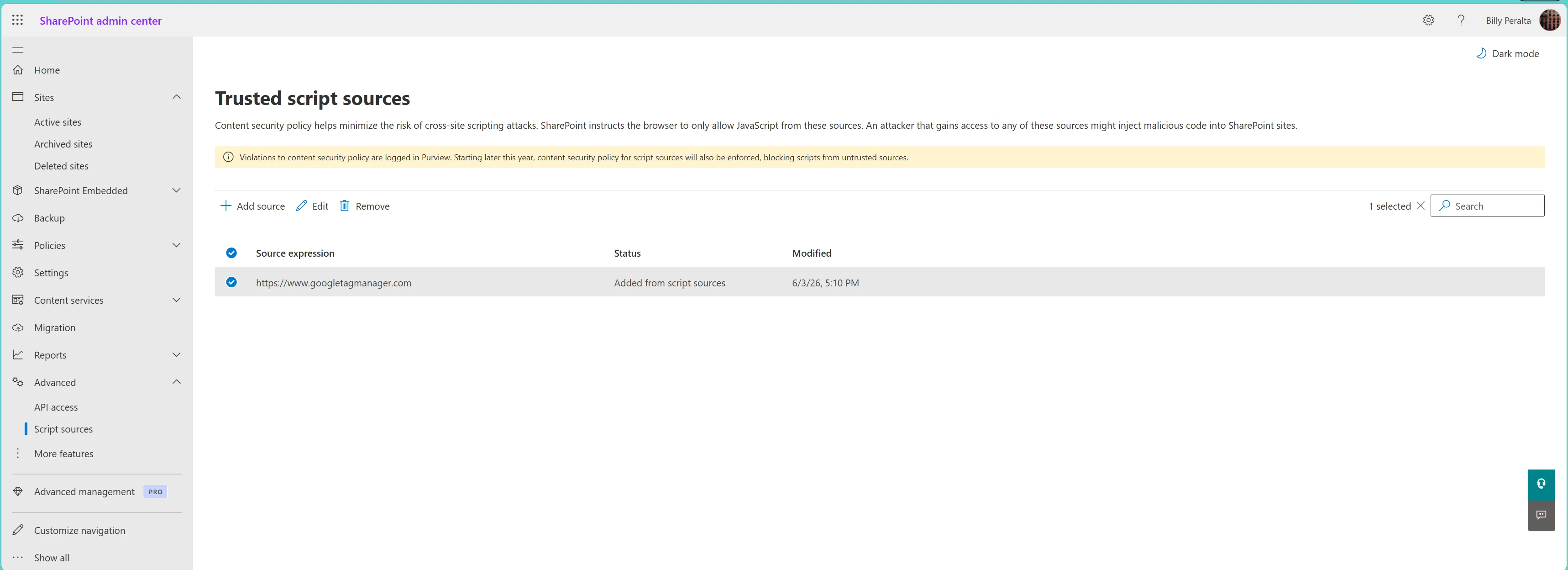
Update (2026): SharePoint Online now enforces a content security policy on modern pages, and the pattern below, which injects the gtag script tag at runtime and evaluates the initialization snippet as a string, is the kind of implementation that policy affects. See why GA4 tracking breaks on modern SharePoint pages and how to fix it for what changed and a CSP-compliant version of this customizer, and adding trusted script sources in the SharePoint admin center for the admin-side setting that allows the Google script source.
Prerequisites:
Before we start our development, please ensure the following requirements and has the corresponding versions installed. We will be creating an SPFx Application Customizer to incorporate Google Analytics into your SharePoint Online Site.
- NodeJS v16.13+ Since the SPFx version we will use is 1.17.2 currently v16.13+ is the compabtible version.
- NPM any latest version would work v5, v6, v7, v8
- Ready your favourite IDE, mine is Visual Studio Code
- Yeoman Generator 3.1.1
- Gulp 3.1.1
- Of course, you will need your O365 tenant with SharePoint Online to work with.
Development Process:
- Assuming you already have a Google Analytics Property prepared and possess a Google Tag ID or Tracking ID, we can proceed with the development process. If you do not have a Google Tag ID, please refer to the following guide for assistance: https://support.google.com/analytics/answer/9539598?hl=en
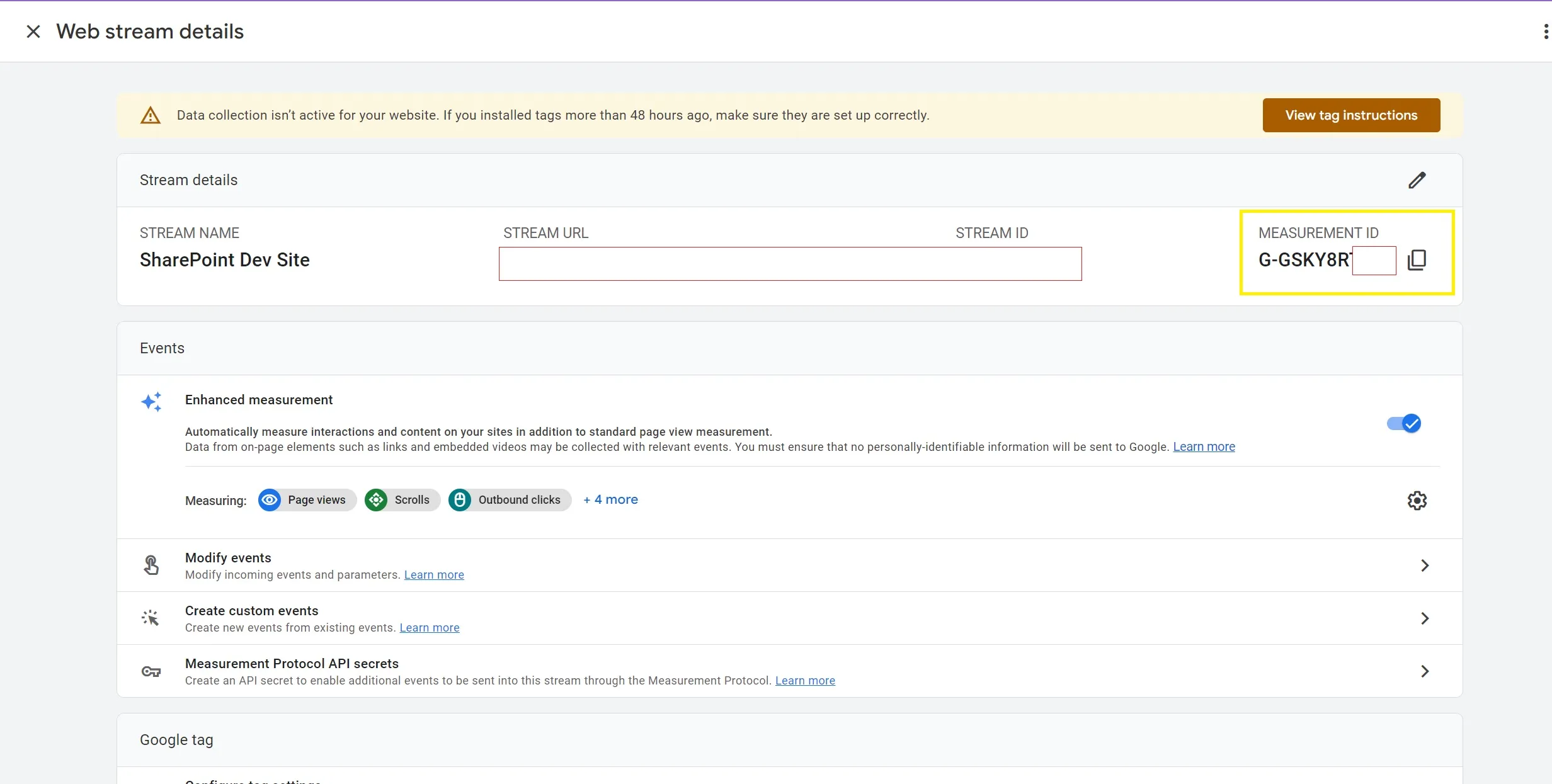
Once we got the Google Tag ID, we can now start working on developing our solution
- Let us open our PowerShell script and create the SPFx Solution using the Yeoman generator:
yo @microsoft/sharepoint 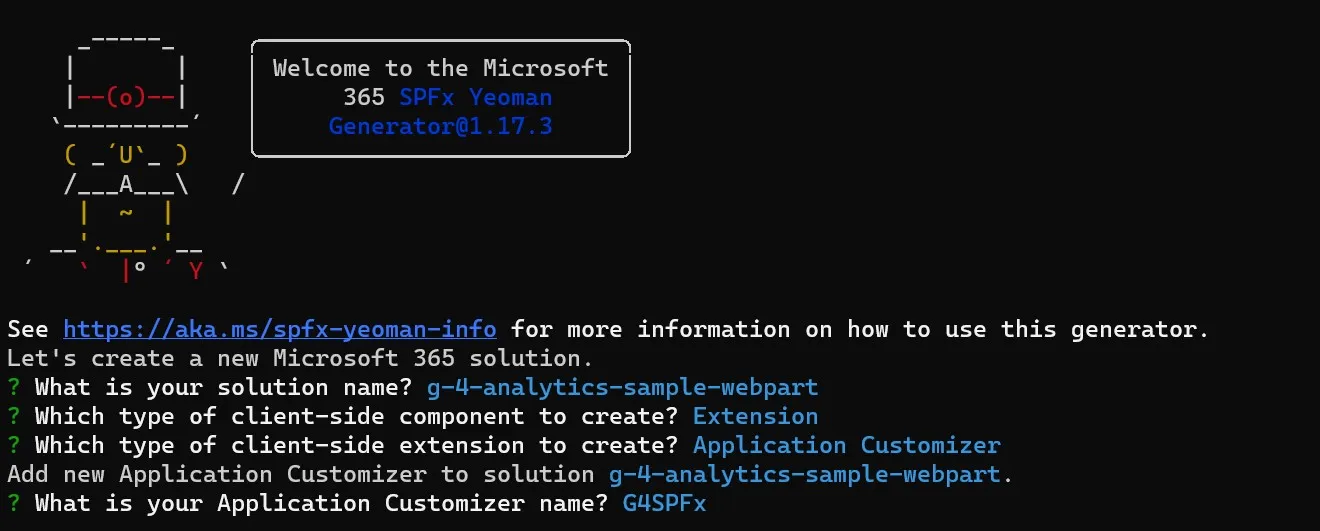
What is your solution name? g-4-analytics-sample-webpart
Which type of client-side component to create? Extension
Which type of client-side extension to create? Application Customizer
Add new Application Customizer to solution g-4-analytics-sample-webpart.
What is your Application Customizer name? G4SPFx
-
Open the solution in Visual Studio Code.
-
Navigate to ‘\src\extensions\g4SpFx\G4SpFxApplicationCustomizer.ts’ and insert the following code snippet under the ‘onInit’ method
export default class G4SpFxApplicationCustomizer
  extends BaseApplicationCustomizer<IG4SpFxApplicationCustomizerProperties> {

  public onInit(): Promise<void> {
    const trackingID = "G-GSKY9SSX99" // This is my Google Tag ID / Tracking ID
    const gtagScript = document.createElement("script"); //We will look for the script element in our html page

    gtagScript.type = "text/javascript";
    gtagScript.src = `//www.googletagmanager.com/gtag/js?id=${trackingID}`;
    gtagScript.async = true;
    document.head.appendChild(gtagScript);
    eval(`
      window.dataLayer = window.dataLayer || [];
      function gtag(){
        dataLayer.push(arguments);
      }
      gtag('js', new Date());
      gtag('config', '${trackingID}')
    `);

    return Promise.resolve();
  }
}
For simplicity, I have directly hardcoded my Google Tag ID / Tracking ID. However, it is recommended to place it in the appropriate location, such as the Property Bag of the Site Collection, to monitor the desired site.
- Let us test the implementation by running “gulp serve”.
gulp serveTo verify that your code is functioning correctly, inspect the page and locate the Google Tag script.
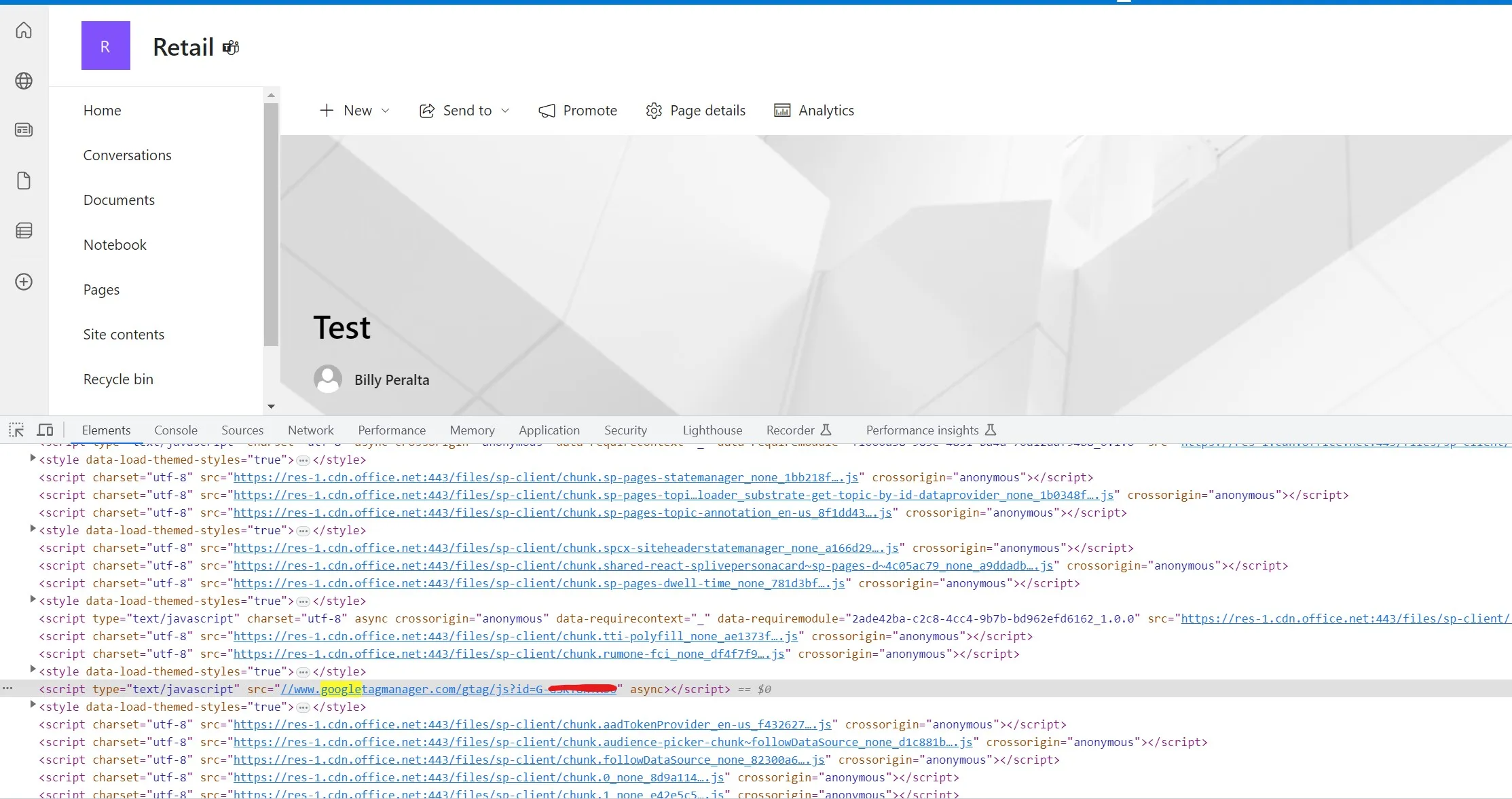
- Once you have confirmed that your code is functioning as expected, we can proceed to compile and deploy it to our App Catalog. Please note that as this is an SPFx App Customizer, it can only be deployed in the App Catalog at the Farm Level.
If you need an SPFx extension like this built or brought up to date for your tenant, see my SPFx development consulting page.
Need a production-ready SPFx solution?
I build SharePoint Framework web parts, extensions, dashboards, and integrations using React, TypeScript, PnPjs, and Microsoft Graph.
Free SharePoint planning resource
Solving the technical issue is only part of the Microsoft 365 problem.
Use the checklist to review the governance, permission, ownership, and support decisions that often determine whether a SharePoint solution succeeds long term.
Download the Checklist
SharePoint architect & Microsoft 365 consultant • 16+ years of experience
If you have questions about your SharePoint environment, feel free to reach out.