Fix "Your organization's policies don't allow you to share" Error

Microsoft documentation checked 7 min read
Topics: SharePoint, External Sharing, SharePoint Admin Center
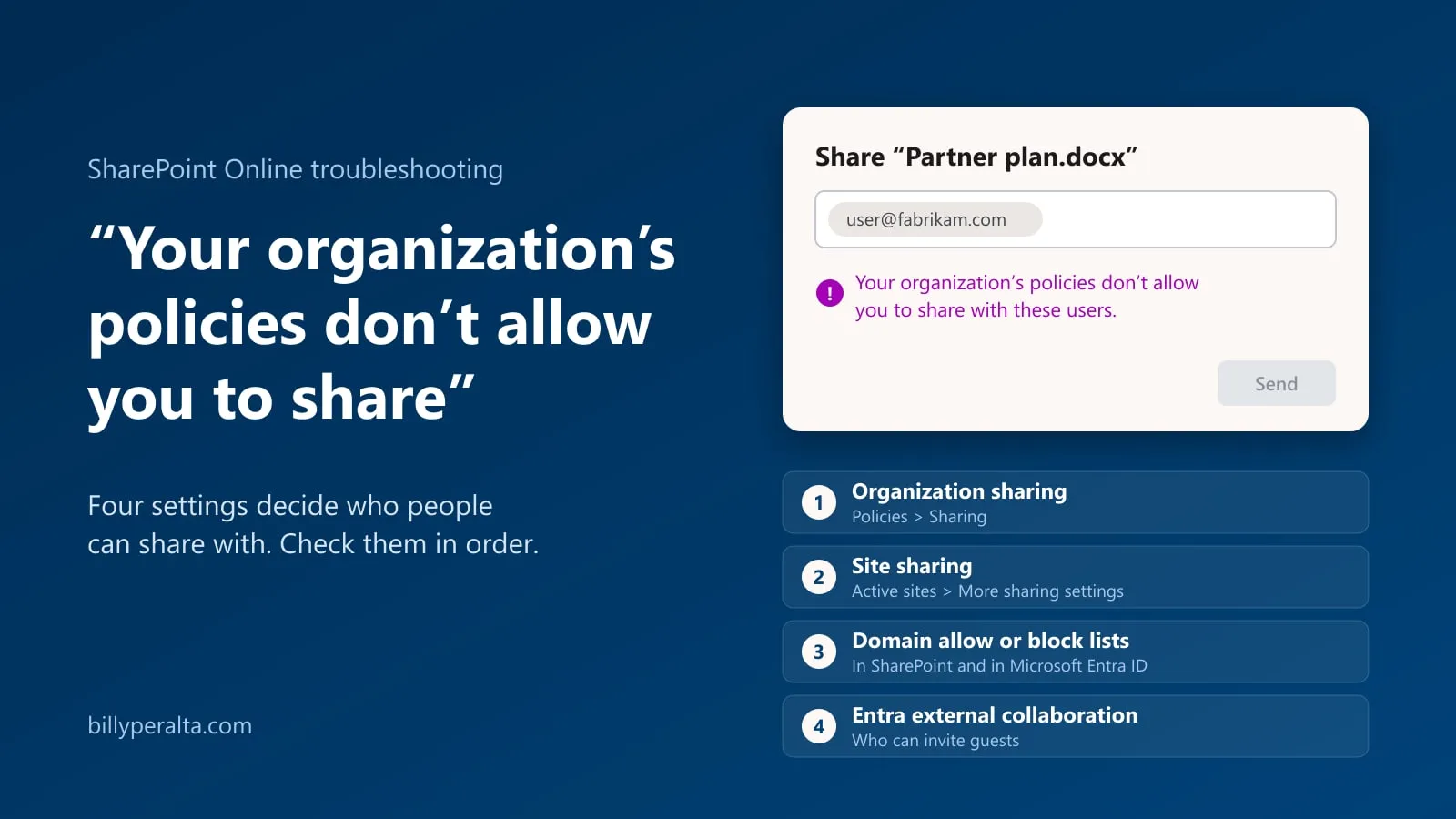
Users see “Your organization’s policies don’t allow you to share with these users” when they try to share a file or site in SharePoint Online with someone outside the organization. Microsoft’s documentation does not map that message to one setting, but it does document the settings that decide who can be shared with. This article checks them in order, so you can fix the error without weakening tenant-wide controls.
What causes “Your organization’s policies don’t allow you to share with these users” in SharePoint Online?
External sharing for SharePoint and OneDrive is set at the organization level, each SharePoint site has its own sharing setting, and domain restrictions and Microsoft Entra external collaboration settings also apply.Manage sharing settings If a site’s option and the organization-level option don’t match, the most restrictive value always applies.Overview of external sharing So the question is which of these layers is the strictest for this user, this site and this recipient.
The table below summarizes common patterns behind this message and where to start checking.
| Symptom | Likely cause | Where to check |
|---|---|---|
| Error for every external email address | Organization-level external sharing is set to Existing guests or Only people in your organization, so new external users cannot be invited.Manage sharing settings | SharePoint admin center > Policies > Sharing |
| Error only for one site or team | The site’s external sharing option is more restrictive than the organization-level setting, so the site’s setting wins.Change the sharing settings for a site | SharePoint admin center > Active sites > site > Settings > More sharing settings |
| Error only for specific partner domains (for example fabrikam.com) | Domain allow or block lists limit external sharing with that domain. | SharePoint admin center > Policies > Sharing and site Advanced settings for external sharing; Microsoft Entra collaboration restrictions |
Check tenant-level external sharing in SharePoint admin center
External sharing must be allowed at the organization level before any site can share with external users.Manage sharing settings With Existing guests, users can share only with guests already in your directory; with Only people in your organization, external sharing is off for every site.
-
In the SharePoint admin center, expand Policies, then select Sharing.
The SharePoint setting under External sharing applies to all SharePoint site types, including sites connected to Microsoft 365 groups and Teams. -
Under External sharing, review the SharePoint option.
To invite new external users, choose Anyone or New and existing guests. -
If you only want to permit authenticated guests, select New and existing guests.
-
Select Save, then ask the user to try the share again.
If the error still appears, move on to the site-level checks below. For broader design guidance on external access, see SharePoint External Sharing Governance in Microsoft 365.
Review site-level external sharing for the affected site
Each SharePoint site has its own external sharing setting that can be as restrictive as, but not more permissive than, the organization-level setting.Overview of external sharing If a site is set to Only people in your organization, no external sharing is possible on that site even if the tenant allows guests.
-
In the SharePoint admin center, go to Active sites.Change the sharing settings for a site
Make sure you are signed in with an account that has SharePoint admin permissions. -
Select the site that is causing the error. For channel sites, select the link in the Channel sites column first, then select the specific site.
-
On the Settings tab, select More sharing settings.
Confirm that the site’s external sharing option is not more restrictive than you need. The options match the tenant: Anyone, New and existing guests, Existing guests, and Only people in your organization.
Adjusting only the affected site keeps tenant-wide controls intact while enabling the required collaboration. For a focused example of changing link types on one site without touching the tenant setting, see Turn Off Anyone Links for One SharePoint Online Site.
Verify domain allow or block lists for SharePoint and Microsoft Entra
Domain restrictions are a separate layer meant to limit sharing with particular partners, so check them even when the tenant and site options look right. SharePoint lets you limit external sharing by domain at both the organization and site level.Manage sharing settings Site-level domain limits are configured in Advanced settings for external sharing.Change the sharing settings for a site
-
In Policies > Sharing, expand More external sharing settings and review Limit external sharing by domain.
Check whether you are using an allow list or a block list and whether the partner domain, such as fabrikam.com, is correctly configured. -
For the affected site, open More sharing settings and expand Advanced settings for external sharing.
Confirm that site-level domain restrictions do not inadvertently block the partner domain, especially if the tenant uses an allow list. -
Coordinate with your identity team to compare these SharePoint domain lists with Microsoft Entra collaboration restrictions.
Allowed or blocked domains in Microsoft Entra ID also affect SharePoint and OneDrive site sharing (always) and file and folder sharing (if Azure B2B collaboration is enabled), so the SharePoint lists are only half of the answer.Manage sharing settings
If you need a structured review of how domain restrictions and external sharing policies fit into your overall permissions model, a focused SharePoint Governance Consulting engagement can help you balance collaboration and risk.
Check Microsoft Entra external collaboration settings
When SharePoint and OneDrive integrate with Microsoft Entra B2B, Microsoft Entra external collaboration settings determine who can invite guests and how guests can collaborate.Overview of external sharing These settings apply to site sharing and, when Azure B2B collaboration is enabled, to file and folder sharing as well.
Because these settings decide who can invite guests, check them for the user who saw the error as well as for the partner’s domain. Work with your Entra administrators to review guest invite settings and collaboration restrictions, including allowed and blocked domains, for the affected partner.
Because Microsoft Entra policies are often owned by a different team, document any changes you make and confirm they align with your organization’s external collaboration standards before relying on them in production.
Use least-privilege fixes and confirm with a guest test
Once you have aligned tenant, site, domain, and Microsoft Entra settings, test with a dedicated external account to confirm the fix and to verify you have not opened up sharing more than necessary.
-
Choose a single partner email address for testing, for example user@fabrikam.com.
Make sure this account represents the scenario that was failing, such as a new guest or a domain that was previously blocked. -
In the affected SharePoint site, open a non-sensitive test document and select Share.
If the default link type is Only people in your organization, change it to Specific people so you can share with a specific external user.Manage sharing settings -
Enter the external email address and complete the sharing flow.
When external sharing is configured correctly, SharePoint sends an invitation email and the guest is added to the directory with permissions based on the sharing action.Overview of external sharing -
Ask the guest to open the link and confirm access, then review the item’s Manage access panel to ensure only the intended internal users and guests have permissions.
If sharing now works and access is limited to the right users and domains, you have resolved the error with a least-privilege change rather than loosening your tenant-wide external sharing controls.
Preparing SharePoint for Microsoft 365 Copilot?
I help organizations review permissions, stale content, ownerless sites, and governance gaps before Copilot exposes content problems at scale.
Free SharePoint planning resource
Before expanding Microsoft 365 usage, review your SharePoint risks.
Use the readiness checklist to review permissions, ownership, external sharing, retention, and lifecycle gaps before they become production issues.
Get the Checklist
SharePoint architect & Microsoft 365 consultant • 16+ years of experience
If you have questions about your SharePoint environment, feel free to reach out.