SharePoint External Users Getting Access Denied? How to Fix the Entra B2B Sharing Change

Microsoft documentation checked 9 min read

Vitaly Gariev on Unsplash
Topics: SharePoint Online, External Sharing, Microsoft Entra ID, OneDrive
An external partner tells you that a SharePoint or OneDrive link that worked last month now says access denied. Nobody changed the file’s permissions. One possible cause is Microsoft’s retirement of SharePoint’s own one-time passcode (SPO OTP) authentication. When this change reaches your tenant, external users without matching Microsoft Entra B2B guest accounts can lose access to previously shared Specific people links.
The fix is usually quick once you know what to look for. Below is the order I check things in for a single report, and how to find the other affected people before they call the help desk.
Before you start: an access denied message doesn’t automatically mean this change is the cause. This post is about previously shared Specific people links, opened by external people who don’t have a matching guest account in your Microsoft Entra directory. If someone was removed from a site, a link expired, or a policy blocks their domain, the cause is something else, and loosening tenant-wide settings won’t fix it.
The short answer
- SharePoint’s one-time passcode for external users (Microsoft calls it SPO OTP) is being retired in commercial tenants. External sharing now uses Microsoft Entra B2B guest accounts.
- External people with a matching guest account keep their access. When the retirement reaches your tenant, people without one get access denied on Specific people links shared with them before.
- To restore access, someone with sharing permission reshares one file, folder or site with the person, or an admin invites them as a guest using the same email address the link was shared to. Their previously shared Specific people links can work again without resharing each item, provided the original permissions and other access policies still allow access.
- If the reshare fails, check who is allowed to invite guests in Entra and whether the partner’s domain is blocked.
- Don’t fix it with Anyone links or by loosening sharing settings for the whole tenant.
What changed
Until now, when someone shared a file with an external person who didn’t have a guest account, SharePoint could verify that person with a code sent to their email. That’s SPO OTP. Microsoft is replacing it with Microsoft Entra B2B: the external person gets a guest account in your directory and signs in through Entra (Microsoft’s FAQ on the change).
It happens in two phases:
- New shares create a guest account automatically. Microsoft says this phase is fully rolled out in commercial tenants. The integration can no longer be turned off there, and the
EnableAzureADB2BIntegrationsetting no longer controls it (Entra B2B integration for SharePoint and OneDrive). - SharePoint’s old passcode stops working. External people who only ever signed in with it can’t use the links shared with them before, until a matching guest account exists.
What’s not changing:
- Entra’s own email one-time passcode stays. When it’s turned on, it’s the fallback for guests who can’t sign in with a work, school or Microsoft account. They get a code by email, now through Entra instead of SharePoint.
- Anyone links aren’t affected.
When it reaches your tenant
Microsoft’s pages don’t agree on the dates. The Learn FAQ says the retirement rolls out to commercial tenants during October 2026. The latest update to Message Center post MC1243549, from October 1, says it began in mid-October and is expected to finish by the end of November 2026. Tenants are picked automatically, you can’t choose a date, and commercial tenants can’t opt out. GCC, GCC High and DoD tenants are excluded for now; Microsoft says it will announce their dates in Message Center.
So as of November 9, some tenants have switched and others may not have yet. Check MC1243549 in your own Message Center for your tenant rather than relying on a date in a blog post, including this one.
How to diagnose one access denied report
1. Find out what kind of access they had
Ask for the link they’re using, or open Manage access on the file or folder. This change affects Specific people links. If the person used an Anyone link, or they get in as a member of the site or the Team, look for a different cause.
2. Check for a matching guest account
In the Microsoft Entra admin center, go to Entra ID > Users and search for the person’s email address. The guest account has to match the email address the item was shared to. If the person has more than one address, the one on the original sharing link is the one that counts.
If there’s no matching guest, this change is the likely cause.
3. Restore access
Microsoft documents two ways to create the missing guest account and restore access to previously shared links, assuming no other permissions or policies are blocking access (Microsoft’s FAQ):
- Reshare one item. Someone with sharing permission shares or reshares at least one file, folder or site with the person. That creates the guest account automatically.
- Invite the guest. An admin goes to Entra ID > Users > New user > Invite external user and invites the email address from the original link (Add B2B collaboration users). Microsoft’s steps use at least the User Administrator role. Entra sends the invitation email automatically.
For one person, a reshare is usually quickest, because the colleague who works with them can do it. Inviting suits a list of people you found in a report.
4. If the reshare or invite fails
A guest account can only be created if Entra allows it. Check Entra ID > External Identities > External collaboration settings (External collaboration settings):
- Guest invite settings. If only users with specific admin roles can invite guests, an ordinary reshare can’t create the account. Have an admin invite the guest, or give the people who manage external collaboration the Guest Inviter role, which can invite guests regardless of the members-can-invite setting.
- Collaboration restrictions. If the partner’s domain isn’t on your allow list, or is on your deny list, the invitation is blocked. When an Entra setting is more restrictive than SharePoint’s, Entra’s setting applies.
Also check the SharePoint side: the site’s external sharing setting, and any domain restrictions in the SharePoint admin center. If you limited sharing to certain domains there, Microsoft suggests reviewing whether those rules belong in the Entra allow or deny list instead. That list also applies to Teams and Microsoft 365 Groups.
5. If the guest account exists and they still can’t get in
Ask them to try the original link again, signed in with the address it was shared to. If it still fails:
- Did they redeem the invitation? A guest who uses an alias of the invited address needs the invitation email and has to select its redemption link (B2B invitation redemption).
- How do they sign in? People without a work, school or Microsoft account rely on Entra’s email one-time passcode. Check it under Entra ID > External Identities > All identity providers, on the Built-in tab. It’s on by default unless someone turned it off (Email one-time passcode). Turning it off affects guests who can’t sign in another way, not every guest.
- Conditional Access. As Entra guests, external users are now fully subject to your Conditional Access, MFA and Identity Protection policies. A policy aimed at guests or all users can block someone who used to get in with SharePoint’s passcode. The guest’s sign-in log in Entra shows which policies applied.
- Their actual permissions. A guest account restores access to what was shared with that person. It doesn’t grant anything else.
A matching guest account fixes the passcode problem. It doesn’t override your other access controls, and it shouldn’t.
Quick reference
| What you find | What to check next |
|---|---|
| Old Specific people link, no matching guest account | Reshare one item, or invite the guest with the address from the link |
| Guest account exists, original link still fails | Invitation redemption, the address they sign in with, Conditional Access, their actual permissions |
| The reshare or invite fails | Entra guest invite settings, Guest Inviter role, domain allow or deny list, SharePoint sharing settings |
| An Anyone link fails | A different cause: this retirement doesn’t affect Anyone links |
Find everyone affected before they call you
Microsoft’s FAQ points to the site-level sharing report for finding guests invited through SharePoint’s passcode who don’t have a guest account yet (Report on file and folder sharing):
- SharePoint site: as a site admin, select Settings > Site usage, then Run report under Shared with external users.
- OneDrive: select Settings > OneDrive settings > More settings > Run sharing report.
Read the results with a few limits in mind:
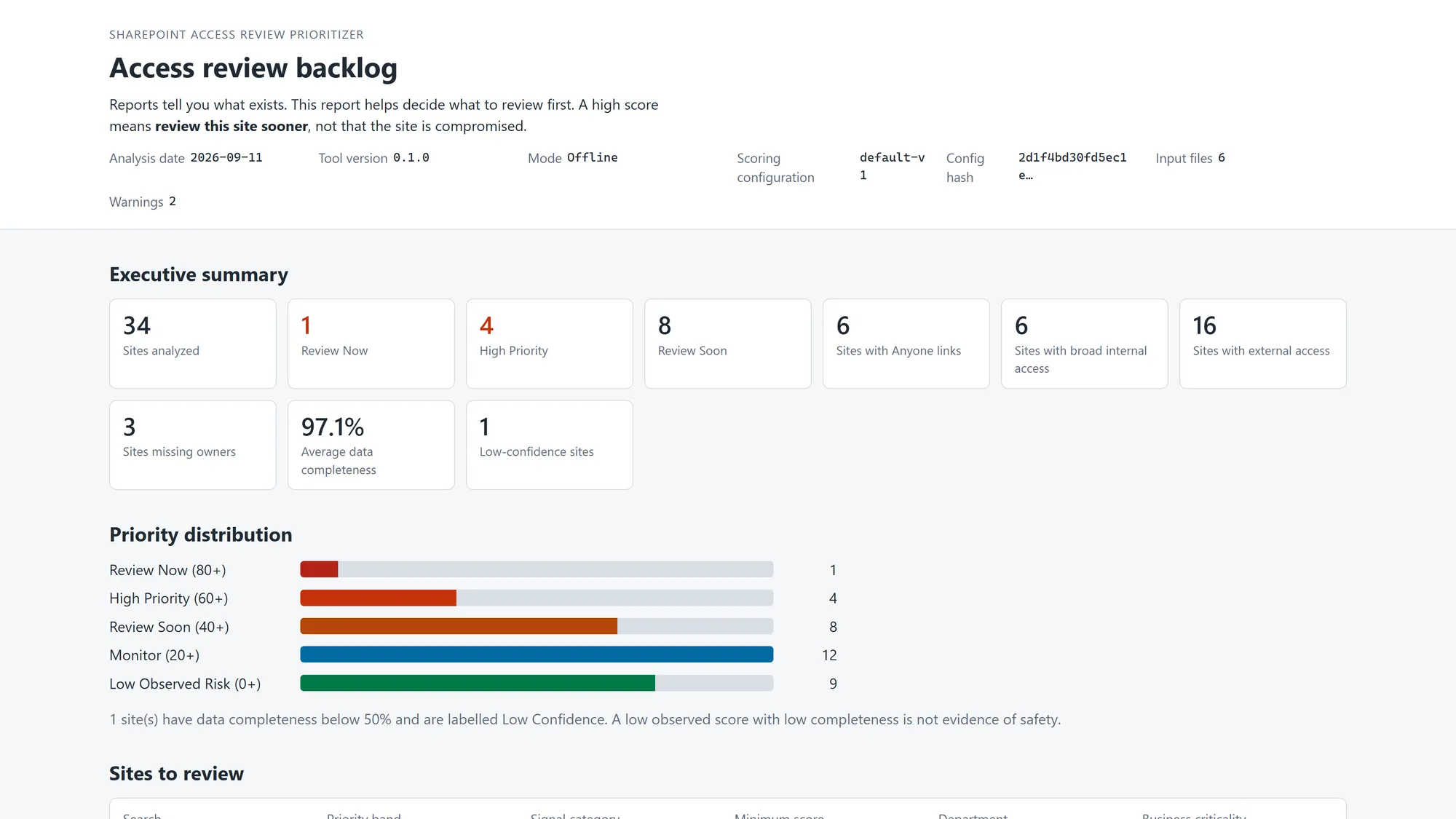
- It lists recipients, not a missing-account flag. Take the external addresses from the User E-mail column and check each one against the guests in Entra. Not every external person in the report needs fixing.
- It doesn’t show everything. Anyone links aren’t included, and neither are links that were emailed but never opened.
- It runs per site, by a site admin.
- The CSV is sensitive. It’s a list of who can open what, and it’s saved to a location you choose on that site, where site members may be able to see it. Pick a folder only admins can open.
For a wider view, Microsoft also mentions the sharing events in the audit log and site sharing data through Microsoft Graph Data Connect.
Start with the places where external collaboration actually happens: client and vendor sites, project sites, board sites, and the OneDrive accounts of people who work with outside partners every week.
Don’t fix it by opening sharing
When a partner can’t get in and a deadline is close, it’s tempting to send an Anyone link or loosen the tenant’s sharing settings for a day. Both widen access for everyone, and loosened settings rarely get tightened again. The fix for this change is narrow: one guest account for one person. If an invite setting or domain rule blocks it, change that rule on purpose, not as a workaround.
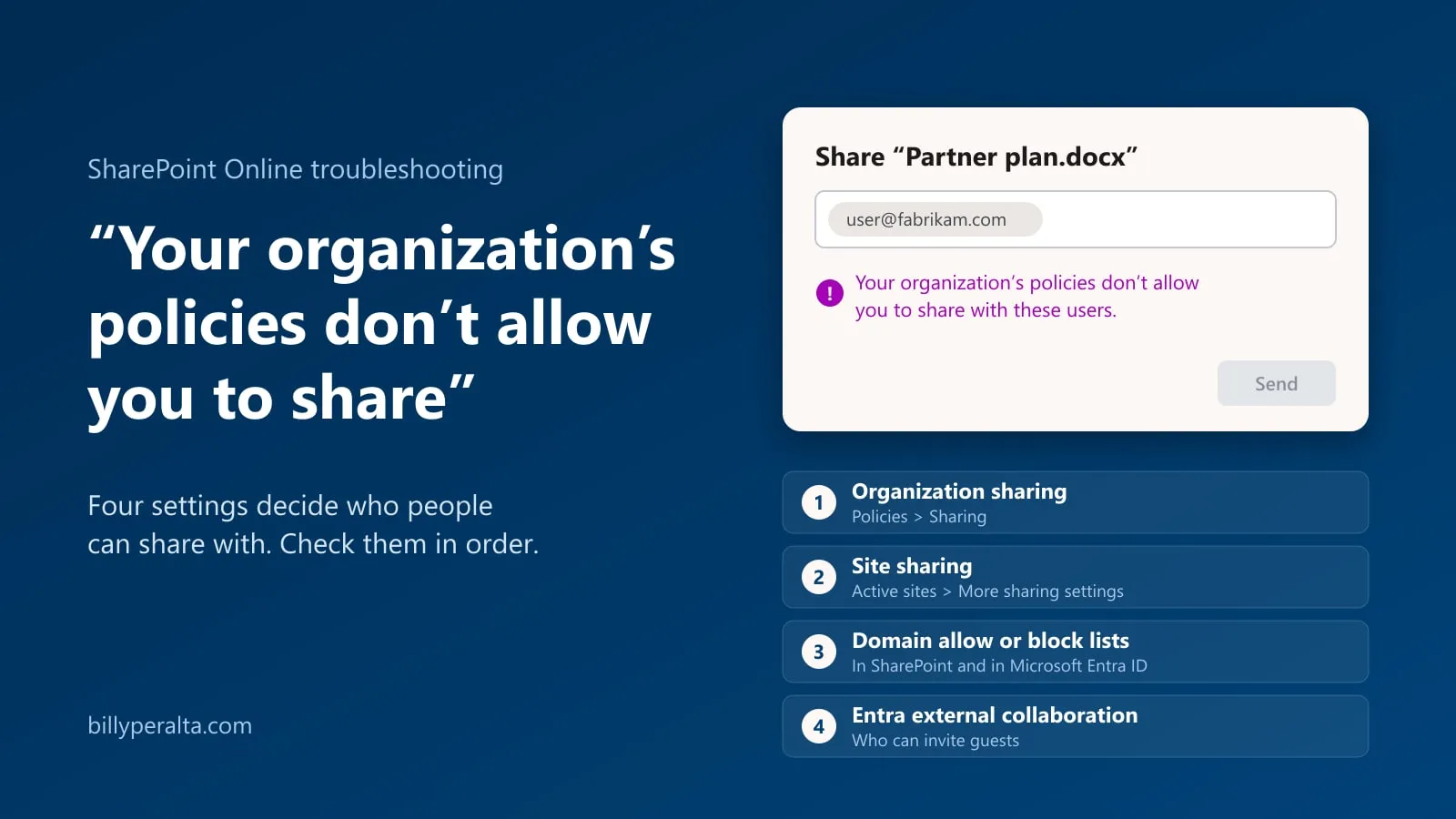
If your external sharing settings haven’t been reviewed in a while, now is a good time. My SharePoint external sharing governance guide covers link policies, guest access and reviews. If people see a different message when they try to share, see Fix “Your organization’s policies don’t allow you to share”.
A checklist for this week
- Check MC1243549 in your Message Center for your tenant’s status.
- Tell the help desk and site owners what the symptom looks like, and that the fix is a reshare or a guest invite, not an Anyone link.
- In Entra, review the guest invite settings, collaboration restrictions and the email one-time passcode setting.
- Check which Conditional Access policies apply to guests, and whether that’s what you intend.
- Run the sharing report on your most-shared sites and OneDrive accounts, and store the CSVs securely.
- Compare the external addresses with your Entra guests, and invite the people who still need access.
- Don’t restore access nobody needs anymore. This is a good moment to let old shares go.
- If you support several tenants, run this in each one, starting with the clients who share the most with outside partners.
Not sure which guests and sites are affected?
If your organization depends on external collaboration and you're unsure which guests, sites or sharing policies are affected, I can help review the current setup and prioritize the fixes without unnecessarily opening access.
Free SharePoint planning resource
Before expanding Microsoft 365 usage, review your SharePoint risks.
Use the readiness checklist to review permissions, ownership, external sharing, retention, and lifecycle gaps before they become production issues.
Get the Checklist
SharePoint architect & Microsoft 365 consultant • 16+ years of experience
If you have questions about your SharePoint environment, feel free to reach out.